
By Noah Sanchez, Streaming & IPTV Editor · Last reviewed: 20 October 2026
Most cases of IPTV not working are local, not the provider’s – the app, the device or the home network usually breaks before the servers do. The fastest route to a fix is to isolate which layer has failed, because each layer leaves different symptoms and responds to different remedies. What follows is an ordered diagnostic routine for UK cord-cutters, written on the assumption that you have changed nothing and simply want the picture back.
Key takeaways
- Three layers fail before the provider does: the app, the device, and the router or Wi-Fi. Test them in that order.
- One channel failing is usually a stream problem; every channel failing is usually yours or the service’s.
- A proper power cycle, on both device and router, resolves a surprising share of cases – but only when done with the power actually removed.
- Record times, channel names and the exact error text before you contact support, because vague tickets tend to receive vague answers.
- Nothing here confirms that any channel or service is licensed. Availability and legality depend entirely on the service you bought.
Why “IPTV not working” covers at least six different faults
The phrase describes a symptom, not a diagnosis, and the six faults behind it need different fixes. A black screen inside the app, a playlist that will not authenticate and a stream that stutters at 9pm are not variations of one problem. Treating them as one wastes an evening and, occasionally, a subscription.
The six, in roughly the order UK viewers report them:
- The app fails to launch, or launches and closes within seconds.
- The app opens but the playlist will not authenticate – a login or expiry error.
- The playlist loads, but individual streams refuse to play.
- Streams play but buffer, freeze or drop resolution continuously.
- Channels, groups or EPG data are missing or mislabelled.
- Everything fails at once, on every device in the house.
Only the last of those reliably points at the provider. The other five can originate in the app, the device, the router, the ISP, or a combination of them – which is why the routine below starts with questions rather than fixes.
A note on channels and legality: the fact that a channel appears in a playlist does not mean that the service is authorised to carry it. Channel availability, catch-up rights and regional variants depend entirely on the service you bought, and should not be assumed without documentary evidence from the provider.
Using Smarters? Follow our IPTV Smarters not working guide for targeted Firestick and Android TV checks, login errors, buffering, playback failures and missing EPG.
01: Start with the three questions that narrow it down
Three questions, asked in order, will usually halve the possible causes before you touch a single setting. None of them is technical. They are about scope – how wide the failure reaches.
Question one: does it fail on one device or every device? If a second device on the same network plays normally, the fault sits in the first device or its app, not in the service. If both fail identically, look at the network or the provider.
Question two: does it fail on one channel or every channel? One channel failing while another plays points to a stream or source issue. Every channel failing points to authentication, the network, or an outage.
Question three: does it fail all day or only at certain times? A fault that appears between roughly 8pm and 11pm and clears by midnight usually tracks household or neighbourhood demand. A fault that never clears usually tracks something broken.
If you have already searched for why is my IPTV not working and landed on a list of random fixes, this is where to start instead. Work through the decision list before you change anything:
- ✓ Second device works, first does not → device or app fault; go to section 03.
- ✓ All devices fail, one channel only → likely a stream problem; note the channel and the time.
- ✓ All devices fail, all channels, after 8pm → network contention or provider load; see section 06.
- ✓ All devices fail, all channels, at any hour → authentication, ISP-level block or an outage; see sections 05 and 07.
- ✓ Playlist loads but nothing plays → usually decoder settings or an expired line; check both.
- ✓ Nothing loads and the app lists zero channels → the provider’s status page first, then support.
02: Is it the app, the device, the broadband or the provider?
Thinking in layers is faster than guessing at random, because each layer leaves a fingerprint. A provider outage tends to hit every device and every channel at once. A Wi-Fi problem usually shows up on the furthest device first. An app fault often survives a restart but clears after a cache wipe or a clean reinstall.
| Fault symptom | Likely cause | First check |
|---|---|---|
| App will not open, or closes on launch | Corrupted update, app cache, low storage | Restart the device, then clear the app cache |
| Black screen with working sound | Decoder or stream-format mismatch | Toggle hardware/software decoding in app settings |
| One channel buffers, others play | Single stream or source issue | Try a second channel at the same moment |
| Everything buffers after 20:00 | Household demand, Wi-Fi congestion, ISP peak | Retest wired at the same hour |
| “Invalid username or password” | Credentials, expiry, device limit | Check subscription status with the provider |
| Channels missing but playlist loads | Group filters, stale playlist, regional variant | Refresh the playlist and check category settings |
| Works on mobile data, fails on home Wi-Fi | Local network, router or DNS | Compare both connections back to back |
| Nothing loads, zero channels listed | Provider outage or ISP-level block | Provider’s status page, then support |
| Buffering on every channel, every evening | Provider load or local congestion | Depends on the provider – wired test first |
“Depends on the provider” is the honest answer for several of those rows. Device limits, supported apps and stream formats are set by the service rather than by the app store, so a fix that works on one subscription may be entirely irrelevant on another.
03: Fixes for a black screen or app that will not open
A black screen is usually a rendering or decoder problem rather than a dead subscription. IPTV not working on Firestick, Android TV boxes and smart TVs very often reports itself this way, and the app itself is rarely at fault. Work down the list and stop as soon as the picture returns.
- Restart properly. Use the device’s own restart option rather than standby; where there is no such option, remove the power for around 30 seconds. Amazon’s guidance on restarting a Fire TV device covers the settings route.
- Clear the app cache, not the app data. Cache clearing removes temporary files; data clearing removes your login and playlist, which you will then have to re-enter.
- Switch the decoder. Hardware decoding is usually faster, software decoding often more tolerant. If you have sound but no picture, toggle between them and retest the same channel.
- Check free storage. A device with almost no space left frequently fails to open larger apps, or closes them after a few seconds.
- Reinstall the app. This is the reliable fix for a corrupted update, but only attempt it with your login details to hand.
- Try the same login on a phone. If it works there, the account is live and the fault is the device or the app build. Amazon also publishes help for apps that crash or will not load on Fire TV, which applies to most IPTV players on that platform.
If the screen stays black after all six, the remaining suspects are the device firmware and the provider’s stream format. Both are worth naming in a support ticket. IPTV Smarters not working on a device that worked yesterday is usually one of the six above, not a sudden change of policy.
04: Fixes for buffering and freezing
Buffering is a symptom of a bottleneck, and the bottleneck is often closer to you than to the server. The real question is whether the stream degrades before it reaches your router. Test in this order, because each step removes a variable.
- Identify the pattern. Note whether the freezing affects every channel or a handful, and at exactly what time. That single note often tells support more than any log.
- Retest on a wired connection where the device permits it. Ethernet removes Wi-Fi from the equation entirely.
- Move between 2.4 GHz and 5 GHz. The 5 GHz band usually performs better in the same room; 2.4 GHz often carries further through walls.
- Pause other heavy traffic. Simultaneous 4K streams, large downloads and cloud backups compete for the same bandwidth.
- Increase the buffer size in the player’s settings. A larger buffer trades a slower start for fewer interruptions.
- Try a different stream of the same channel where the service offers one.
- Compare against a mainstream app such as BBC iPlayer at the same moment. If iPlayer is smooth and your playlist is not, your line is probably fine.
Buffering that only begins in the evening is not proof of a bad service. It is equally consistent with local congestion and with provider-side load, and only a wired test at the same hour separates the two.
05: Fixes for missing channels, EPG or login errors
Missing channels, an empty guide and a rejected login are three different faults that frequently get reported as one. The common thread is that the playlist and the account are involved, so the fix usually involves refreshing rather than rebooting.
- ✓ Refresh the playlist. Most players fetch the channel list on a schedule; a manual refresh picks up changes the provider has already made.
- ✓ Check the category filter. A hidden group or a disabled “all channels” toggle can make dozens of channels appear to vanish.
- ✓ Confirm the account is still active. Expiry is the most common cause of a sudden login rejection, and it is the first thing to rule out.
- ✓ Re-enter credentials by hand. Copied passwords often carry a trailing space, producing an error that looks like a server fault.
- ✓ Respect the device limit. Many subscriptions allow one or two simultaneous connections; a third device will usually be refused.
- ✓ Refresh the EPG separately. IPTV EPG not working is often its own fault, because guide data is fetched from a different source to the channel list.
- ✓ Check for a regional variant. UK feeds, Irish variants and international versions of the same channel are usually separate entries.
A channel appearing in a playlist does not mean the service is authorised to carry it, nor that it will stay. Line-ups change without notice, and the reasons are rarely shared with customers.
06: What to check on your broadband before blaming the service
A connection that feels fast can still be unsuitable for live streaming, because stability matters more than headline speed. A speed test measures a moment; a live stream needs consistency for ninety minutes. Start with your router’s own statistics, and test at the hour you actually watch.
- ✓ Run a speed test at the hour you watch, not at midday.
- ✓ Check whether the figure is per household rather than per device.
- ✓ Look for packet loss or latency spikes, which disrupt live streams more than a lower download figure does.
- ✓ Test with a wired laptop or TV box to separate Wi-Fi from the line itself.
- ✓ Compare against Ofcom’s published UK home broadband performance reports, which describe typical peak-time behaviour by package type.
Ofcom’s figures describe averages, not your line, and they should be read as context rather than evidence. If your connection performs far below the typical figure for its technology, that is a conversation for your ISP – although IPTV not working on a smart TV while a laptop streams perfectly suggests a Wi-Fi or app problem long before it suggests a line fault.
07: When the fault really is the provider’s
Some failures genuinely belong to the service, and pretending otherwise wastes your evening. The strongest signals are simultaneous and universal: every device, every channel, and no change after a full power cycle of both device and router.
Indicators worth taking seriously:
- The provider’s own status page or update channel reports an incident, or other users report the same fault at the same minute.
- A login is rejected on a device that worked an hour earlier, with no change to the account or the network.
- One entire group of channels disappears while the rest of the playlist plays normally.
- Support acknowledges a known issue, or replies with a timeframe rather than a template.
A status page that has not been updated in months is not evidence either way. Many small services keep none at all, which is itself useful information about how they operate.
08: What to tell support so you get a useful answer
Vague tickets receive vague answers, and most first-line replies are written from a template. Give the agent enough structure to skip the template and reach your actual fault.
Send it in one message:
- ✓ Your account reference or username – never the full password.
- ✓ The device and app name, plus the app version if you can find it.
- ✓ The exact error text, photographed or copied, rather than paraphrased.
- ✓ Two or three channel names that fail, and one that works, if any.
- ✓ The times of failure, with the time zone stated.
- ✓ What you have already tried, in order: restart, cache clear, wired test, reinstall.
- ✓ Whether a second device on the same network shows the same fault.
Ask one question per message and keep the thread. Conversations split across email, a website chat and WhatsApp usually lose the history that would have solved the problem.
09: What not to do when your IPTV stops working
Most of the damage in a failed troubleshooting session is self-inflicted, and it happens in the first ten minutes. These are the moves that most often turn a recoverable fault into a lost evening.
- Do not factory reset the device first. It removes every app, login and preference, and it will not repair a service-side fault.
- Do not change the DNS, the VPN and the router settings at once. If the picture returns, you will not know which change did it.
- Do not cancel before confirming the account is active. Expiry and cancellation look identical from inside the app.
- Do not buy a second subscription to “test” the first. Two accounts on one connection usually produce confusing results.
- Do not share your login to test on someone else’s TV. Device limits and simultaneous-connection rules can suspend an account.
- Do not send payment to a support agent outside the official channel, whatever the urgency of the message.
The eight-step diagnostic sequence to follow in order
Worked in order, these steps separate local faults from provider faults without any specialist tools. Keep the sequence as a record; it is also the structure a support agent will want.
- Restart the app, then the device, using a full power cycle.
- Test a second channel on the same device.
- Test the same account on a second device on the same network.
- Test the second device on mobile data, if the app allows it.
- Retest on a wired connection at the same time of day.
- Clear the app cache, then toggle the decoder setting.
- Check the provider’s status page and the account expiry date.
- Contact support with times, channel names and exact error text.
Before you subscribe: what a good service should tell you
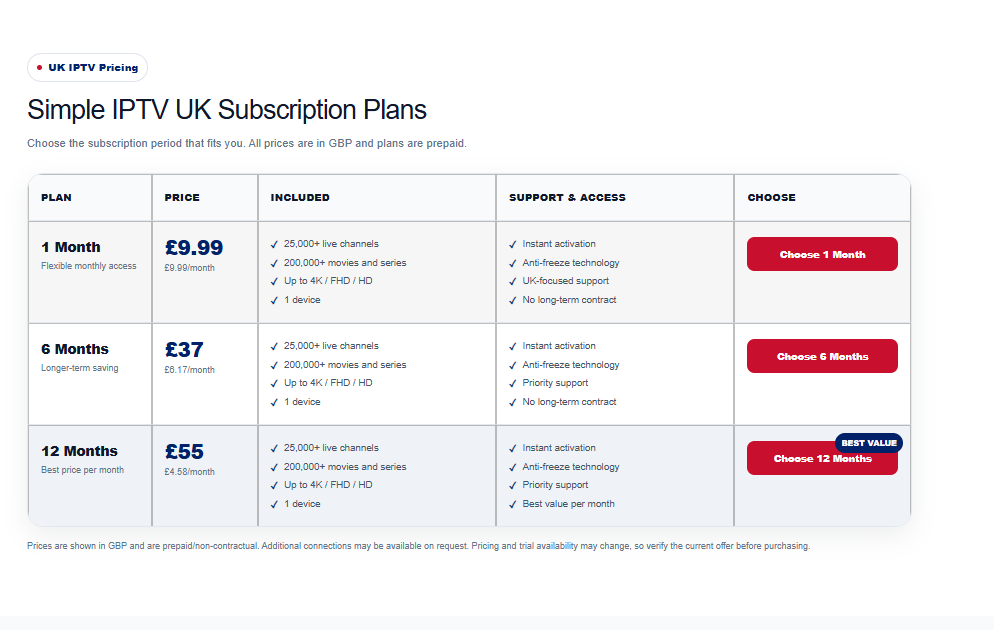
You learn more about a service from what it publishes before you pay than from what it promises afterwards. Troubleshooting information is the clearest signal of all, because a provider that expects you to fix things locally will normally document how.
Look for a named support channel with a response window, a status or updates page that is actually maintained, and a knowledge base with device-specific steps. Check whether the service states its device limit, its supported apps and its peak-hour policy in writing. Ask, before paying, what happens to your remaining time if the service goes down for a day.
None of that tells you whether a service is licensed, and no marketing copy should be read as confirmation. Availability, legality and channel rights depend entirely on the service purchased, and should not be assumed without documentary evidence. If a provider cannot explain plainly what it is selling, treat that as the answer.
TREX IPTV Not Working?
Using TREX IPTV? If your login fails, playlists disappear or streams keep buffering, follow our TREX IPTV not working guide to identify the fault and choose the right troubleshooting steps for your player, account or channel.
Where to go next
Once you have narrowed the fault down, the page worth reading is the one about your device, your player or your symptom. Each of the guides below goes deeper on a single case, and each starts from local causes rather than from the server.
| If your problem is… | Read this next | Why |
|---|---|---|
| A Firestick black screen or an app that crashes on launch | /iptv-for-firestick-uk/ | Fire OS faults usually clear locally, although some depend entirely on the app build. |
| Smart TV setup across Samsung, LG and Hisense | /iptv-for-smart-tv-uk/ | Menu names and app stores differ by brand, so brand-specific steps usually save an hour. |
| Hisense VIDAA app problems | /iptv-hisense-vidaa/ | VIDAA’s app store is narrower, and not every player is published there. |
| A Samsung Smart TV that will not install or open the app | /iptv-for-samsung-smart-tv-uk/ | Tizen handles installation differently, which can look like a broken subscription. |
| An LG Smart TV whose webOS settings refuse to take | /iptv-for-lg-smart-tv-uk/ | Permission and storage limits often explain an app that closes on launch. |
| A Roku device with no app, or a channel that will not load | /iptv-for-roku/ | Roku’s channel store is restricted, so the workaround depends on the model. |
| Chromecast or Google TV casting and setup | /iptv-chromecast-google-tv/ | Casting and native apps fail for different reasons, so the fix is rarely the same. |
| An Nvidia Shield with decoding or performance faults | /iptv-nvidia-shield-uk/ | Shield settings are unusually deep, and a wrong decoder flag can blank the picture. |
| Apple TV app or AirPlay trouble | /iptv-apple-tv/ | tvOS restrictions usually explain a player that installs but will not log in. |
| Choosing a player | /tivimate-vs-iptv-smarters-pro/ | The player shapes the buffer, the EPG and the decoder, so it matters before you troubleshoot. |
| IPTV Smarters login and settings | /iptv-smarters-pro-guide/ | Most Smarters errors trace back to a credential stored with a trailing space. |
| Buffering rather than total failure | /why-does-iptv-buffer/ | A stream that plays badly and a service that sends nothing are different faults. |
| Checking your plan or device limit | /iptv-subscription-uk/ | Expiry and connection limits are set by the provider, so confirm the terms in writing. |
| Testing a service before paying | /free-trial-iptv-uk/ | A trial on your own setup, at the hours you watch, is the only reliable evidence. |
| UK regional channel questions | /iptv-by-location/ | Regional feeds vary by service and should not be assumed from a playlist entry alone. |
FAQ
Why does IPTV work on my phone but not my TV?
Because the two devices share an account but not a network path, an app build or a decoder. The phone is often on mobile data, which bypasses your router entirely, and its app may be a newer and more tolerant build. Test the TV on a wired connection, compare the app versions, and check whether the TV is hitting the service’s device limit.
Why do some channels work and others do not?
A partial failure points to individual streams, groups or regional variants rather than to your account. Refresh the playlist, check for hidden groups, and note whether the missing channels work at other times of day. Where they fail consistently across every device, report the specific channel names – that is information a provider can act on.
Does a VPN fix IPTV?
Sometimes it changes the symptom, which is not the same as fixing the fault. A VPN can bypass an ISP-level block or an awkward routing path between you and a server, but it also adds overhead and may reduce throughput. Test with it off first, then on, on the same channel, and keep whichever result is measurably better.
Why does IPTV stop working at peak times?
Evening failures are consistent with local congestion and with provider-side load, and the two look identical from the sofa. Neighbourhood broadband demand, household streaming and a service’s own capacity all rise in the same hours. A wired test at 9pm is the most reliable way to separate them, because it removes your Wi-Fi from the chain.
How do I know if my provider is down?
Check the provider’s status page or update channel, then test the account on a second network. If the login is rejected on mobile data as well as on home broadband, the account or the service is the likelier cause. If the second network works, the fault sits in your home connection.
Should I factory reset my device?
Only after everything else has failed, and only with your login details written down. A reset removes every app, credential and preference, and it will not repair an outage or an expired account. Restarting, cache clearing and reinstalling resolve most device-level faults without it.
What if the app shows no channels at all?
An empty playlist usually means the account or the provider connection has failed, not that the device has. Confirm the subscription is active, force a playlist refresh, and check whether other streaming apps on the same device can reach the internet. If nothing loads anywhere, check the provider’s status before changing any settings.
Test the service on your own setup, at the hours you actually watch, before you commit to anything. Start Our Free Trial and run the eight steps above inside the trial window; if the picture holds at 9pm on your own connection, you have your answer.