
TiviMate is our No. 1 editorial choice for the best IPTV player for NVIDIA SHIELD TV, followed by iMPlayer at No. 2 and Televizo at No. 3. TiviMate takes the top position because its documented design focuses on Android TV, large screens and remote-control navigation, with programme-guide, recording and multiview features. This is a feature-based ranking, not an independently tested performance benchmark.
Choose iMPlayer if you want another television-focused player with customisable controls, recording and on-demand features. Choose Televizo if you prefer a player that also supports phone and tablet use alongside TV viewing.
Best SHIELD IPTV players
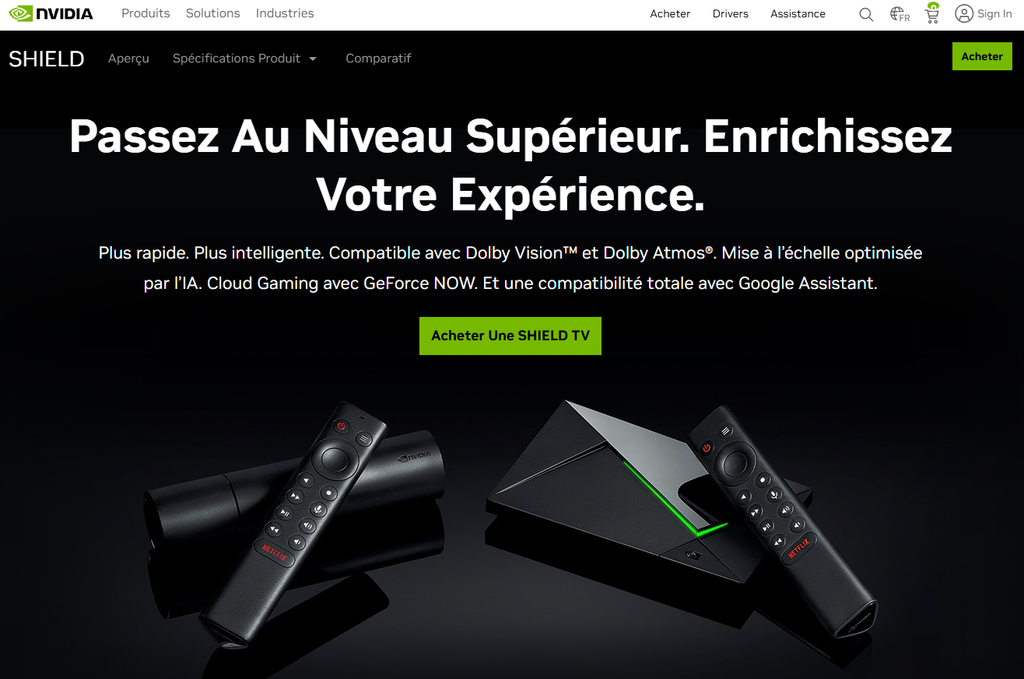
The best IPTV app for NVIDIA SHIELD TV should fit your account format, viewing habits and budget. Compare supported features before paying, and confirm installation availability on your own device.
| Editorial rank | Player | Best suited to | Documented features | What to check |
|---|---|---|---|---|
| No. 1 | TiviMate | Remote-controlled television viewing | M3U, Xtream Codes and Stalker Portal support; EPG; multiple playlists; recording; multiview | Current premium restrictions and account compatibility |
| No. 2 | iMPlayer | Customisable TV viewing and media management | Live TV workflows, VOD, downloads, recording and customisable controls | Supported account formats, installation requirements and paid features |
| No. 3 | Televizo | Viewing across TV, phone and tablet | Multiple playlists, EPG, catch-up, favourites, parental controls and track selection | Current free-versus-premium limits and TV navigation |
These features are documented by the developers. Their availability can depend on the application’s payment tier, your content source and your setup.
No. 1: TiviMate
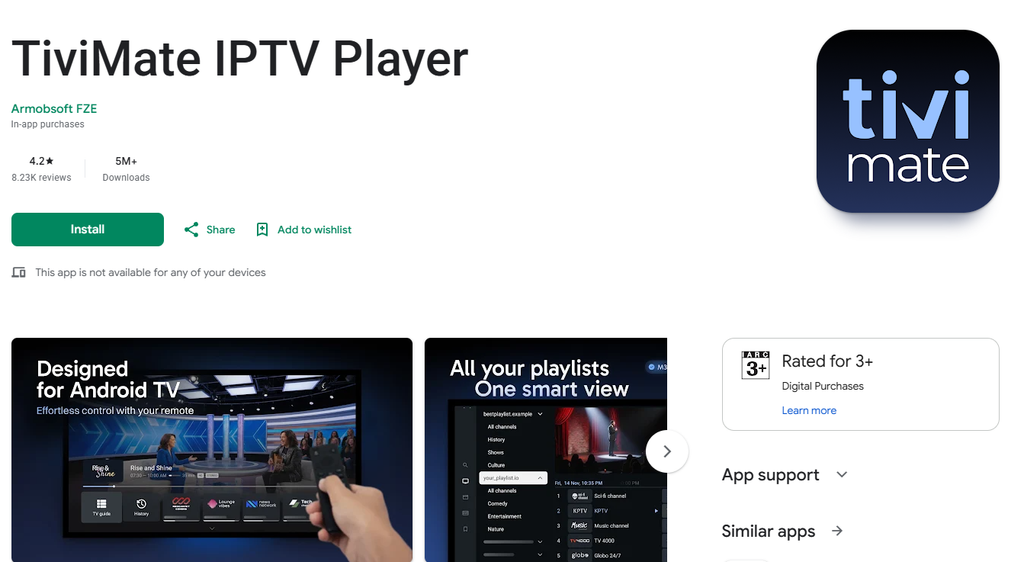
TiviMate is our first choice for readers who mainly watch IPTV on a television using the SHIELD remote. Its official listing explicitly states that it is designed for Android TV and remote controls rather than touchscreen phones or tablets.
The player supports M3U playlists, Xtream Codes and Stalker Portal inputs. Its documented features include a grid-style electronic programme guide, multiple playlists, favourites, search and parental controls.
TiviMate also advertises catch-up, recording and multiview. Check which features require Premium before purchasing, and remember that a listed feature does not establish that your content account supports it.
Install the player, not just TiviMate Companion. The Companion application manages Premium activation and devices; its listing explicitly says it is not an IPTV player.
Before choosing a content account, review our IPTV provider comparison and confirm that your selected service supplies a format supported by the player.
Recording to an external drive on SHIELD? Read our guide to TiviMate record to USB to choose between FAT32, exFAT and NTFS, and to avoid formatting a drive you still need.
No. 2: iMPlayer
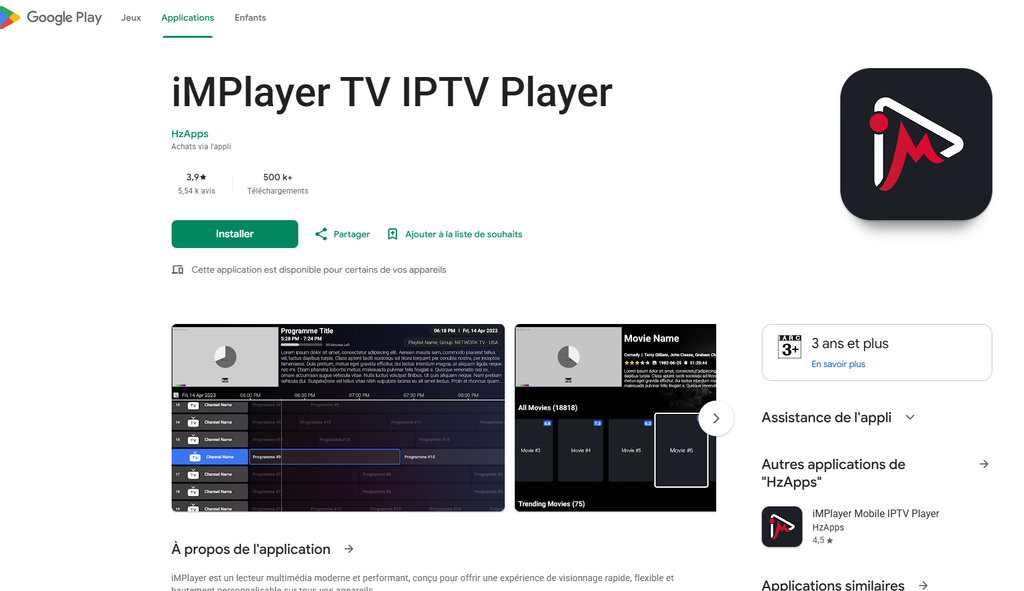
iMPlayer is our second editorial choice for NVIDIA SHIELD TV. Its developer documents live TV workflows, on-demand content, downloads, recording and customisable interface controls.
Consider it if you want to compare a different interface and management approach with TiviMate. The developer’s installation documentation covers Android TV and Google TV boxes, among other platforms.
Review its current purchase terms and supported account formats before committing. Do not assume that a subscription bought for another player unlocks iMPlayer.
Keep application charges separate from the cost of your content account when comparing IPTV subscription UK plans.
No. 3: Televizo
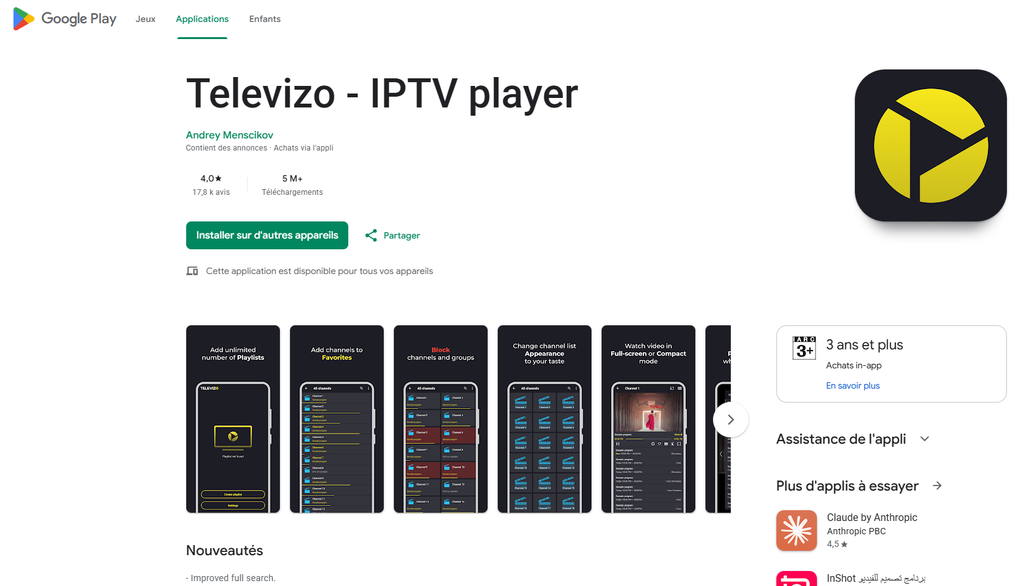
Televizo takes third place in this comparison. Its official listing describes a player for phones, tablets and TVs, making it an option for readers who want to use the same application family across different screen types.
Documented features include multiple playlists, an electronic programme guide, catch-up, favourites, searching and sorting. The listing also names video-track, audio-track and subtitle selection.
Televizo does not supply content. Its developer states that users must add their own playlist and that the application is not affiliated with third-party content providers.
SHIELD TV and TV Pro
Use the same selection process when researching an IPTV player for NVIDIA SHIELD TV Pro. Check the player’s availability, account compatibility and required features rather than assuming the Pro model needs a completely different application ranking.
If you are comparing a SHIELD box with applications installed directly on a television, read our IPTV for Smart TVs guide.
Install and configure IPTV
NVIDIA describes SHIELD as an open platform with access to applications through Google Play. Start with the official store listing when your chosen player is available there.
Install your chosen player
Check the exact application name before installation. Similar-looking names can refer to different products, and a companion or account-management application may not provide playback.
- Open Google Play on your SHIELD.
- Search for the exact player.
- Review its developer and device availability.
- Install the application.
- Open it and review the setup options.
- Add your supported authorised account or playlist.
- Test playback before purchasing additional features.
For iMPlayer, follow the developer’s current installation documentation if you need instructions beyond the store route. Its guide covers Android TV and Google TV boxes.
Add an M3U playlist
TiviMate explicitly supports M3U playlists. Use its playlist setup option when your authorised service supplies an M3U address.
Enter the complete address as supplied, including any required parameters. Keep credential-containing playlist URLs private and avoid exposing them in screenshots.
Do not assume that successfully loading a playlist means every stream is playable. Test the channels and on-demand items you actually intend to watch.
If you need help confirming the account format before purchasing, contact United Kingdom IPTV with your device and player details.
Add Xtream account details
TiviMate lists Xtream Codes support. Choose that input method when your account supplies a server address, username and password.
Enter the details carefully and check the address before reinstalling the application. Follow the player’s own menus rather than instructions written for a different app.
Our IPTV Smarters setup guide explains common account details, but its menus should not be treated as identical to TiviMate or iMPlayer.
Configure the programme guide
TiviMate and Televizo both document electronic programme-guide support. Check the application’s guide settings and whether your authorised source supplies the required programme information.
Test the guide separately from playback. A channel can load while its schedule information is missing or incorrectly matched.
Check recording and multiview
TiviMate advertises recording and multiview, while iMPlayer advertises recording. Verify the current payment requirements and setup instructions before relying on these features.
Check your content account’s connection allowance before opening several streams. Do not assume that a player feature overrides subscription limits.
Review the connection conditions on your chosen IPTV subscription plan before planning simultaneous viewing.
Free and paid features
The best free IPTV player for NVIDIA SHIELD TV depends on what you need without paying. Compare the current free-tier restrictions rather than assuming that a free installation includes every advertised feature.
Check Premium requirements
TiviMate has Premium functionality, and its Companion app can manage activation on devices without Google Play. The Companion app does not play channels itself.
Televizo also has a Premium version. Its Companion application manages the Televizo account, devices and Premium activation; it is not a video player.
Review the current purchase screen for exact costs and renewal conditions. This comparison does not claim that all three players provide permanently unrestricted free use.
Separate player and content costs
A player upgrade and a content subscription are different purchases. Televizo, for example, explicitly states that it supplies no content and requires your own playlist.
Review IPTV subscription UK plans for current account terms and connection limits. Confirm content authorisation separately from application compatibility.
Use our IPTV provider comparison when reviewing service options. A supported playlist format alone does not establish a provider’s quality or distribution rights.
Test before committing
Test several authorised streams before purchasing longer access. Check remote navigation, programme information and any audio or subtitle options you need.
When comparing IPTV UK options, consider the total cost of player upgrades and content access rather than only the first payment.
Explore United Kingdom IPTV for the site’s available guides and account options, then verify the conditions relevant to your SHIELD setup.
Personal viewing and business accounts
Keep personal viewing plans separate from business enquiries. A consumer subscription should not be assumed to include commercial distribution or resale rights.
If your enquiry concerns business account management, review the IPTV reseller UK page and verify commercial rights and obligations before purchasing.
Fix SHIELD IPTV problems
Identify the exact failure before changing applications. Login errors, missing programme information and playback problems require different checks.
Login or server errors
Check the selected input method and compare the account details with those supplied by your provider. Record the exact error rather than describing every failure as “IPTV not working.”
Ask your provider to verify the account’s status when the details appear correct. Avoid posting passwords or playlist addresses in public support messages.
If you are unsure which details belong in each field, the Smarters account setup guide provides background on common login formats. Follow your chosen player’s actual menus.
Channels load but will not play
Test more than one stream to establish the scope of the problem. Note whether it affects one channel, all live channels or only on-demand items.
Compare the result with another supported viewing method if your account permits it. Respect simultaneous-connection limits while testing.
Buffering during playback
Do not assume that the No. 1-ranked player can eliminate buffering. The editorial ranking in this article does not establish a guarantee of playback performance.
Record when buffering happens and which streams are affected. Check the application’s support guidance and ask your provider to investigate the affected content before buying another subscription.
Missing programme information
Review the guide source and the application’s documented refresh process. TiviMate and Televizo list EPG support, but the feature still needs usable programme information.
Avoid repeatedly reinstalling the application without first checking the guide configuration.
Audio or subtitles are missing
Televizo documents audio-track and subtitle selection. Check the available tracks on the affected stream before assuming the entire player is incompatible.
Include the app version, stream and selected track when requesting help.
Get compatibility help
Contact United Kingdom IPTV with your SHIELD model, player name and exact error message. Keep passwords and credential-containing addresses out of public screenshots.
NVIDIA SHIELD IPTV FAQ
What is the best IPTV player for NVIDIA SHIELD TV?
TiviMate is our No. 1 editorial choice because it is designed for Android TV and remote-control navigation, with documented programme-guide, playlist-management, recording and multiview features. The ranking is based on documented features rather than comparative hands-on testing.
What are the alternatives to TiviMate?
iMPlayer is our No. 2 choice, followed by Televizo at No. 3. iMPlayer documents customisable TV workflows and recording, while Televizo offers playlist, guide and track-selection features across phones, tablets and TVs.
Can I use TiviMate on NVIDIA SHIELD?
TiviMate is designed for Android TV, and NVIDIA confirms that SHIELD supports applications through Google Play. Check the listing on your device to confirm current installation availability.
What is the best IPTV app for SHIELD TV Pro?
TiviMate is also our first editorial option to investigate for SHIELD TV Pro. Confirm availability and account support on your own device before paying; the player’s documented design focuses on Android TV and remote controls.
Can I add an M3U playlist?
Yes. TiviMate’s official listing explicitly documents M3U support. Use an authorised playlist and follow the application’s setup instructions.
Does TiviMate support Xtream Codes?
Yes. Its official listing names Xtream Codes alongside M3U and Stalker Portal support.
Can I record IPTV on SHIELD?
TiviMate and iMPlayer advertise recording features. Check their current payment requirements, storage instructions and your content terms before using them.
What is the best free IPTV player?
This comparison does not establish a permanently unrestricted free winner. Check the current free features and Premium requirements of each application before choosing.
Does the player include a subscription?
Do not assume that installing a player supplies channels. Televizo explicitly states that users must add their own playlist because it provides no content.
Should I use SHIELD or a television app?
Compare installation availability, account compatibility and the features you need on each device. Our Smart TV IPTV guide provides a related starting point for researching television-based setups.
What should I check before paying?
Confirm device availability, supported account inputs and current player charges. Test your authorised content, then review the subscription terms before making a longer commitment.