
IPTV Smarters not working? Identify whether the failure happens before login, while loading your playlist or after opening a stream. Then test the same account in another compatible player before renewing your subscription or deleting your settings.
The right fix depends on the symptom. Reported solutions include rebooting the router for a reconnecting loop, changing to MPEGTS for repeated playback failures and reinstalling an updated app for a Hisense VIDAA startup problem. None repairs every installation.
Quick Answer: Choose the Fix That Matches Your Problem
Start with the symptom you can reproduce, then change one setting at a time. This makes it easier to identify which adjustment actually helps.
| Problem | First action | Important limitation |
|---|---|---|
| “Playback error, reconnecting in 3s” | Reboot the router without factory-resetting it | Confirmed by one affected user, not a universal repair |
| Buffering followed by playback failure | Test MPEGTS if your app offers it | Restore the original format if playback does not improve |
| Firestick app freezes or will not load | Close the app and clear its cache | Clearing data is a separate, more disruptive step |
| Android TV box crashes or freezes | Clear the app cache, then retest | Menu labels vary between manufacturers |
| Invalid details or authorization failure | Verify the complete login and test another player | The message does not automatically mean your account expired |
| Channels fail in Smarters but work elsewhere | Use the working player temporarily | Investigate the original app rather than replacing the account |
| Channels play but the guide is empty | Check EPG data separately | Working video does not prove guide data is available |
Use our main IPTV not working guide if the problem affects several players or you need a broader device-and-network checklist.
Why Is Smarters IPTV Not Working?
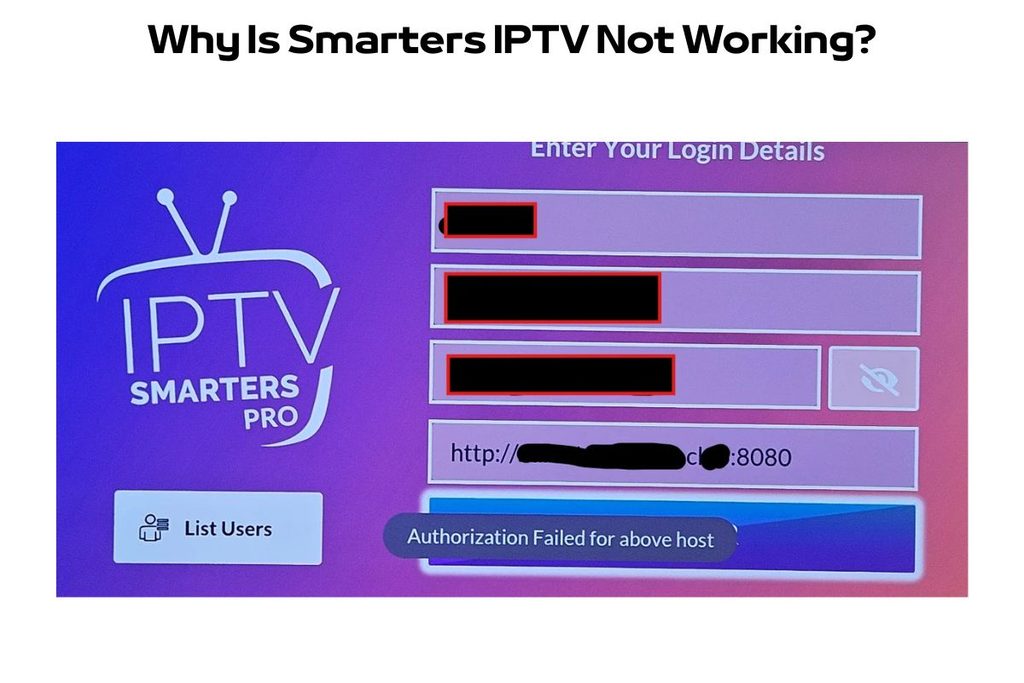
Smarters may fail because of incorrect login details, a local app problem, playback handling or an issue with the supplied service. The stage at which it fails is more useful than the general description “not working.”
The player and your content subscription are separate. Account activation, supplied server addresses and subscription access belong with your content provider; reproducible app failures belong with the player’s support team.
Identify the Failure Stage First
Check the last thing that works before changing your configuration. A startup failure needs a different investigation from a channel that loads but repeatedly stops.
Use these four checkpoints:
- Does the app reach the login screen?
- Does it accept your account?
- Does the channel or movie list appear?
- Does the selected stream play?
Record the exact message, app version and device. If you need to check the original setup, follow our IPTV Smarters Pro guide before replacing account details.
Is There a Problem With IPTV Smarters Today?
A failed channel does not establish a current Smarters outage. Test another channel and another compatible player before treating the problem as service-wide.
A status page is not conclusive unless it explains what it monitors. A website availability check does not necessarily test your provider’s login host, playlist or live streams.
Compare the Same Account Without Changing Everything
Keep the account details unchanged when comparing players. Reported cases include channels failing in Smarters while playing in VLC, and credentials working on an Android box while failing directly on a television.
Follow this order:
- Test another live channel.
- Test one movie or episode.
- Close the original stream.
- Test the account in another compatible player.
- Ask your provider whether the assigned host has an active incident.
Failure in two players is still not a complete diagnosis. Both tests may share the same account, host or connection.
IPTV Smarters Not Working on Firestick
If IPTV Smarters is not working on Firestick, clear the app cache before removing your account configuration. Cache clearing is a device-level troubleshooting step, not proof that the subscription or server is working.
The same approach applies when IPTV Smarters Pro is not working on Firestick. First distinguish an app that will not open from one that opens normally but rejects credentials or fails to play content.
Clear the Smarters Cache on Firestick
Use Fire TV’s application settings to remove temporary files, then test the same action that previously failed.
- Open Settings from the Fire TV home screen.
- Select Applications.
- Open Manage Installed Applications.
- Select your Smarters app.
- Select Force Stop if available.
- Select Clear Cache.
- Reopen the app and retest.
Do not select Clear Data automatically. That is a separate operation and can remove saved logins, preferences and other local configuration.
Clear Data Only After Saving Your Login
Reset local app data only if cache clearing fails and you can restore the account. Save the server address, username, password and any settings you need first.
Return to the same application menu, select Clear Data and re-enter the original account details. Test one channel before restoring every preference so you can check whether the clean configuration helps.
Match the Next Step to the Firestick Symptom
Move to account or playback troubleshooting if the app opens normally after cache clearing. Repeating the same cache operation is unlikely to explain why credentials are rejected or one specific stream fails.
| Firestick symptom | Continue with |
|---|---|
| App will not open or freezes | App cache, local data and installation checks |
| “Invalid Details” | Login format and supplied account details |
| Playlist loads but streams fail | Playback comparison and stream-format testing |
| Only one channel fails | Alternative feed and provider report |
| Guide missing but video works | EPG troubleshooting |
Use a trusted installation route if reinstalling becomes necessary. Avoid replacing the app with an unidentified modified APK simply because its filename includes “Smarters.”
IPTV Smarters Pro Not Working on Android TV Box
If IPTV Smarters Pro is not working on an Android TV box, check the app separately from the account. Start with cache clearing for freezing or crashes, and use another compatible player to investigate login or playback failures.
Android TV menu names vary by device. Many boxes place app controls under Settings → Apps → See all apps, but some use different labels.
Clear Cache Before Resetting the Android App
Clear temporary files first, then reopen Smarters and repeat the failed action. Manufacturer guidance recommends trying cache clearing before clearing app data.
- Open Settings.
- Select Apps or See all apps.
- Select the affected Smarters installation.
- Open its storage controls if required.
- Select Clear Cache.
- Reopen the app and test.
Clear Data or Clear Storage only after preserving your configuration. This resets the app’s local state and may require you to sign in again.
Test MPEGTS for Repeated Playback Failures
Test MPEGTS if live channels buffer and then produce a playback error. A discussion involving an MXQ Pro box included a participant who reported success with this change, followed by another positive reply.
Note the original streaming format, select MPEGTS if your build supports it and reopen the affected channel. Restore the original setting if there is no repeatable improvement.
Test beyond the previous failure point. If playback normally stops after five minutes, a 30-second test does not demonstrate that the problem is resolved.
Compare Another Player on the Same Box
Use another compatible player without changing the account or connection. If the same content works there, investigate the original Smarters installation before replacing the subscription.
Our TiviMate vs IPTV Smarters Pro comparison explains differences between the players. Check current compatibility and feature terms rather than assuming an alternative is a guaranteed repair.
Fix “Invalid Details” or “Invalid Username/Password”
Verify the full account details and selected login method before resetting the app. A correct password paired with the wrong server address can still produce a login failure.
Credentials can also work on one device while failing on another. A reported Hisense VIDAA case worked on an Android TV box despite being rejected directly on the television.
Use the Correct Login Method
Match the supplied information to the appropriate input screen. A complete M3U playlist link is not interchangeable with an Xtream-style server address.
| Information supplied | Appropriate input method |
|---|---|
| Server address, username and password | Xtream-style account login, where supported |
| Complete M3U playlist URL | Playlist or M3U URL method, where supported |
Preserve the supplied scheme and port. Check capitalisation and accidental spaces, but do not substitute a different host or switch between HTTP and HTTPS without confirmation.
Test the Account Before Renewing
Compare the unchanged account in another compatible player before assuming it has expired. If it works elsewhere, focus on the failing app or device.
Ask the provider to verify the account and assigned host if it fails broadly. Buying more subscription time is not a useful diagnostic test unless expiry has been confirmed.
Fix “Authorization Failed” or “Failed to Authorize”
Check the account, supplied host and app separately when an authorization message appears. The wording alone does not establish whether the password, server access or local player is responsible.
Use this order:
- Verify the server address, username and password.
- Confirm account status with the provider.
- Test the same account in another compatible player.
- Report the failing app version if the account works elsewhere.
- Ask the provider to test the assigned host if the account fails broadly.
Do not treat changing DNS or buying a VPN as a guaranteed authorization fix. Neither was established as a universal solution in the cases reviewed.
Fix “Playback Error, Reconnecting in 3s”
Try a normal router reboot when this exact reconnecting loop appears. In one detailed report, the affected user confirmed that rebooting the router resolved the problem after clearing the app cache had not.
Use the router’s Restart or Reboot function, then wait for the internet connection to return. Do not press a factory-reset button or erase the router configuration.
Investigate further if the loop returns. The reported success establishes a useful first test, not the underlying cause of every reconnecting error.
Fix IPTV Smarters Buffering and Freezing
Separate a single failing feed from widespread buffering before changing network settings. If only one channel fails, test another supplied feed or report that channel to your provider.
Compare another player if several unrelated channels fail. Keep the account and connection unchanged so the result helps identify whether the original app is involved.
Test the Streaming Format
Try MPEGTS if your app offers it and buffering repeatedly becomes a playback error. Community replies reported success, but the setting should remain a controlled test rather than a permanent assumption.
Save the original format, make the change and test the same channel beyond its previous failure interval. Keep the adjustment only if the improvement is repeatable.
Change One Connection Variable at a Time
Compare available connection options without simultaneously changing the player and channel. A controlled comparison is more informative than restarting everything and not knowing which action helped.
If your device supports Ethernet, compare it with Wi-Fi while keeping the content unchanged. Record the result and include it in your support report rather than treating one successful session as proof of a permanent repair.
Fix Smarters Stuck on a Loading Screen
On Hisense VIDAA, reinstalling the updated store app resolved a blue-wheel startup failure for one affected user. Save your account details before removing the existing installation.
Reinstall the intended application from the TV’s store and check whether the login screen appears. Test playback afterwards because a successful login does not prove that streams now work.
The outcome was not universal. Other participants continued to report login or playback failures after updates, so reinstalling should not be presented as a guaranteed Hisense fix.
Fix Login Working but Channels Not Playing
Test streaming separately from authentication when the app accepts your account but media fails. VIDAA users reported updates that restored login while live TV or other content remained unavailable.
A compatible alternative player or external device can provide a workaround. Reported cases included a working alternative TV player and an Android device that handled the account when the television app did not.
Use our IPTV for Smart TV UK guide to check the difference between television compatibility, player activation and the content subscription.
Fix Playback Errors on Windows
Use a working alternative player temporarily if the same streams fail in Smarters but play in VLC. A Windows 10 user reported “Playback error” on every Smarters channel while VLC worked on the same computer and connection.
Keep the comparison specific by testing the same channel. Record the Smarters version and affected content type before reporting the failure.
Do not assume a particular hardware-decoding toggle is the verified repair. The reported case establishes the playback difference, not an exact in-app decoder solution.
Fix a Black Screen in IPTV Smarters
Compare the affected content in another compatible player before declaring an outage. A black screen is a symptom, not enough information to identify one universal cause.
Record whether the app controls appear, whether the list loads and whether another title plays. Keep those observations separate from assumptions about codecs, account expiry or network blocking.
Avoid deleting a functioning account configuration before completing the comparison. A working alternative may provide a temporary workaround while support investigates the original player.
Fix Error 404 or Error 403
Ask the provider to verify the affected request instead of treating either code as automatic evidence of expiry. Smarters reports and troubleshooting coverage document these codes, but do not establish one universal repair.
Error 404
Check whether the error appears while opening the account or selecting one channel. That distinction helps support investigate the supplied account endpoint or individual stream address.
Use the provider’s current details rather than copying a replacement server URL from an unrelated website. Clearing cache should not be described as a confirmed repair for every 404.
Error 403
Ask support to inspect the rejected request and any applicable account restrictions. Do not automatically label it a country block, VPN fault or expired subscription.
Verify any proposed correction by repeating the original failed action. Keep the diagnosis conditional until that test succeeds.
Fix EPG Not Showing or Updating
Investigate guide data separately when channels play but programme listings are missing. Working video does not establish that the guide source is current, accessible or correctly matched.
| EPG symptom | Targeted check |
|---|---|
| Entire guide empty | Confirm the supplied source and update result |
| Some channels blank | Check channel-to-guide mapping |
| Old listings displayed | Ask whether current programmes exist in the source |
| Correct programmes at wrong times | Check device timezone and guide offset |
| Update fails | Record the error and ask support to verify source access |
Match the adjustment to the problem. A timezone change cannot repair a failed download, and channel remapping cannot create programme data absent from the source.
Fix Crashing After Adding a Playlist
Save the configuration and compare the source in another compatible player before repeatedly reinstalling. Playlist-import crashes have been reported, but no single repair was established for every affected installation.
Record whether the crash occurs during login, catalogue import or opening a stream. If another player handles the same source, include that result in your app-support report.
Clear local data only after preserving the details needed to restore access. On Firestick and Android devices, distinguish this reset from the less disruptive Clear Cache option.
What to Send Your Provider or App Support
Send a reproducible report instead of “Smarters is broken.” The most useful details identify the device, failure stage and result of a controlled comparison.
Include:
- Device model and operating system.
- Exact app name and version.
- Error message as displayed.
- Date, time and timezone.
- Whether login succeeds.
- Whether the playlist loads.
- Exact affected channel or title.
- Whether another player handles the same account.
- Any changes made immediately before the failure.
Keep passwords and credential-bearing playlist links out of public posts. Share sensitive account details only through the provider’s appropriate private support channel.
Should You Change IPTV Providers?
Identify the failing component before replacing the subscription. Another account may not repair an app-specific failure or a device problem.
Use our Free Trial IPTV UK offer if you decide to compare services on your normal setup. Check the current conditions and test playback, navigation and guide loading before paying.
Test Your Actual Viewing Setup
Check a live channel, a movie, an episode and the guide during your normal viewing hours. Use the same television and connection you intend to keep.
Compare our IPTV subscription UK plans only after checking compatibility and playback. Review current pricing, connection limits, support terms and content authorisation before choosing a plan.
IPTV Smarters Not Working: FAQs
Is There a Problem With IPTV Smarters Today?
A failure on one device does not verify a wider outage. Compare another channel and player, then ask your provider whether the assigned host has an active incident.
Treat unofficial status pages cautiously. Check what they monitor before assuming a website warning explains your streaming failure.
Why Is Smarters IPTV Not Working?
The problem may involve account details, the login method, the local app or the supplied stream. Identify whether failure occurs before login, during loading or after selecting content.
Use the matching section above rather than applying every fix. A startup crash and an invalid-details error need different checks.
Is IPTV Smarters TV Down?
A failed subscription stream does not prove that the player itself is down. Separate app functionality from the content provider’s account and server availability.
If the same account works in another compatible player, investigate the original application before treating the problem as a service-wide outage.
Why Isn’t My IPTV Smarters Working?
Start with the exact message and compare the unchanged account elsewhere. Reported cases include credentials rejected on one device and streams failing in Smarters while working in another player.
Preserve those differences in your support report. They are more useful than repeatedly deleting and rebuilding the same setup.
Which VPN Is Best for IPTV Smarters?
The research does not establish one VPN as the best Smarters troubleshooting fix. A VPN cannot activate an undelivered account or repair every player failure.
Check the supplied login, player behaviour and service availability first. Do not purchase a VPN solely because a guide promises a universal cure.
Has IPTV Smarters Pro Been Shut Down?
The research did not establish a verified global shutdown. A failed login, missing store listing or unofficial status warning is insufficient evidence of one.
Check the exact application, developer and platform before acting on a shutdown claim. Similarly named players and subscription sellers can make search results misleading.
Is IPTV Smarters Down Right Now?
Current availability cannot be established from one failed stream or an old discussion. Compare another player and ask your provider to verify your assigned host.
Describe the observed failure accurately until it is confirmed. “My account fails in this app” is different from “the whole service is down.”
Why Is IPTV Smarters Pro Not Working on Android TV Box?
Start with the failure stage: clear cache for local freezing, verify details for login errors and compare players for playback failures. Test MPEGTS only if your version offers it and the symptom matches repeated playback interruption.
Save account details before clearing app data. Android menu labels vary, so follow your device’s app-storage controls.
Why Is IPTV Smarters Not Working on Firestick?
Check whether the app itself fails or only the account or stream. For freezing or startup problems, open Settings → Applications → Manage Installed Applications → Smarters and clear the cache.
Move to account or playback troubleshooting if the app opens normally. Clear Data only after saving the information needed to sign in again.
Fix the Failing Part Before Replacing Everything
Start with the failure stage, preserve your details and verify each change against the original symptom. Keep working comparisons so support can investigate the correct player, account or stream.
United Kingdom IPTV is a separate service and cannot repair another seller’s account. Test compatibility and review the current terms before considering a replacement subscription.