
At United Kingdom IPTV, one question comes up more than any other after someone installs IPTV Smarters Pro: “Where are the channels?”
IPTV Smarters Pro is a player, not a TV service. It does not come with live TV, films, series, sport or a subscription. You install the app, add the M3U playlist or Xtream Codes login supplied by your provider, and it turns that information into a TV-style interface with categories, favourites, programme guide data, catch-up and on-demand sections.
This guide explains how we set up IPTV Smarters Pro in the UK, how to install it on Firestick and other devices, how to add a playlist, and how to fix the issues people run into most often.
Use IPTV players only with services that have the right to provide the content you watch. A TV Licence may be needed in the UK when watching or recording live television.
If you are new to IPTV devices, subscriptions and setup options, start with the United Kingdom IPTV homepage. It covers the main setup routes, compatible devices and the difference between a player app and a content subscription.
What IPTV Smarters Pro does
IPTV Smarters Pro is an IPTV player. It is the app that displays your provider’s content; it is not the provider itself.
Once you add valid login details, the app can organise available content into:
- Live TV categories
- Programme guide listings
- Catch-up, where included
- Films and series
- Favourites
- Recently watched items
- Multiple profiles
- Audio-track and subtitle options, where available
You may also see the app described as IPTV Smarters, IPTV Smarters Player, Smarters IPTV, Smarters Pro, IPTV Smarter Pro or IPTV Smart Player. Some names are used casually, while others can lead to different apps or publishers. Always check the app source before you install anything.
What you need before setup
Have these ready before you start:
| What you need | Why it matters |
|---|---|
| Compatible device | Firestick, Android TV, Google TV, Android phone, iPhone, iPad, Apple TV, Windows PC or supported Smart TV |
| IPTV login | An M3U playlist URL or Xtream Codes server, username and password |
| Reliable internet | Strong Wi-Fi or Ethernet for stable playback |
| EPG link | Needed for some M3U playlists to load the TV guide |
| Free storage | Important for Firesticks and older Android boxes |
| 10–20 minutes | Larger playlists and EPGs can take time to load initially |
For HD and 4K viewing, stable Wi-Fi matters more than the headline speed on your broadband package. A Firestick on a weak 2.4 GHz signal in a back bedroom can buffer even when the connection tests well beside the router.
If you are deciding between a Firestick, Android box or your television’s built-in apps, our IPTV for Smart TV UK guide explains the main options.
M3U playlist or Xtream Codes?
IPTV Smarters Pro supports two main login methods.
| Login type | What you enter | When it is best |
|---|---|---|
| Xtream Codes API | Server URL, username and password | Usually the easiest option |
| M3U playlist | Full playlist URL and a profile name | Useful when a provider gives one playlist link |
Xtream Codes login
Xtream Codes is usually the easiest option if your provider offers it. You enter three details:
- Server URL
- Username
- Password
When configured correctly, it can automatically load live TV categories, logos, EPG information, catch-up, films and series.
Copy each field exactly as supplied. Usernames and passwords can be case-sensitive. A stray space at the beginning or end of copied details is one of the most common causes of a login error.
Do not add an extra http:// or https:// if the server field already includes it.
M3U playlist login
An M3U playlist is usually one long web address. It may end in .m3u, .m3u8, or include a username, password and output type within the link.
Paste the full link exactly as you receive it.
Do not:
- Paste the provider’s homepage instead of the M3U link
- Remove part of the URL
- Add spaces or line breaks
- Change
httptohttps - Continue using an old link after receiving a replacement
Some playlist links use access tokens that expire. If the list worked yesterday and does not load today, ask for an updated link before deleting and reinstalling the app.
Before choosing a subscription, check that the service supports your preferred login method and that the connection allowance suits your household. Our best IPTV UK guide explains what to compare beyond a large advertised channel count.
How to install IPTV Smarters Pro on Firestick
Firestick remains one of the most popular ways to use IPTV Smarters Pro in the UK. It is compact, affordable and easy to move between televisions. It works best when it has a strong Wi-Fi connection, enough free storage and current Fire OS software.
Before you install any APK, check that it comes from the official developer source. Avoid modified, “premium unlocked,” cracked or unknown files. A media player should not request access to your contacts, SMS messages, banking information or accessibility controls.
Install IPTV Smarters Pro on Firestick
- From the Firestick home screen, open Settings
- Select My Fire TV
- Open Developer Options
- Select Install unknown apps
- Allow installation for Downloader
- Return to the Firestick home screen
- Search for and install Downloader from the Amazon Appstore
- Open Downloader
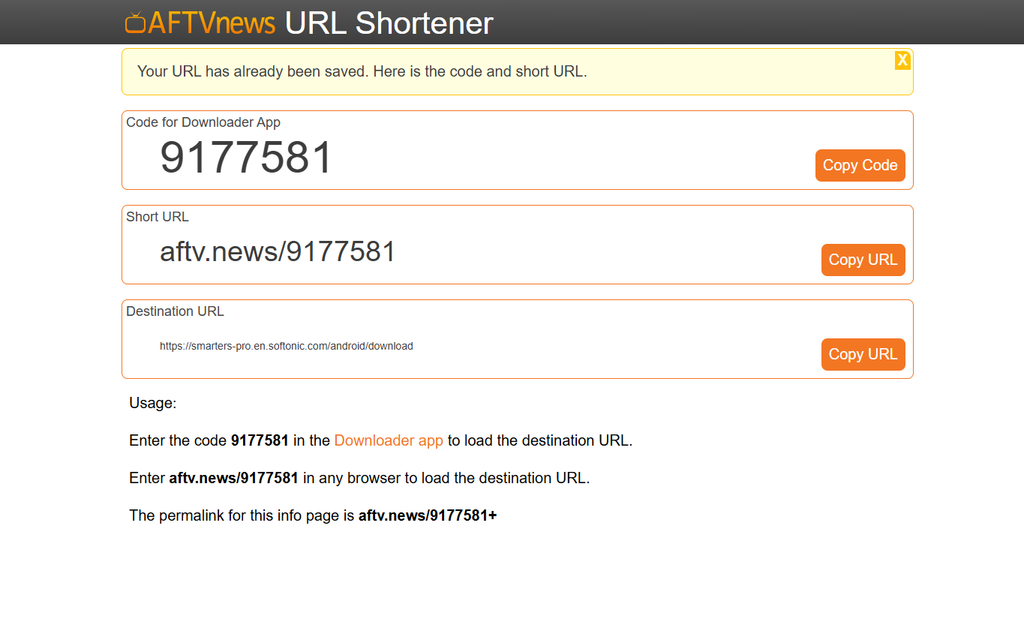
- Enter Downloader Code 9177581
- Check that the page opened by the code is the official app developer page and that the version shown is current
- Download the APK and select Install
- Open IPTV Smarters Pro
- Add your M3U playlist or Xtream Codes login
- Delete the downloaded APK file from Downloader once the app is installed
On some Firestick models, Developer Options may not appear immediately. Go to Settings, choose My Fire TV, open About, highlight your Fire TV device name and press the Select button repeatedly until the Developer Options menu is enabled.
Firestick setup tips
- Allow unknown app installation for Downloader only
- Delete downloaded APK files when installation is complete
- Keep at least 1 GB of free storage where possible
- Restart the Firestick after installing or updating an app
- Use 5 GHz Wi-Fi if your router supports it
- Move the Firestick closer to the router if the signal is weak
- Use an Ethernet adapter if your device is far from the router
- Close unused apps and restart the Firestick if menus become slow
- Keep Fire OS updated before trying more complicated troubleshooting
For a complete Firestick walkthrough, including storage checks, Wi-Fi improvements and common setup errors, read our IPTV for Firestick UK guide.
How to install IPTV Smarters Pro on Android TV and Google TV
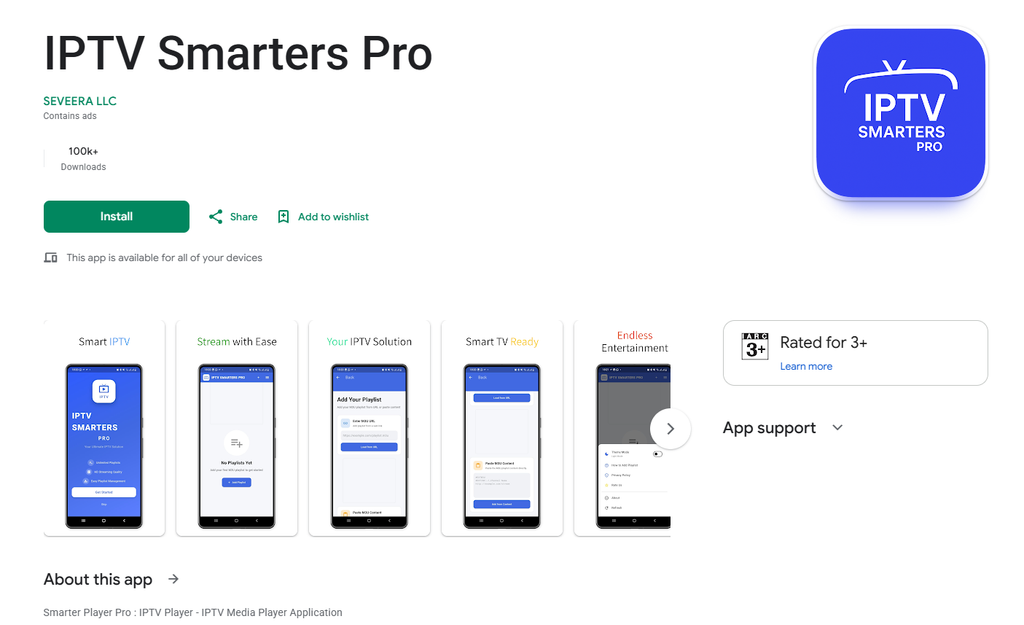
Android TV and Google TV devices are flexible because they support a wide range of IPTV players and external media apps.
Android TV installation steps
- Search the Google Play Store for a suitable IPTV Smarters player
- Confirm that it is built for TV navigation rather than touch-screen use only
- If no TV version is available, use the official APK source
- Enable unknown-source access only for the downloader or file manager you are using
- Install the app
- Turn unknown-source access off afterwards if you no longer need it
- Open the app and add your Xtream Codes or M3U playlist
If your account includes a large channel list, films, series and guide data, choose a device with sensible storage and memory. Older Android boxes with limited RAM can feel slow when loading very large libraries.
IPTV Smarters Pro on iPhone, iPad and Apple TV
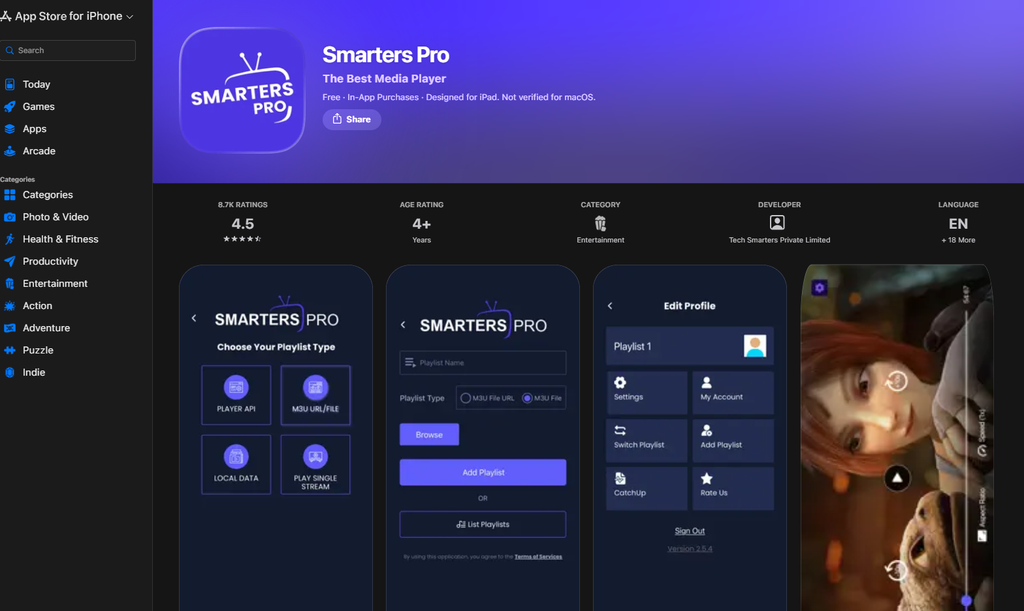
On Apple devices, search the App Store for the current IPTV Smarters player listing. App names, pricing and availability can change, so check the publisher before downloading.
A paid player app does not normally include channels. It covers the player software. You still need a separate M3U playlist or Xtream Codes login.
iPhone and iPad setup
- Download the appropriate IPTV Smarters player from the App Store
- Open the player
- Choose your login method
- Enter your Xtream Codes details or M3U playlist URL
- Allow the playlist and TV guide time to load
- Test live TV, films, series and the guide before changing settings
Apple TV setup
Player availability differs by region and app version. If your preferred app is not available for Apple TV, use a compatible tvOS player or, where suitable, stream from an iPhone or iPad with AirPlay.
IPTV Smarters Pro on Windows and Mac
A Windows computer is useful for testing whether a login works away from a Firestick or Smart TV.
If the playlist loads on a computer but not on a Firestick, the issue is more likely to be device storage, Wi-Fi strength or player settings. If it fails on every device, focus on the login details, account status or source service.
Windows setup
- Install the official Windows player where available
- Add the same M3U or Xtream Codes login
- Test several live channels
- Check whether the programme guide loads
- Test on-demand content if your account includes it
Mac setup
Mac availability varies. If there is no suitable native player, VLC can be useful for testing an M3U stream. If the same stream fails in both VLC and IPTV Smarters Pro, the issue is likely to be the stream, the connection or the service rather than the app interface.
How to add your IPTV playlist
When IPTV Smarters Pro opens, choose Add User or Add Playlist. You should see options for Xtream Codes and M3U playlists.
Add Xtream Codes
- Select Login with Xtream Codes API
- Enter a profile name, such as “Living Room”
- Enter the server URL
- Enter the username
- Enter the password
- Select Add User
- Wait for the app to download categories, channels and EPG data
Use profile names that make sense if you have more than one login or household user.
Add an M3U playlist
- Select Load Your Playlist or File/URL
- Choose M3U URL
- Give the playlist a profile name
- Paste the full playlist URL
- Save the profile
- Wait for the playlist to import
Large playlists can take a few minutes to load. Avoid pressing back, force-closing the app or constantly refreshing while the first import is running.
How to load the EPG
The EPG is the electronic programme guide. It shows programme names, start times, descriptions and, where supported, catch-up availability.
Xtream Codes profiles often load EPG data automatically. M3U users may need a separate XMLTV guide link.
EPG setup steps
- Open IPTV Smarters Pro settings
- Find EPG, TV Guide or EPG Sources
- Paste the XMLTV guide link supplied by your provider
- Save the guide source
- Choose Refresh EPG or Update EPG
- Wait for the guide download to finish
- Restart the app if guide information does not appear immediately
Set guide updates to every 12 or 24 hours. Repeated manual updates rarely solve guide problems and can make the app feel slower.
If some channels show “No information,” that does not always mean the guide is broken. It often means that the guide data does not match the channel identifiers in the playlist. Ask for an EPG link that matches the current line-up.
Fix IPTV Smarters Pro login failed
Already installed Smarters but cannot log in or play channels? Our IPTV Smarters not working guide explains how to investigate invalid details, loading problems, buffering and playback errors.
How to delete an IPTV Smarters Pro account
To remove a saved login or playlist:
- Return to the user or profile screen
- Select the saved account
- Choose Delete, Remove User or the trash icon
- Confirm the deletion
- Restart the app if old guide information remains visible
Deleting the profile removes the login from that device. It does not normally cancel the actual service subscription. To cancel a subscription, contact the provider or use the relevant app-store billing settings if you paid for a player licence.
How to get subtitles on IPTV Smarters Pro
Subtitle availability depends on the channel, film or series you are watching.
To check for subtitles:
- Start the programme
- Open the playback controls
- Select Subtitles, CC, Audio Track or Tracks
- Choose your preferred language if it is available
Live channels do not always include subtitles. Films and series are more likely to include them, but availability depends on the source material.
IPTV Smarters Pro on Smart TVs
Smart TV support depends on your television brand and operating system. Samsung, LG, Android TV, Google TV, Fire TV and Apple TV all use different app platforms.
If IPTV Smarters Pro is not available in your TV’s app store, consider:
- Fire TV Stick
- Android TV box
- Google TV streamer
- Apple TV
- A compatible player available for your TV
- Phone or tablet casting, where suitable
For many homes, an external streaming device is the simplest option. It tends to receive more updates, supports more player apps and is easier to replace than an older television.
For device-specific Smart TV setup options, read our IPTV for Smart TV UK guide.
IPTV Smarters Pro for Arabic IPTV UK
If you are looking for Arabic IPTV in the UK, the setup process is the same. Install the player, then enter the login supplied by a service that is authorised to provide the channels you want.
Before choosing a service, confirm:
- The Arabic channels you want are listed by name
- Arabic programme guide information is available
- Catch-up is included where required
- Arabic audio and subtitles are available when relevant
- The account supports your chosen device
- The content is available for UK viewing
The player is only the viewing interface. Channel availability, guide information, subtitles and stream quality depend on the service attached to your login.
For more on Arabic-language viewing options, read our Arabic IPTV UK guide.
IPTV Smarters Pro for Turkish IPTV UK
For Turkish IPTV in the UK, ask for a current channel list instead of relying on general claims about international television.
Check whether the service includes:
- Turkish live TV channels
- Turkish news and entertainment
- Sports channels and events
- Films and series with Turkish audio
- Catch-up where available
- A working EPG
- Stable playback during UK peak viewing times
IPTV Smarters Pro displays the content linked to your login. It cannot add missing channels or improve stream quality if the source is unreliable.
For more on Turkish-language viewing requirements, visit our Turkish IPTV UK guide.
IPTV reseller UK considerations
If you are considering an IPTV reseller UK business, remember that the player app is only one part of the service.
Before promoting or reselling any package, be clear about:
- Who holds the content distribution rights
- Which territories the service is authorised to cover
- Which player apps and devices are supported
- The number of simultaneous streams included
- How customer account details are secured
- How login, EPG and playback support is handled
- Subscription renewal and refund arrangements
- The difference between the player app and content access
Do not describe a service as legal simply because it works in IPTV Smarters Pro. The app is a player. Legality depends on the rights held for the content being distributed.
For more on the commercial side, visit our IPTV reseller UK guide.
Frequently asked questions
Is IPTV Smarters Pro free?
IPTV Smarters Pro is a player app. Some Android and Firestick versions can be installed free, while some iPhone and iPad listings may charge for the player or offer paid upgrades. App pricing does not include TV channels, films, sport or an IPTV subscription.
Do I still need an IPTV subscription if I have IPTV Smarters Pro?
Yes. IPTV Smarters Pro does not include channels or content. You need an M3U playlist URL or Xtream Codes login from a content provider before anything appears inside the app.
For a broader comparison of packages and what to look for before signing up, read our best IPTV UK guide.
What is the difference between an M3U playlist and Xtream Codes?
An M3U playlist is one long URL. Xtream Codes uses a server address, username and password. We recommend Xtream Codes when it is available because it is easier to enter and often loads channels, categories, EPG, films, series and catch-up automatically.
How do I download IPTV Smarters Pro on Firestick?
Install Downloader from the Amazon Appstore, allow Downloader to install unknown apps in Firestick Developer Options, then use Downloader Code 9177581. Confirm that the code opens the official app source before downloading. Install the APK, open IPTV Smarters Pro and add your login details.
How do I install IPTV Smarters Pro on Firestick?
After installing the app, open IPTV Smarters Pro and choose either Xtream Codes or M3U login. Enter the details exactly as supplied, wait for the playlist to load, then open Live TV, Movies, Series or TV Guide.
For the full setup process, see our IPTV for Firestick UK guide.
Is IPTV Smarters Pro down right now on Firestick?
Usually, IPTV Smarters Pro itself is not down. Test the same login on another device, on a phone hotspot or in a different player. If one channel fails, it is likely to be a stream issue. If every channel fails on every device, check your account status or contact the provider.
Why does IPTV Smarters Pro say login failed?
The usual causes are incorrect login details, a copied space, a wrong server format, an expired account, an inactive account or a simultaneous connection limit. Delete the profile, re-enter the details carefully and test again.
How do I fix a blank EPG in IPTV Smarters Pro?
Open EPG settings, add or replace the XMLTV guide link, run a manual refresh and restart the app. If channels still show no programme information, the EPG may not match the playlist channel IDs.
Why is the EPG one hour out?
Set the player and device timezone to London. Use UTC+00:00 in winter and UTC+01:00 during British Summer Time when you need to choose a manual timezone offset.
Which decoder should I choose?
Leave IPTV Smarters Pro on hardware decoding for normal use. Switch to software decoding only for a channel with a black screen, green screen, audio-only playback or sync issue.
How do I know an IPTV Smarters Pro APK is genuine?
Use the official app source or a recognised app store. Avoid cracked, unlocked or “premium” APKs. Do not install files that ask for unnecessary permissions, payment details, activation codes or access to contacts, SMS and accessibility controls.
Can I use IPTV Smarters Pro on two TVs at once?
That depends on the simultaneous connections included with your account. A one-connection plan normally allows one active stream at a time. Starting a second stream may stop the first one or trigger an authorisation error.
Can I install IPTV Smarters Pro on Samsung or LG Smart TV?
Availability depends on the television model, country and app store. If there is no compatible player available directly on the TV, use a Firestick, Android TV device, Google TV streamer or Apple TV.
For other Smart TV setup routes, read our IPTV for Smart TV UK guide.
Final checklist
Before assuming IPTV Smarters Pro is faulty, check these points:
- You downloaded the app from a reliable source
- You entered the correct M3U or Xtream Codes login
- There are no spaces in copied login details
- Your account is active
- You are within the connection limit
- Your device has enough free storage
- Your Wi-Fi signal is strong
- You tested another channel and another network
- Your EPG link is current
- Your timezone is set to London
- Hardware decoding is enabled unless a channel requires another option
- You use only content services that are properly authorised
If you are comparing plans or trying to keep costs down, read our cheap IPTV UK guide. For more device guidance, setup support and service information, visit the United Kingdom IPTV homepage.