
IPTV works on many smart TVs through a compatible player app and an authorised content source. The correct setup depends on your television’s operating system: Samsung Tizen, LG webOS, Hisense VIDAA and Android TV do not all run the same applications.
The best IPTV app for your smart TV is the one that supports your exact model, accepts your account’s login format and works properly with your remote. Check compatibility before paying for either app activation or a subscription.
Choose your Smart TV platform
Your TV’s operating system determines which IPTV apps you can install. Start with the platform below rather than following a generic APK tutorial.
| Television platform | Where to install apps | Player to investigate | Important check |
|---|---|---|---|
| Samsung Tizen | Samsung Apps or Smart Hub | SmartOne IPTV; other supported Tizen players | Confirm the exact model and local store availability |
| LG webOS | Apps or LG Content Store | SmartOne IPTV; other supported webOS players | Check webOS version, model and country |
| Hisense VIDAA | VIDAA App Store | SmartOne IPTV; other documented VIDAA players | Confirm that the TV actually runs VIDAA |
| Android TV or Google TV | Google Play Store | TiviMate; other TV-compatible players | Check the official developer and television compatibility |
SmartOne documents support for Samsung, LG and VIDAA platforms, while TiviMate says its application is intended for Android TV devices. These are compatibility starting points—not guarantees that every player appears on every television.
Samsung Smart TV IPTV
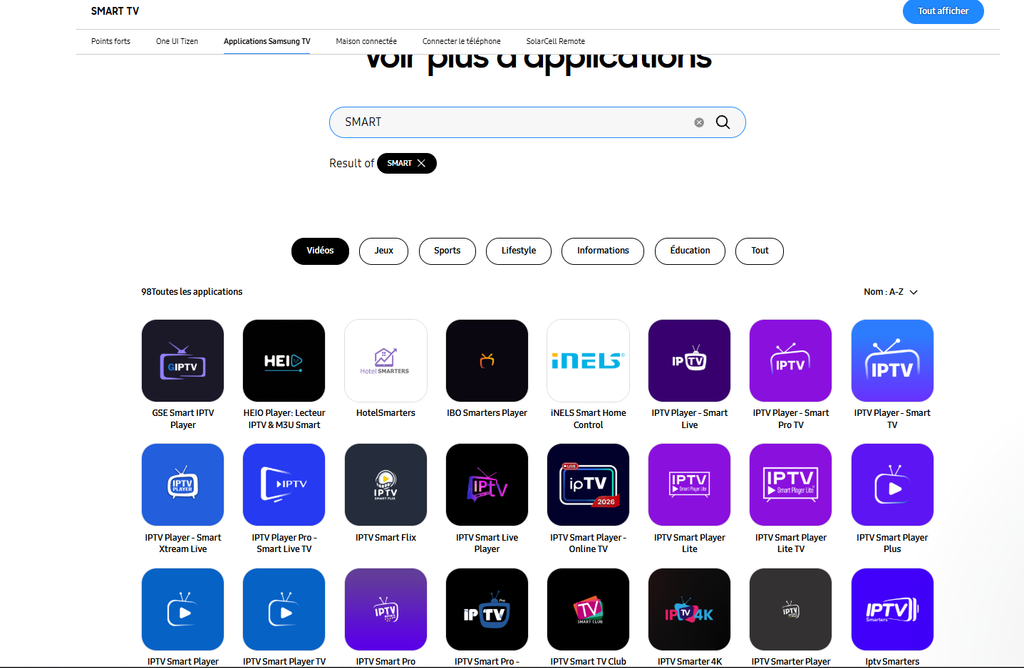
Install a Tizen-compatible IPTV player from Samsung’s app store. Samsung’s documented route is to open Home, select Apps, search for the application and choose Install; menu layouts can differ between models.
SmartOne IPTV is one player with documented Samsung support and both M3U and Xtream-style API support. Search your own TV’s store before buying activation, because the developer’s platform support does not establish availability on every model or in every region.
“Smart IPTV” can refer to a specific application, not simply IPTV on a smart television. If you are researching that named player, check its own installation, playlist-upload and activation instructions rather than assuming another app works identically.
Use our IPTV for Samsung Smart TV UK guide for the dedicated Samsung setup.
Smarters opens on your TV but channels will not play? Follow our IPTV Smarters not working guide for Smart TV login checks, loading-screen problems and playback comparisons.
LG Smart TV IPTV
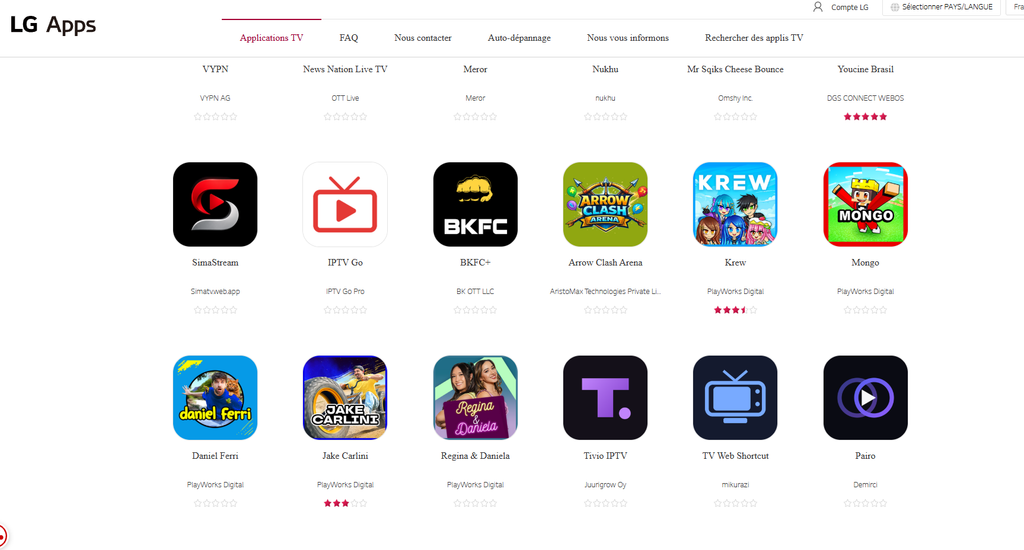
Install a webOS-compatible player through Apps or the LG Content Store. LG’s installation instructions direct users to search for the application, open its listing and select Install.
App availability depends on your LG television’s market and software environment. LG warns that apps and services are tied to the country where the TV was sold, so a listing available elsewhere may not be available on your set.
SmartOne documents LG support, but you should verify the exact model before activating it. Its feature matrix also flags subtitle limitations on some LG series, which means successful installation does not guarantee every playback feature.
Follow our IPTV for LG Smart TV UK guide for the webOS-specific walkthrough.
Hisense VIDAA IPTV
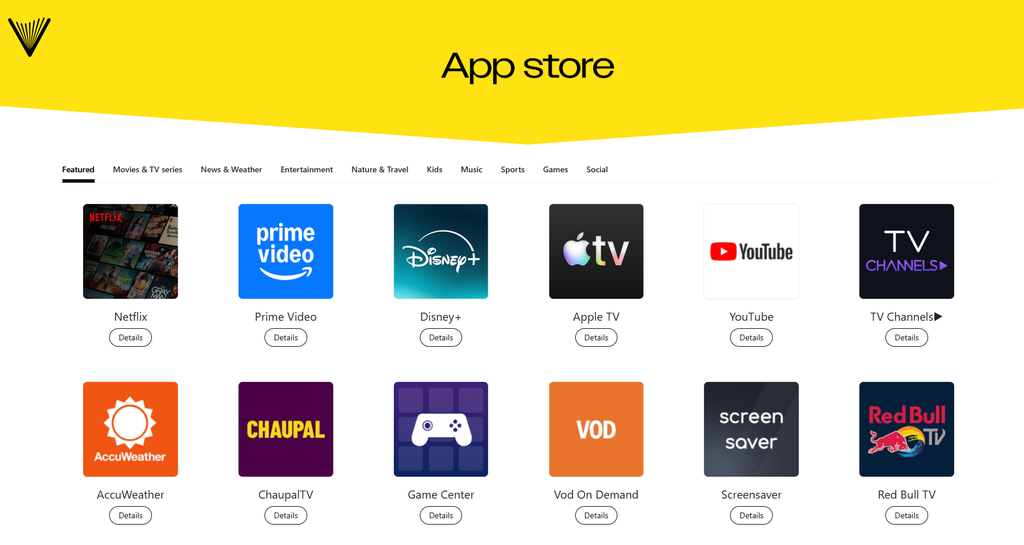
Choose an app designed for VIDAA if your Hisense television uses that operating system. Do not assume a tutorial for a Hisense Android TV or Google TV model applies to your VIDAA set.
SmartOne’s compatibility matrix lists VIDAA OS versions 3–7 with TV-store installation. That confirms documented support for those listed versions, but it does not establish universal availability for every Hisense model or a newer version not covered by the table.
Check subtitles as well as channel playback before activating the player. SmartOne notes that subtitles cannot run on some VIDAA series, making a real test important if you regularly watch subtitled programmes.
Read our Hisense VIDAA IPTV app and setup guide for the dedicated installation route.
Android TV and Google TV IPTV
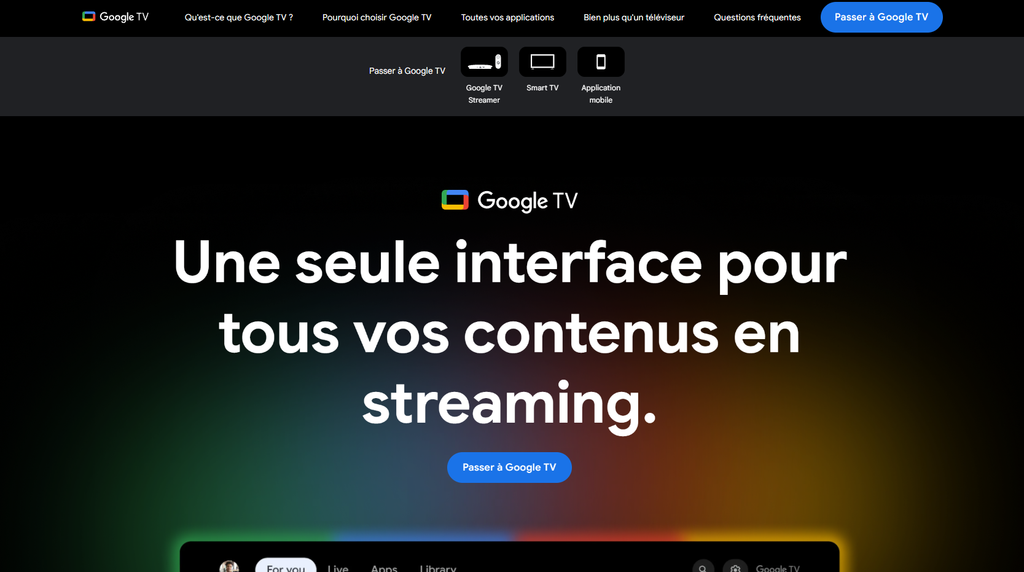
Use a television-compatible player from its official developer. TiviMate is designed for Android TV devices, is available through Google Play and does not provide channels or playlists itself.
TiviMate is worth investigating if you want a TV-focused interface and features such as multiple playlists, recording or multiview. Check the current free-versus-paid feature allocation before choosing it; an advertised feature is not necessarily included without payment.
Compare your options in our TiviMate vs IPTV Smarters guide, or follow the IPTV for Android UK setup guide for the installation overview.
Add M3U or Xtream credentials
Use the connection method supported by both your player and your content account. A player that accepts an M3U playlist may not offer native Xtream login, so check its instructions rather than assuming the formats are interchangeable.
M3U or Xtream: which to use?
Choose the format your player documents and your provider supplies. SmartOne, for example, documents both M3U playlists and Xtream-style API access.
| Connection method | Information entered | What to check |
|---|---|---|
| M3U playlist URL | A complete playlist address | Whether the app accepts URLs directly or uses an official upload portal |
| Xtream-style login | Server address, username and password | Whether the app provides a native Xtream login option |
| Separate EPG source | A programme-guide address, where required | Whether the player accepts it and matches guide entries to channels |
Neither login method proves that the content is authorised. They are connection formats, not evidence of distribution rights.
Add an M3U playlist
Enter the full playlist URL using your player’s documented method. Some applications use an on-screen playlist field; others use the developer’s official management portal.
- Open the IPTV player.
- Select its playlist option, or open its official upload portal if required.
- Enter the playlist URL supplied with your authorised account.
- Save the connection.
- Reload the player and allow the catalogue to populate.
- Check playback and programme-guide information separately.
Keep the playlist URL private if it contains account credentials. Do not paste it into public forums, screenshots or unverified playlist-conversion websites.
Add Xtream credentials
Select native Xtream login only when your application offers it. Enter the server address, username and password exactly as supplied, including any specified port.
- Open the player’s account or connection screen.
- Select the documented Xtream login option.
- Enter the server address.
- Enter your username and password.
- Save the account and wait for categories to load.
- Test the content sections available to your account.
Use our IPTV Smarters setup and troubleshooting guide for a more detailed explanation of account entry.
Activation, trials and testing
Player activation and content subscriptions are separate purchases. Paying to unlock an application does not automatically provide channels, fix invalid credentials or authorise access to copyrighted content.
What does player activation cost?
Check the exact application’s current terms before paying. Smart IPTV’s official activation page lists a one-time fee of €5.49 per television or device and explicitly states that no channels are included.
Smart IPTV also warns users not to pay when playback is already failing, because activation will not solve those problems. Test the application and your authorised playlist first rather than treating payment as a troubleshooting step.
What should you test?
Test the complete setup on your own television before committing. Installation alone does not establish reliable playback, subtitle support or a usable programme guide.
| Test | What it tells you |
|---|---|
| Store installation | Whether the app is available on your actual television |
| Playlist or login loading | Whether the connection format works |
| Live playback | Whether the account and stream can be opened |
| EPG loading | Whether programme information appears correctly |
| Remote navigation | Whether browsing is comfortable from the sofa |
| Subtitles and audio tracks | Whether the features you need work on that model |
| Restart after standby | Whether the app reconnects during normal use |
| Your usual viewing hours | Whether the setup works when you actually watch |
Device-specific testing matters because player features can vary by TV series. SmartOne’s documentation identifies audio-switching or subtitle issues on some Samsung 2021 models and subtitle limitations on some LG and VIDAA series.
Test before choosing a plan
Confirm device compatibility before choosing a longer subscription. United Kingdom IPTV currently advertises prepaid plans at £9.99 for one month, £37 for six months and £55 for twelve months, with one device connection; its homepage says pricing and trial availability may change.
Review the current IPTV subscription UK plans and confirm trial conditions, connection limits and the authorisation of the content you intend to watch before purchasing.
Fix Smart TV IPTV problems
Identify where the failure happens before changing settings or buying another app. A missing application, rejected login, empty guide and unplayable channel are different problems.
The app is missing
Check the model, operating system and local store first. LG explicitly documents regional app restrictions, while Samsung directs users to its own app-store installation route.
Avoid applying Android APK instructions to a different television platform. If the player you need is unsupported, an external device can provide the appropriate operating system without replacing the TV.
For that alternative, see our Chromecast and Google TV IPTV guide.
The login is rejected
Check the connection details before reinstalling the application. Compare the server address, port, username and password against the account information, and confirm that you selected the correct login type.
Ask the account provider to verify access if the details appear correct. Do not repeatedly buy app activations to solve an account problem.
Channels appear but do not play
Test whether the failure affects one channel or the whole catalogue. Record the error message, affected channels and time of failure so support can investigate a specific problem rather than a general “IPTV not working” report.
Compare playback on another supported device only if your account’s connection policy permits it. Close the first stream before testing another device when you are limited to one active connection.
The programme guide is empty
Check EPG configuration separately from playlist loading. A visible channel list does not establish that guide data was supplied, loaded or matched correctly.
Use the player’s documented guide-refresh process. If it requires a separate EPG address, obtain that information from your account provider rather than guessing a URL.
Subtitles or audio switching fail
Check model-specific limitations before assuming the stream is faulty. SmartOne documents cases where some Samsung models detect multiple audio tracks but cannot switch them, along with subtitle limitations on certain TV series.
Include the TV model and application version in your support request. Those details help distinguish an account issue from a documented device limitation.
Smart TV IPTV FAQ
Does IPTV work on every smart TV?
No universal compatibility should be assumed. Check the TV platform, local app store and exact model; developer support lists and regional restrictions can limit which players are available.
Which IPTV player is best?
The best choice is the compatible player that supports your account format and passes your own usability tests. This guide does not claim an independently tested winner across every television.
Can I install TiviMate on LG webOS?
TiviMate’s official application is intended for Android TV devices, not native LG webOS. Use a supported webOS player or connect an Android TV device if you specifically want TiviMate.
Does a free player include free channels?
Do not assume it does. TiviMate and SmartOne describe themselves as players that require separately supplied content, while Smart IPTV states that activation includes no channels.
Is IPTV legal in the UK?
Check whether the content source has the necessary rights for what it distributes. Installing a compatible player does not establish that the streams are authorised, and United Kingdom IPTV’s own published guidance makes that distinction.
Does a playback failure prove blocking?
No—do not treat the symptom as a diagnosis. First identify whether the problem concerns installation, account access, one stream, all streams or guide data, then request specific evidence from the relevant support team.
What should I do first?
Identify your TV’s operating system, find a supported player and test it with authorised account details. Choose a longer plan only after installation, playback, guide data and the features you need work on your actual television.
Compare IPTV Plans or Explore Reseller Options
Explore United Kingdom IPTV and compare our IPTV subscription UK plans for current prices, trial availability and connection limits. Looking for cheap IPTV UK? Compare the total cost, player activation fees and subscription terms—not just the headline price. For business enquiries, review our IPTV reseller UK packages and confirm that the underlying service is authorised for commercial resale before purchasing. Need help choosing? Read our IPTV provider comparison or contact us with your TV model and requirements.