
OTT Navigator is our No. 1 editorial choice for the best IPTV app for Android TV, with Flix IPTV at No. 2 as a playlist-player alternative to check on your device. This is an editorial selection—not an independently tested ranking—and Flix IPTV’s current Android TV availability and activation terms must be confirmed before installation or payment.
OTT Navigator is the better-documented option in this comparison. Its official FAQ confirms Android TV and Google TV support, M3U/M3U8 playlists, provider templates, EPG configuration and advanced playback controls.
Both applications require separately supplied content. OTT Navigator explicitly states that it provides no channels, while the Flix app portal describes its product as a media player; installing either app does not create an IPTV subscription.
Best Android TV IPTV apps
Choose OTT Navigator first if you want detailed control over playlists, programme guides and playback. Consider Flix IPTV second if you prefer its playlist-upload approach and can verify that the correct application is supported on your television.
| Comparison | OTT Navigator | Flix IPTV |
|---|---|---|
| Editorial position | No. 1 | No. 2, subject to compatibility checks |
| Android TV support | Confirmed in developer FAQ | Android support appears in installation guides; current TV availability needs checking |
| Playlist setup | M3U/M3U8 and provider templates, including Xtream | M3U playlist-upload workflow |
| EPG configuration | Detailed provider-level and user-source settings | Verify support and configuration in your installed version |
| Advanced viewing | Picture-in-picture, Studio mode and multiple-provider management documented | Do not assume equivalent features without verification |
| Recording | Documented in version 1.7.5.2 | Not verified for this comparison |
| Payment terms | Premium device slots and subscription options documented | Confirm current trial and activation conditions |
| Channels included | No | No |
OTT Navigator’s capabilities are supported by developer documentation. Flix IPTV’s Android installation and playlist workflow are described in third-party guides, so this comparison does not promise universal availability, a current price or native Xtream login for Flix.
No. 1: OTT Navigator
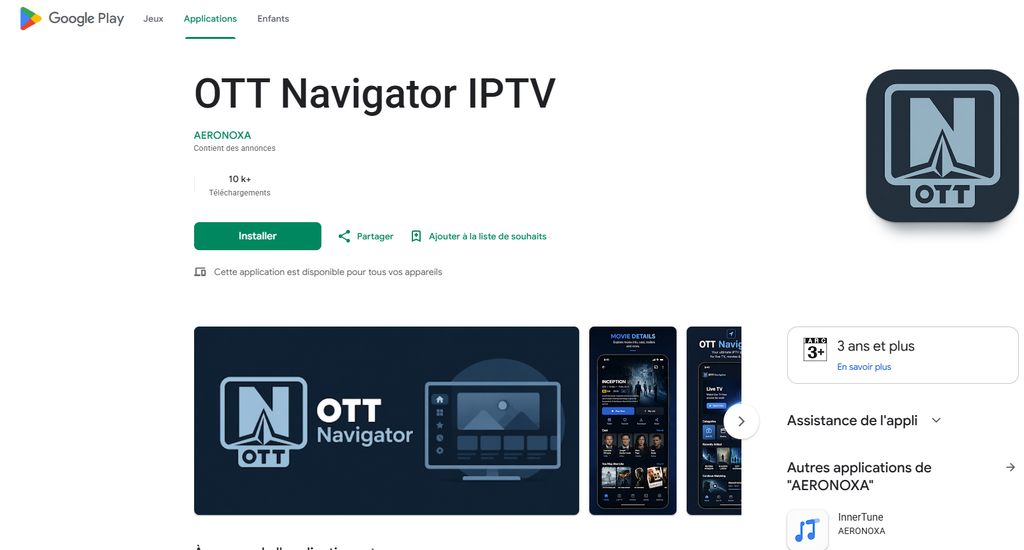
OTT Navigator is our first choice for readers who want extensive control over an Android TV IPTV player. Its developer confirms that the application works on Android TV and Google TV, rather than natively on Samsung Tizen or LG webOS.
Multiple-provider organisation is a useful reason to investigate OTT Navigator. The app can merge categories, hide unwanted groups and fold duplicate channels into one entry, helping readers manage overlapping authorised playlists without browsing repeated channel names.
Duplicate folding can also provide alternative sources for the same channel. The developer describes automatic or manual switching between folded sources, but this requires those sources to exist in your configured accounts and does not guarantee uninterrupted viewing.
Recording is a recent addition worth checking against your installed version. The 28 September 2026 changelog for version 1.7.5.2 lists live recording, programme scheduling and storage options including internal storage, SD/USB, SMB and WebDAV. Availability still depends on the build, device, account and recording rights.
Read our OTT Navigator Premium guide for supporting coverage of the player and its paid options.
No. 2: Flix IPTV
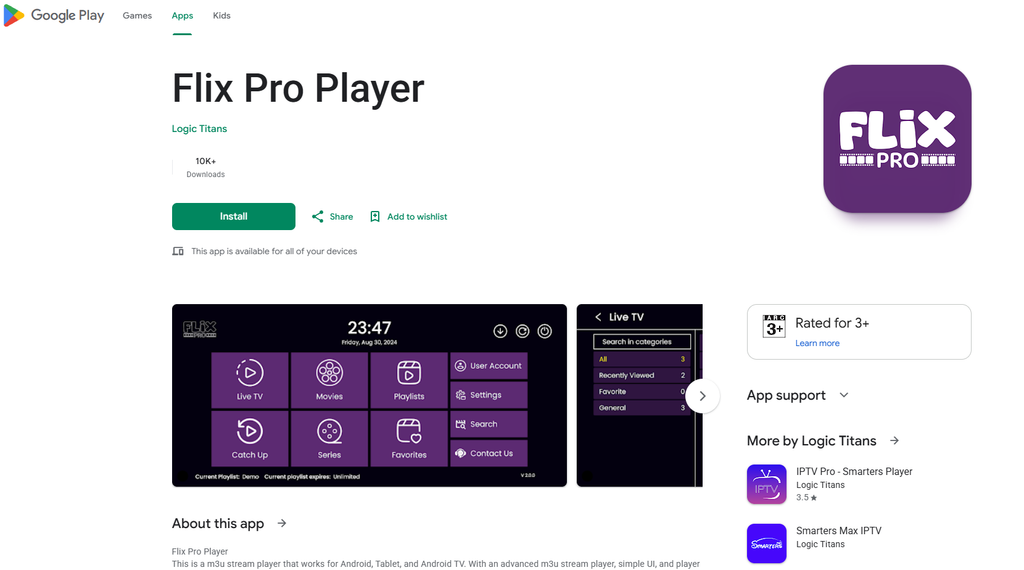
Flix IPTV is our second editorial selection for readers interested in a playlist-upload player. Installation guides describe opening the app, recording the displayed device identifier and adding an M3U playlist through the app’s management portal.
Confirm the exact Flix application before using it. Search results include Flix IPTV, Flix Pro Player and subscription websites with similar names; they should not be treated as one product or assumed to share licences, features or support.
Check current Android TV compatibility rather than relying on an older tutorial. Guides describe Android installation, but this review did not establish a current official Android TV store listing or verified activation price for the original Flix IPTV player.
Do not assume Flix offers native Xtream login because another player does. The evidence reviewed supports an M3U workflow; confirm any additional login formats within the exact application before purchasing access.
Install on Android TV
Use the developer’s supported TV installation route first. OTT Navigator’s official FAQ directs users to a supported app store or its standalone build, so there is no need to begin with an anonymous APK website.
Install OTT Navigator
Choose the correct television build when installing OTT Navigator. Start from the developer’s installation instructions and confirm the app identity before downloading.
- Open the supported app store on your Android TV or Google TV.
- Search for OTT Navigator.
- Check the application and developer against the official documentation.
- Install the supported TV version.
- Open the player and find its provider configuration.
- Add your authorised playlist or account.
- Test live playback and guide information.
- Review Premium options only after the basic setup works.
Use the standalone build only through the developer’s documented route if the store version is unavailable. Availability, updates and payment handling can differ between installation sources.
Install Flix IPTV
Install Flix only after confirming the exact application and supported device. If it is available through your television’s store, check its publisher and setup instructions before proceeding.
- Search your TV’s supported app store for the exact Flix application.
- Verify the publisher and linked management portal.
- Install and open the app if your model is supported.
- Note the device identifier shown by the application.
- Follow its documented playlist-upload process.
- Add the complete authorised M3U URL.
- Restart or refresh the player.
- Test playback before activation.
Use the identifier displayed inside the application rather than guessing from your router settings. Flix setup guides describe an app-displayed MAC identifier, which is used to associate the playlist with the installation.
Check your television platform
Confirm Android TV or Google TV before following these instructions. OTT Navigator’s developer specifically distinguishes Android-based televisions from native Tizen and webOS systems.
Use our Smart TV IPTV pillar guide to identify the appropriate platform. For an external Google TV device, follow the Chromecast and Google TV IPTV guide.
Playlists, EPG and Premium
Choose the account format supported by your player and supplied with your authorised service. OTT Navigator documents M3U/M3U8 and several provider templates; Flix should be treated as an M3U option unless its current instructions confirm another route.
Add M3U or Xtream access
Use a playlist URL where your player supports it. OTT Navigator’s developer prefers links over local files because file-access restrictions vary across Android versions and television devices.
Select the correct provider template in OTT Navigator. Its FAQ identifies URLs containing get.php?username=…&password=… as typically associated with the Xtream Codes template, while other playlist sources can use the general Playlist option.
Keep credentials private throughout setup. Avoid posting playlist addresses, passwords or account-containing screenshots in public support discussions.
Follow our IPTV Smarters account setup guide for another explanation of playlist and login formats.
Configure the EPG correctly
Add a provider-specific EPG inside that provider’s settings where appropriate. OTT Navigator says this route can match channels using both names and tvg-id, while a general user-provided EPG source uses name matching only.
Check reload results before assuming the guide is broken. Open Settings → EPG → Reload and inspect which sources were processed and whether they loaded successfully.
Correct the device’s time zone before adding a guide offset. OTT Navigator’s FAQ identifies incorrect device time settings as a common cause of shifted programme times; reload the EPG after changing relevant settings.
Understand Premium device limits
Player device slots are not simultaneous content connections. OTT Navigator’s FAQ says its standard Premium package supports five devices, but your IPTV provider independently controls how many streams your account may open.
Check the current purchase screen for prices and renewal terms. This article does not quote a UK price or free-versus-paid feature table that has not been verified for the current version.
Confirm Flix’s current activation conditions separately. Do not assume that trial durations, licence charges or device-transfer rules found in older guides remain unchanged.
Test before subscribing
Test the complete setup before choosing a longer content plan. Check playlist loading, EPG accuracy, remote navigation, subtitles, audio tracks and reconnection after standby.
Review United Kingdom IPTV and the current IPTV subscription UK plans for account conditions and trial availability. Verify content authorisation separately from player compatibility.
Compare total costs when researching cheap IPTV UK. Include player charges, subscription terms and renewal conditions rather than considering only the initial payment.
Keep business purchases separate from personal viewing. If you are researching IPTV reseller UK packages, verify commercial resale rights and package conditions before purchasing.
Fix Android TV IPTV problems
Identify the failure before changing applications. A missing player, rejected account, empty EPG and unsupported audio track need different checks.
Channels return an error
Check account status and connection details when OTT Navigator reports HTTP errors. Its FAQ explains that 401, 403 and other server errors originate from the provider’s response and can require provider-specific investigation.
Send the exact error to support rather than assuming every failure has the same fix. Confirm whether the account expired, the URL changed or additional account configuration is required.
Multiview reaches a limit
Match OTT Navigator’s provider connection setting to your actual allowance. Studio mode and picture-in-picture require enough permitted connections; increasing the setting does not purchase extra streams or override the provider’s limits.
Disable unnecessary previews when troubleshooting connection restrictions. OTT Navigator’s FAQ notes that preview and advanced viewing modes can affect connection usage.
Audio or subtitles fail
Try the documented decoder options one at a time. OTT Navigator recommends investigating hardware compatibility mode, hardware best-match mode, software decoding and an external player when streams and device capabilities differ.
Use software decoding selectively when hardware playback misses audio or subtitle tracks. The developer notes that software playback can expose tracks unavailable through hardware decoding, but it can demand more processing power.
Playlist files cannot be opened
Use a supported network playlist URL instead of forcing local-file access. OTT Navigator explains that Android TV file restrictions can prevent reliable access to files created outside the app.
Protect your account if using remote storage. Do not publish a credential-containing playlist to an unrestricted location simply to make it easier to load.
Categories change after adding a provider
Check provider naming and ordering before reorganising everything. OTT Navigator applies providers alphabetically, and its FAQ warns that adding an earlier-sorting provider can affect previously customised channel or category metadata.
Use deliberate names when maintaining several accounts. The developer suggests prefixes such as “1” and “2” to preserve the intended ordering.
Android TV IPTV FAQ
What is the best IPTV app for Android TV?
OTT Navigator is our No. 1 editorial choice, with Flix IPTV at No. 2 subject to current compatibility checks. OTT Navigator has stronger verified documentation in this comparison; the ranking is not a claim of independently tested superiority.
Can I watch IPTV on Android TV?
Yes, OTT Navigator’s developer confirms Android TV and Google TV support. You still need compatible, authorised content and a working account or playlist.
Is OTT Navigator better than IPTV Smarters?
Choose according to the features you need rather than assuming a universal winner. OTT Navigator documents extensive provider management, EPG matching and decoder controls; test those functions against your own viewing requirements.
Does Flix IPTV support Xtream login?
Native Xtream login was not verified for the exact Flix IPTV application in this review. Use its documented M3U process unless current official instructions confirm another supported method.
Does Premium include channels?
No—OTT Navigator states that it has no content and cannot provide any. The Flix portal likewise describes its application as a media player.
Can I use OTT Navigator on Samsung or LG?
Not natively on Tizen or webOS, according to its developer FAQ. Use a compatible Android TV or Google TV device if you specifically want OTT Navigator on those televisions.
What should I check before paying?
Confirm installation, account loading, playback, guide accuracy and required audio or subtitle features. Review the player’s current terms and verify the rights of the content source before committing.