Samsung Smart TV IPTV Guide
IPTV for Samsung Smart TV UK: Apps, Setup & Best Options
Samsung Smart TVs can handle IPTV without a separate box, but the setup is different from
Android TV or Firestick. Tizen controls which applications you can install, and that makes
the choice of IPTV player just as important as the subscription itself.
Samsung Tizen
M3U & Xtream Codes
EPG Setup
Buffering Fixes
The easiest way to think about Samsung IPTV is this: the player app and the
IPTV service are two different things. The player gives you the interface
on the TV; the subscription provides the channels, movies and series that the player loads.
Short answer: Yes, you can use IPTV directly on a Samsung Smart TV.
You need a compatible IPTV player from Samsung's TV app environment, plus an active IPTV
service that provides a supported login method such as M3U or Xtream Codes.
The catch is Tizen. Samsung TVs don't work like Android TV, so you can't simply download
an Android APK when a particular IPTV app isn't available. That one detail explains a lot
of the confusion around Samsung IPTV setups.
If you're using our service, the sensible approach is to install a compatible player first,
add your United Kingdom IPTV account, and then test live channels and on-demand content on
the Samsung TV you actually plan to use.
Can You Use IPTV on a Samsung Smart TV?
Yes. IPTV can run directly on compatible Samsung Smart TVs through
Tizen-compatible applications. You don't automatically need a Firestick.
Samsung's television platform is Tizen, not Android TV. That distinction matters because
the app ecosystem is different. A player that works perfectly on Google TV or a Firestick
may simply not exist for your Samsung television.
Your first check should therefore be the TV's Apps section. Search for the player you want
to use and see whether it is available for your model and region. App availability can
change, so the list you see on the television is more useful than an old app list found in
a forum post.
You can check the software and model information through the TV's settings. The exact menu
wording can vary slightly between Samsung generations, so don't worry if your screen doesn't
look identical to a screenshot from another model.
Tizen matters
Your TV's operating system determines which IPTV players can be installed natively.
Region matters
The same player can be visible on one Samsung TV or region and missing on another.
The subscription is separate
Installing an IPTV player does not include channels. You still need your IPTV account.
For a wider look at Smart TV compatibility, you can also read our
IPTV for Smart TV UK guide.
Which IPTV Apps Work on Samsung Smart TVs?
There isn't one universal Samsung IPTV app. Common names you'll come across include
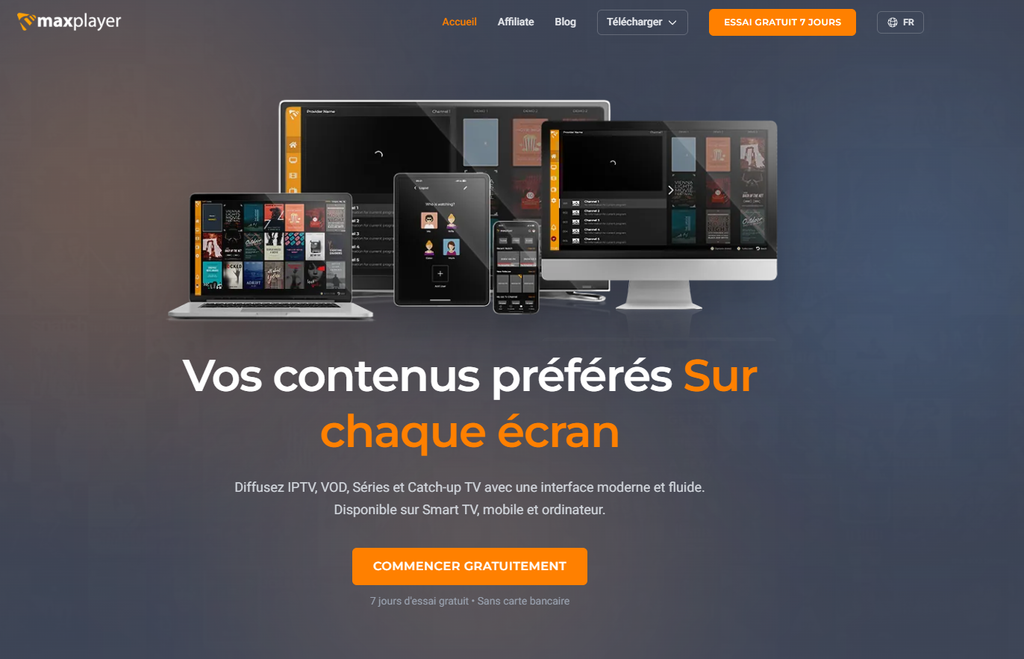
Smart IPTV, IBO Player, SmartOne IPTV, Easy IP TV and NetIPTV. The important question
isn't which app has the most features on paper. It's whether the app is available on
your TV and accepts the login format supplied with your IPTV account.
Smart IPTV
Playlist-focused
Smart IPTV is a familiar option for users who prefer a straightforward playlist-based
setup. It is worth considering when your service provides an M3U playlist and you don't
need a more elaborate login workflow.
The main thing to check is the current activation and playlist process shown by the
application itself, because third-party app procedures can change over time.
IBO Player
M3U & Xtream Codes
IBO Player is aimed at users who want a cleaner IPTV interface for live TV and
on-demand content. When the version available for your Samsung TV supports it,
Xtream Codes can make the initial setup less fiddly than typing a long playlist URL.
Check the current app information on your TV before relying on any particular feature.
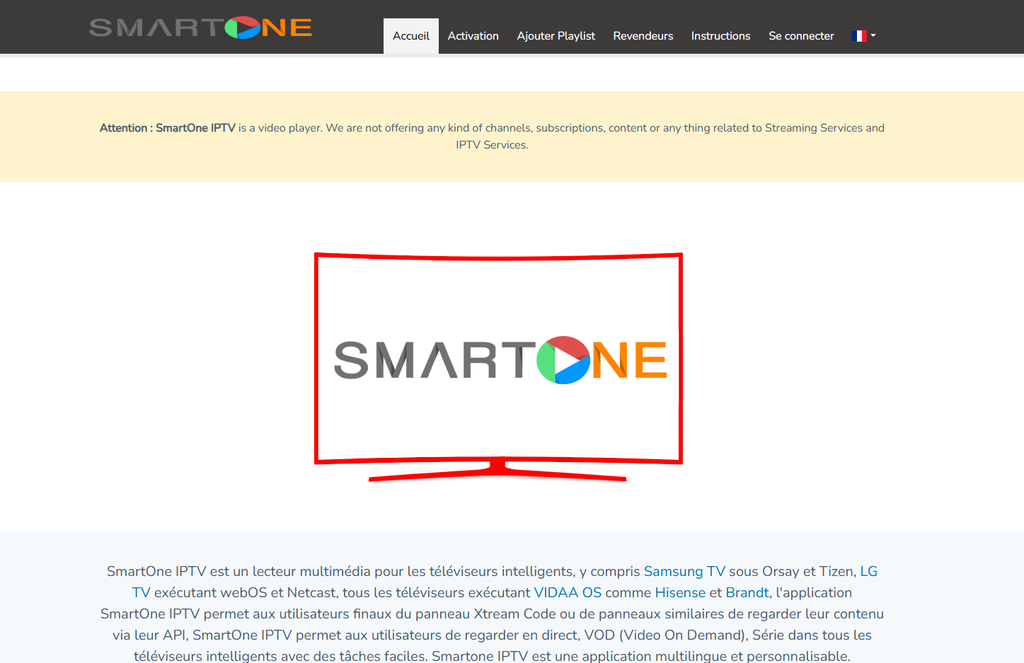
SmartOne IPTV
Live TV + VOD
SmartOne IPTV is another option for viewers who use IPTV for both live channels and
on-demand content. It can be useful when you want the player to keep live TV, movies
and series organised rather than treating everything as one long playlist.
Availability and supported features should still be checked on the specific Samsung
television before setup.
IPTV Smarters
Availability varies
IPTV Smarters is familiar to many IPTV users, but Samsung availability isn't something
you should assume without checking. If the app isn't offered for your TV or region,
installing an Android APK isn't a normal Tizen solution.
In that situation, using another compatible Samsung player or moving the IPTV workload
to a Fire TV or Android device is usually much simpler.
Easy IP TV
Large playlist users
Easy IP TV is worth looking at when playlist size is one of your concerns. Large IPTV
lists can take longer to process on a TV than on a newer phone, computer or streaming
box, so the way an application handles that data can make a noticeable difference.
Check the current Samsung compatibility and feature set directly before choosing it.
NetIPTV
Simple playlist setup
NetIPTV is another player you may encounter on Samsung televisions. It's more useful
to think of it as a simple IPTV player than as part of the subscription itself.
As with every third-party app, check the current instructions shown by the application
before entering your playlist details.
What Is the Best IPTV App for Samsung Smart TV?
There isn't a single winner that makes sense for every Samsung owner. The better choice is
the player that matches your account credentials, handles the size of your playlist and feels
comfortable with the Samsung remote.
| Player |
Useful for |
What to check |
| Smart IPTV |
Simple playlist-based setups |
M3U support, current Samsung availability and activation method |
| IBO Player |
Live TV, VOD and structured accounts |
Current Samsung version and supported login method |
| SmartOne IPTV |
Users who want live TV and VOD together |
Availability and the credentials supported by the app |
| Easy IP TV |
Large playlists |
Compatibility with your Samsung TV and playlist size |
| NetIPTV |
Straightforward IPTV setups |
Current app availability and playlist support |
Before paying for an IPTV player, check three things: is it available on your TV, does it
accept your account's login format, and does it remain responsive after the full channel list
and EPG have loaded?
That's more useful than picking an app because a blog called it "the best". The right player
on your particular Samsung TV is the one that actually handles your setup well.
Can You Install TiviMate or IPTV Smarters on a Samsung Smart TV?
What about TiviMate?
TiviMate is designed for Android TV and compatible Android-based devices, not Samsung's
Tizen platform. So if you search for TiviMate on a Samsung television and don't find it,
that isn't something you can solve by installing an Android APK.
A Fire TV Stick or Android TV device can be connected to the Samsung TV through HDMI. In
that setup, Samsung provides the screen while the external device runs the IPTV application.
What about IPTV Smarters?
IPTV Smarters may be available on some Samsung televisions or regions, but availability can
change. Check your TV's current app store before building your whole setup around it.
If the application isn't available, don't spend time trying to force an Android installation
onto Tizen. A native Samsung player is usually the simpler route. If you specifically need an
Android-oriented app, a Firestick is the cleaner workaround.
Our IPTV for Firestick UK guide
covers that setup separately.
How Do You Install an IPTV App on a Samsung Smart TV?
The basic route: open Samsung's Apps section, search for a compatible IPTV
player, install it, open the application and then enter the login information supplied with
your IPTV account.
Check the TV first
Confirm that your Samsung model and current software support the player you want to use.
Open the Apps section
Use the Samsung remote to open Smart Hub and go to the TV's Apps area.
Search for the player
Look for the exact application name rather than downloading random IPTV APK files from websites.
Install the application
Complete the installation shown on the TV.
Open the player
Some applications take you directly to a playlist screen; others first show an account or provider section.
Add your United Kingdom IPTV account
Enter the M3U URL or Xtream Codes details supplied with your subscription.
Load your playlist
Wait for the categories and channels to finish loading. Large playlists can take a little longer on a TV than on a phone.
Set up EPG
Add the EPG information if it is included with your account and supported by the player.
Test several channels
Try more than one category. A single working channel doesn't tell you much about the whole setup.
Practical tip: Keep your username, password and server details in a note on
your phone before starting. Typing long credentials with a TV remote is one of the easiest
ways to make a simple setup unnecessarily frustrating.
How Do You Add an M3U Playlist to a Samsung Smart TV?
M3U is usually provided as a playlist URL. You copy that URL into an IPTV
application or into the application's playlist-management system, depending on how the player works.
An M3U playlist is essentially a list of streams. Your IPTV player reads that list and turns
it into the channel interface you see on the television.
A typical example can look something like this:
https://YOUR-SERVER-ADDRESS/get.php?username=YOUR_USERNAME&password=YOUR_PASSWORD&type=m3u_plus&output=ts
That is only an example format. Do not copy it as a real login. Replace the
placeholders with the exact playlist address supplied with your own account.
Depending on the IPTV player, the URL may be entered directly on the TV, added through the
app's account system, or entered through a web-based playlist management page. Follow the
instructions shown by the specific application you're using.
Once saved, the player will usually download the playlist and build your categories. If the
list is large, the first load may take noticeably longer than subsequent refreshes.
What Is the Difference Between M3U and Xtream Codes?
The easiest distinction is this: M3U is usually one playlist URL, while
Xtream Codes normally uses a server address, username and password.
M3U
You receive a playlist URL. The player reads the file and creates the channel list from it.
Xtream Codes
You normally enter three fields: server URL, username and password. A compatible player
can then organise live TV, VOD and series into its own interface.
Neither method is automatically "better" in every situation. M3U is useful when your chosen
player expects a playlist URL. Xtream Codes can be more convenient when the player supports
it directly and you want the content categories handled for you.
If your United Kingdom IPTV account provides both methods, use the one your Samsung player
handles most cleanly. There's no advantage in making the setup more complicated than it needs to be.
How Do You Add Xtream Codes to a Samsung IPTV App?
Usually, you select an Xtream Codes or similar login option and enter three fields:
server URL, username and password.
Open the IPTV player
Launch the application from your Samsung TV.
Choose the login method
Look for wording such as "Xtream Codes", "Xtream Codes API", "Add Provider" or a similar option.
Enter the server URL
Use the exact address supplied with your IPTV account.
Enter the username
Copy it carefully. Avoid adding spaces before or after the text.
Enter the password
The password is case-sensitive where applicable, so copy it exactly.
Save the connection
Let the player contact the service and load the available categories.
Open Live TV, Movies or Series
If the login is accepted, those sections should start populating according to the content available to your account.
For illustration only, the three fields can look like this:
Server URL: https://YOUR-SERVER-ADDRESS
Username: YOUR_USERNAME
Password: YOUR_PASSWORD
Never use credentials copied from a random IPTV article. Use only the connection details
supplied with your own account.
What Is EPG and How Do You Set It Up on Samsung TV?
EPG stands for Electronic Programme Guide. It's the information that turns
a plain channel list into something more useful by showing programme names, times and schedules.
You can have working streams without a working EPG. So if your channels play but the guide is
empty, the IPTV connection itself may be fine.
Channel list
Shows the available streams and categories.
EPG
Provides programme information and scheduled times.
Player
Combines the streams and guide data into the interface you use on the TV.
If your account includes a separate XMLTV-style EPG address, enter it in the IPTV player's
EPG settings. The wording of the setting depends on the application.
https://YOUR-SERVER-ADDRESS/xmltv.php?username=YOUR_USERNAME&password=YOUR_PASSWORD
Again, that's an example structure only. Use the actual EPG information supplied with your
account if one is provided.
When an EPG file is large, the guide may take longer to populate. Give it a little time,
then refresh the EPG inside the app rather than assuming the whole IPTV service is broken.
How Do You Use an IPTV Activation Code on Samsung?
Some IPTV players ask for an activation or device identifier, while others let you add an
M3U playlist or Xtream Codes directly inside the application. There isn't one Samsung-wide
activation process.
If the player displays a code, MAC address or another device identifier, use the instructions
shown by that particular application. Some players use a separate account-management page,
which makes it easier to paste long playlist information from a phone or computer.
Open the IPTV player
Look for the activation, device or playlist information displayed by the app.
Note the exact identifier
Don't add spaces or change any characters.
Use the app's official setup method
If the player directs you to a web page or account area, use that method rather than a random third-party tutorial.
Add your IPTV details
Enter the playlist or account information required by the application.
Reload the TV app
Return to the Samsung TV and refresh or restart the player so the new information is picked up.
Should You Use M3U or Xtream Codes on Samsung?
If your IPTV player supports both, Xtream Codes is often the simpler choice because you're
entering three short fields instead of pasting one long playlist URL. It can also make it
easier for the player to separate live channels, movies and series.
M3U still makes perfect sense when your player is designed around playlists or when that's
the login format supplied with your account.
Choose M3U when...
- Your player works primarily with playlist URLs.
- Your service gives you an M3U link.
- You want a straightforward playlist-based setup.
- You need to replace or refresh a playlist URL later.
Choose Xtream Codes when...
- Your player supports Xtream Codes natively.
- Your service supplies server, username and password details.
- You want categories handled by the application.
- You use live TV, VOD and series regularly.
For your United Kingdom IPTV account, use the connection method included with your order.
There's no reason to convert one format into another unless your chosen player actually
requires it.
What Channels and Content Can You Watch With United Kingdom IPTV?
Once the player is connected properly, the content you see depends on the catalogue attached
to your account and the player you've chosen. A well-organised setup can split content into
live TV, movies, series and other categories.
Our current subscription is advertised with 25K+ channels and
200K+ movies and series. Each subscription is intended for
one active device connection at a time, and an Anti-Freeze option
is available.
That doesn't mean every title or channel is permanently identical. IPTV catalogues change,
and availability can vary over time. The useful test is what actually loads in your account
on the device you're planning to use.
Why Is IPTV Buffering on a Samsung Smart TV?
Don't immediately blame the IPTV service. Buffering can come from the
Samsung TV, Wi-Fi, your home network, the player, the stream itself, or a combination of them.
The quickest way to diagnose the problem is to look at the pattern. If every channel buffers,
investigate the TV and network first. If one or two streams are affected while the rest play
normally, the issue may be specific to those streams.
What should you check first?
- Restart the Samsung TV and your router.
- Try Ethernet if the TV is connected over unreliable Wi-Fi.
- Test another channel from a different category.
- Close or restart the IPTV application.
- Refresh the playlist and EPG.
- Check whether other devices on the same network are heavily using bandwidth.
- Make sure the TV software and IPTV app are up to date where updates are available.
What if only some channels buffer?
That's useful information. If the majority of channels are stable but a small number keep
buffering, the problem isn't necessarily your broadband connection. Specific streams can
behave differently from others, especially during busy periods.
Our more detailed troubleshooting guide explains the different causes in one place:
Why Does IPTV Buffer? Real Causes & Fixes.
Can a Samsung Firmware or Tizen Update Affect IPTV Playback?
It can. A TV software update may change how an application behaves, especially if the IPTV
player itself hasn't been updated at the same time.
That doesn't mean a particular Tizen release has a universal IPTV bug. Samsung models,
software versions and individual applications can behave differently. What matters is the
timing and the symptoms you see.
If IPTV worked before an update: first restart the TV, check for an updated
version of the IPTV app, reload the playlist, and test another compatible player if necessary.
You can also test the same United Kingdom IPTV account on another compatible device. If it
plays normally there but not on the Samsung after the update, that gives you a much better
indication that the problem is specific to the TV or application rather than the account itself.
How Do You Update an IPTV Channel List on Samsung Smart TV?
The exact button depends on the app, but the idea is simple: refresh the playlist so the player
downloads the current channel information from your account.
Inside the app
Look for options such as Reload Playlist, Refresh, Update Playlist or similar wording.
Through account management
Some players use a separate setup or playlist page. Follow the current instructions shown
by the application and then reload the TV app.
What if the new channels still don't appear?
- Check that your subscription is still active.
- Confirm that you're using the correct M3U URL or Xtream Codes details.
- Refresh the playlist rather than simply reopening the TV menu.
- Restart the IPTV application.
- Check whether the channel is actually part of the current catalogue.
If everything else is loading correctly but a specific channel is missing, contact support
rather than repeatedly reinstalling the app.
Do You Need a Firestick for IPTV on a Samsung TV?
No. A compatible Samsung TV can run IPTV natively. A Fire TV Stick becomes
useful when you want an application that isn't available on Tizen or simply prefer using an
external streaming device.
There are a few situations where an external device makes sense:
- Your preferred IPTV application isn't available on your Samsung TV.
- You specifically want an Android or Fire OS application.
- Your television is older or feels slow with large IPTV playlists.
- You want the same IPTV setup on several screens using external devices.
- You prefer a separate streaming interface instead of the Samsung Smart Hub.
The advantage is flexibility. The Samsung television becomes the display, while the Fire TV
or Android device handles the IPTV application.
The
IPTV for Firestick UK guide
covers that setup separately.
Android is another option, and our
IPTV for Android UK guide
covers Android TV, Google TV and Android devices in more detail.
What Should You Check Before Choosing an IPTV Service for Samsung?
The number of channels on a sales page won't tell you whether the service will actually work
well on your Samsung TV. Your application, connection, playlist size and TV model all play a part.
- App compatibility: Make sure the service works with a player available on your Samsung TV.
- Login format: Check whether you receive M3U, Xtream Codes or another supported method.
- Trial access: Test the service on the actual television before choosing a longer plan.
- Content: Check the channels and on-demand categories you actually use.
- EPG: Find out whether programme-guide data is available if you rely on the TV guide.
- Connection limit: Our current plans are intended for one active device connection at a time.
- Support: Setup issues are much easier to solve when you can get help with account or configuration questions.
- Pricing: Check the current subscription duration and price before ordering.
Our current United Kingdom IPTV subscriptions start at £9.99. They include
an Anti-Freeze option, no VPN requirement, one active device connection, 25K+ channels,
200K+ movies and series, and customer support.
Features and service availability can change, so the current
IPTV subscription UK page
is the right place to check the latest plan information.
How Does United Kingdom IPTV Work on a Samsung Smart TV?
Once the TV and player are compatible, the setup is fairly simple:
1. Samsung TV
Your television runs Tizen and provides the screen and remote control.
2. IPTV player
The app handles your playlist, channels, EPG and on-demand interface.
3. United Kingdom IPTV account
Your subscription supplies the connection details and available content.
Once your credentials are accepted, the player loads the content attached to your account.
From there, you normally move between Live TV, Movies, Series and EPG sections depending on
what the application supports.
With our current service, the advertised catalogue includes 25K+ channels and 200K+ movies
and series. Plans are designed for one active device connection at a time, with an Anti-Freeze
option and no VPN required.
The most important test is still the simplest one: install a compatible player, add your account,
and watch several channels on the Samsung TV and network you actually plan to use.
Want to Test United Kingdom IPTV on Your Samsung TV?
A trial is much more useful when you use the actual TV, app and internet connection you're
planning to keep. That way you can check playback, channel loading, EPG behaviour and app
compatibility before choosing a longer subscription.
Which Other Devices Can You Use With United Kingdom IPTV?
Samsung isn't the only option. The same IPTV account can be used on other compatible devices,
although the player and setup method can change from one platform to another.
Using an LG Smart TV?
Need IPTV on an LG Smart TV?
Samsung and LG don't use the same TV operating system, so the available IPTV apps and
setup steps are different. Our dedicated LG guide walks you through compatible apps,
webOS installation, M3U and Xtream Codes setup, EPG configuration and common playback
problems.
LG webOS compatibility
IPTV app setup
M3U & Xtream Codes
Buffering fixes
Read the LG Smart TV IPTV Guide
→
What Are the Most Common IPTV Questions About Samsung TVs?
Can you get IPTV on a Samsung Smart TV?
Yes. A compatible Samsung Smart TV can run IPTV through a Tizen-compatible player. The exact applications available depend on the TV model, software version and region.
What is the best IPTV app for Samsung TV?
There isn't one app that's best for every Samsung TV. Choose based on your preferred login method, playlist size, EPG needs, VOD usage and current app availability on your television.
Can I install TiviMate on a Samsung Smart TV?
TiviMate is intended for Android TV and compatible Android-based platforms, not Samsung's Tizen platform. A Fire TV Stick or Android TV device can be used if TiviMate is the player you want.
Can I install IPTV Smarters on a Samsung Smart TV?
Availability can vary by Samsung TV and region. Check the current Apps section on your television. If the player isn't offered, use another compatible Tizen player or an external streaming device.
Can I use an M3U playlist on a Samsung Smart TV?
Yes. Many IPTV players support M3U playlists. You normally paste the playlist URL into the player's playlist settings or its account-management system.
What is the difference between M3U and Xtream Codes?
M3U is generally a playlist URL. Xtream Codes normally uses a server URL, username and password. Xtream Codes can be easier to manage when the player supports it natively.
Why is IPTV buffering on my Samsung TV?
Check the network, Wi-Fi stability, the IPTV application and the affected channels. If only a few channels buffer while others are fine, the issue may be specific to those streams rather than the television itself.
Do I need a Firestick for IPTV on Samsung TV?
No. A Firestick is optional. It's most useful when the app you want isn't available on Tizen or you prefer to use an external streaming platform.
What should I do if IPTV worked before a Samsung update?
Restart the TV, check for a newer version of the IPTV app, reload the playlist and test another compatible player. Software changes can affect individual applications without there being a universal Samsung IPTV problem.
What Should You Read Next?
Samsung IPTV isn't difficult once you stop treating the TV like an Android device. Check
the Tizen app availability first, choose a player that matches your credentials, load your
playlist, configure EPG if you need it, and test playback on the television itself.
That's the setup that matters in practice. A player can look perfect in a screenshot and
still be the wrong choice for your particular Samsung model. Testing the actual combination
of TV, app, account and network will tell you far more.
NS
Noah Sanchez
Noah Sanchez writes practical guides covering IPTV, smart TVs, streaming applications,
Fire TV devices and Android platforms. His focus is straightforward setup information
that readers can actually use.
View author profile
Information about Samsung TV software, IPTV applications and third-party services can change.
App availability, supported features and setup screens may differ by model, software version and region.
Check the current information shown on your Samsung TV and inside the relevant application when configuring your setup.