
TiviMate is our No. 1 editorial choice for the best IPTV app for Firestick, with IPTV Smarters at No. 2. TiviMate offers a television-focused interface with playlist management, favourites and recording features, while Smarters provides playlist and account-based access to live TV and on-demand sections. This selection is based on documented features—not independent performance testing.
Check your Firestick model before installing either player. Android-based Fire OS and Amazon’s separate Vega OS use different application environments, so an Android APK installation guide does not apply universally to every Fire TV device.
Neither player includes channels or a content subscription. You must add your own authorised playlist or account, and a premium player purchase only unlocks application features.
Best Firestick IPTV players
Choose TiviMate first if you want to investigate a TV-focused player with extensive viewing controls. Choose IPTV Smarters second if you prefer an interface that brings live TV, movies and series into separate account-based sections. Availability and features must still be checked for the installed version and device.
| Comparison | TiviMate | IPTV Smarters |
|---|---|---|
| Editorial position | No. 1 | No. 2 |
| Main appeal | Television-focused playlist browsing and viewing controls | Account setup with live TV and on-demand navigation |
| Documented features | Favourites, search, multiple playlists, multiview, catch-up and recording | Playlist import, EPG, VOD, catch-up, parental controls and external-player integration |
| Download route | Developer publishes a direct download and Downloader code | Website publishes a direct APK download |
| Verified Downloader code | 272483 | No current developer-published code verified |
| Channels included | No | No |
| Payment check | Confirm which features require Premium | Confirm terms for the exact platform and version |
Feature availability does not guarantee content availability. Catch-up needs a compatible content source, guide information must be supplied, and simultaneous playback remains subject to your account’s connection limits.
No. 1: TiviMate
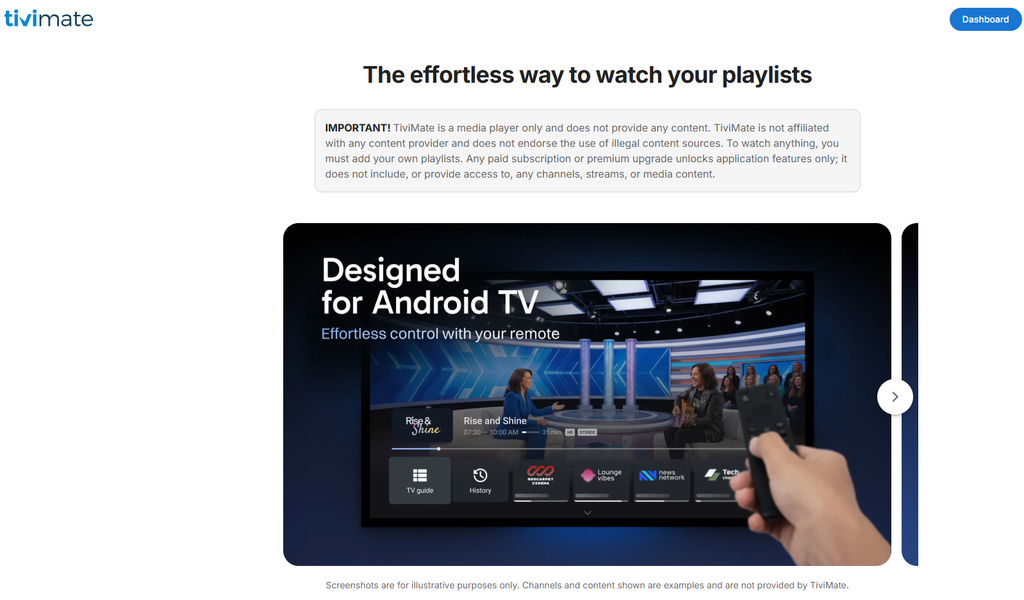
TiviMate is our first choice for readers who want a player designed around television viewing. Its official website says the app is intended for Android TV devices and documents favourites, search, multiple playlists and customisation.
TiviMate is especially worth investigating if recording and multiview matter to you. The developer lists both features, but you should confirm Premium requirements, device capability, storage arrangements and account permissions before relying on them.
TiviMate Premium does not include television channels. The developer explicitly states that paid upgrades unlock application features only and do not provide access to streams or media content.
No. 2: IPTV Smarters
IPTV Smarters is our second choice for readers who want straightforward account and playlist navigation. Its website documents playlist import, programme-guide support, on-demand sections, parental controls and external-player integration.
Smarters supports account entry using a server address, username and password, alongside playlist import. Use the connection method supplied by your authorised provider and supported by the exact application version.
Smarters does not supply content or playlists. Its published terms require users to provide their own lawful content and make clear that the application is not affiliated with third-party content providers.
Compare the two players in more detail in our TiviMate vs IPTV Smarters guide.
Compare other device options
Use the player designed for your device rather than assuming one installation method works everywhere. Our IPTV for Smart TV UK pillar guide explains the differences between Samsung Tizen, LG webOS, Hisense VIDAA and Android-based television platforms.
Check native TV apps if you would prefer not to use an external stick. Follow the Samsung Smart TV IPTV guide or the Hisense VIDAA IPTV guide for the relevant platform.
Download and install safely
Use the developer’s published download route rather than an anonymous code list. TiviMate currently publishes Downloader code 272483; the Smarters website provides an APK address, but this review could not verify a current developer-published numeric code for it.
TiviMate Downloader code
Use 272483 for TiviMate when installing on a compatible device. The code is published on TiviMate’s own website, alongside the alternative address tivimate.com/apk.
A Downloader code is a download shortcut, not an activation key or IPTV account. It does not unlock Premium, include channels or establish that your content source is authorised.
IPTV Smarters download
Use the APK address published by the Smarters website rather than an unverified numeric shortcut. At the time of this review, that website lists the IPTV Smarters APK download.
Check the current download before installation because versions and locations can change. This address is a software download, not a content subscription or an activation code.
Do not treat third-party Smarters codes as verified developer instructions. Different websites publish different codes and destinations, so this guide does not present one as an official current code without confirmation.
Check Fire OS or Vega
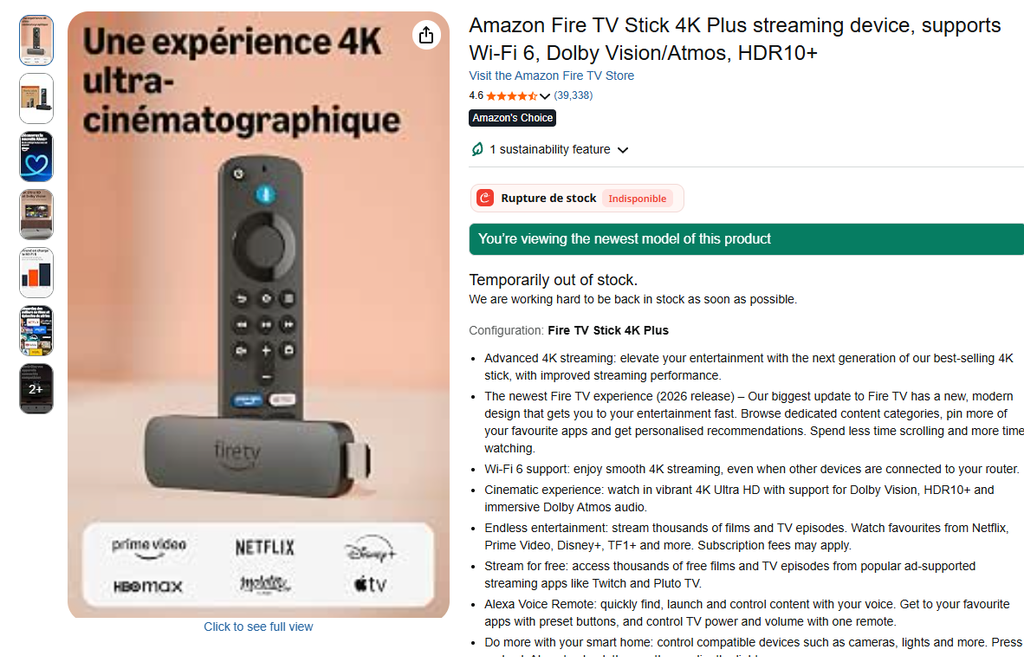
Confirm the device’s platform before following APK instructions. Amazon describes Fire OS as Android-based, while the Fire TV Stick 4K Select introduced its separate Vega OS platform.
Do not assume a Vega device will install an Android player through the same process. Amazon documents separate Vega development tools and selected cloud-delivered applications, neither of which guarantees compatibility with a downloaded Android IPTV APK.
Install on compatible Fire OS
Use Downloader only when the developer’s app supports your device and the installation route is permitted. The standard Fire OS process is to install Downloader, grant it installation permission, open the verified developer address and install the downloaded package.
- Search for Downloader in the Amazon Appstore.
- Install and open Downloader.
- Open Settings → My Fire TV → Developer Options.
- Find Install unknown apps and enable permission for Downloader.
- Enter TiviMate code
272483or the current developer-published Smarters download address. - Check the destination and application identity before installing.
- Install the player and open it.
- Delete the installer file when finished.
- Turn off Downloader’s installation permission when no longer needed.
Menu names can vary by Fire TV model and software version. Do not substitute a generic Fire OS tutorial for instructions applicable to a Vega device.
Check alternative platforms if your device does not support the player you need. Our Chromecast and Google TV IPTV guide covers a separate installation route, while the IPTV for Android UK guide explains Android-device setup.
Add your IPTV account
Add your authorised account after installing the player. Downloading TiviMate or Smarters does not create a subscription, supply a playlist or generate login details.
Use M3U or Xtream login
Choose the login option documented by your installed player. An M3U setup uses a complete playlist address, while an Xtream-style setup commonly asks for a server address, username and password.
Enter credentials exactly as supplied. A missing port, incorrect server address or typing mistake should be checked before reinstalling the app or purchasing another player.
Keep your playlist and credentials private. Avoid sharing screenshots that expose passwords or pasting account URLs into unknown conversion websites.
Check the programme guide
Test guide information separately from playback. A playlist can load channels without supplying correctly matched programme information, so a working stream does not prove that EPG setup is complete.
Use your player’s documented guide options and the EPG details supplied with your account. Do not add random guide addresses simply to fill an empty schedule.
Follow our IPTV Smarters setup and troubleshooting guide for more detailed account-entry help.
Test before choosing a plan
Test your player on the Firestick and network you actually use. Check remote navigation, live playback, guide loading, subtitles and reconnection after standby before committing to a longer content subscription.
Explore United Kingdom IPTV and compare the current IPTV subscription UK plans for prices, account terms, connection limits and trial availability. Verify content authorisation separately from technical compatibility.
Compare total costs when searching for cheap IPTV UK. Include any player charges, subscription payments and renewal conditions rather than judging an offer only by its headline price.
Review providers before making a longer commitment. Our IPTV provider comparison gives you another starting point for checking device compatibility, terms and support.
Keep reseller purchasing separate from home viewing. Review the IPTV reseller UK packages only if you are researching a business arrangement, and verify commercial resale rights before purchasing.
Ask for help before paying if compatibility remains unclear. Contact United Kingdom IPTV with your exact Firestick model, operating system and preferred player.
Fix Firestick IPTV problems
Identify the failure before changing settings. An unavailable app, installation warning, rejected login and buffering stream are different problems.
The app will not install
Check platform compatibility first. A Fire OS APK cannot be assumed to work on a Vega device, and a tutorial written for an older Firestick may not match your model.
Check the source if installation fails. Use the developer’s current download route and avoid modified packages, unofficial Premium versions or expired shortcut links.
The player opens without channels
Check whether you added a valid account or playlist. Both TiviMate and Smarters require separately supplied content, so an empty application immediately after installation is not evidence of a fault.
Ask your provider to verify access if the login information appears correct. Confirm account status and permitted connections before assuming that Amazon or your internet provider is blocking playback.
Playback keeps buffering
Compare one affected stream with another before blaming the player. Record whether the problem affects every channel, a particular programme or only certain viewing times.
Test the home connection and stop unnecessary simultaneous streams. If your account permits one active connection, close playback on another device before testing the Firestick.
Avoid promises that switching players will eliminate buffering. A player cannot guarantee the performance of your home network or the upstream content source.
An app displays a restriction
Read the exact warning rather than assuming all IPTV has been blocked. Reports describe restrictions affecting particular applications, which is different from a universal ban on IPTV players or internet-delivered television.
Use supported applications and contact the relevant developer for clarification. This guide does not recommend bypassing a device restriction or treating a VPN as an automatic fix.
Recording or multiview fails
Check player entitlements, storage and account limits. TiviMate advertises recording and multiview, but those features do not override a provider’s connection policy or guarantee sufficient device resources.
Confirm the rights to record the content before using recording features. Smarters’ published terms explicitly require users to have permission to use or record the material they supply.
Firestick IPTV app FAQ
What is the best IPTV app for Firestick?
TiviMate is our No. 1 editorial choice, with IPTV Smarters at No. 2. Choose between them after checking device compatibility, current feature terms and how each works with your authorised account.
What is the TiviMate Downloader code?
The developer-published code is 272483. TiviMate also lists tivimate.com/apk as a direct download address.
What is the IPTV Smarters Downloader code?
This review did not verify a current developer-published numeric code. Use the download address displayed on the Smarters website rather than treating a third-party code as official.
Is there a free IPTV app for Firestick?
Check the exact application’s terms before assuming permanent free use. Free installation, trial access and included content are separate things; neither TiviMate nor Smarters supplies channels as part of the player.
Is Amazon blocking IPTV on Firestick?
Do not interpret a playback failure as proof of a blanket block. Reports cover restrictions on certain applications, while device-platform incompatibility can also prevent installation.
Does TiviMate include an IPTV subscription?
No. TiviMate states that its paid upgrades provide application features only, not channels, streams or media content.
Which Firestick should I use?
Choose a model only after confirming support for the player you want. The Fire OS/Vega distinction is more consequential to installation than assuming every product sold as a Fire TV Stick runs the same apps.