Chromecast & Google TV IPTV UK

IPTV for Chromecast & Google TV UK: Apps, Setup & Best Options (2026)

Learn the difference between old Chromecast devices, Chromecast with Google TV and the newer Google TV Streamer 4K, then choose the right IPTV app, add your account, configure M3U or Xtream Codes and troubleshoot playback.

Updated September 2026 Google TV Chromecast IPTV Apps M3U & Xtream Codes

Short answer: Yes, but first identify which Chromecast you own. Older Chromecast devices, such as the 1st, 2nd and 3rd generations, and Chromecast Ultra are primarily Google Cast receivers. They do not have the Google TV interface or the Play Store needed to install IPTV players directly.

Chromecast with Google TV is different. It has its own interface, remote control and Play Store, and runs Android TV OS. That means compatible IPTV players can be installed directly on the television device.

The newer Google TV Streamer 4K goes further with 4GB of memory, 32GB of storage and built-in Gigabit Ethernet. Google's UK store currently lists it at £149. :contentReference[oaicite:0]{index=0}

There is one more distinction worth making before you install anything: the IPTV player and the IPTV service are separate. TiviMate, for example, is a player and does not provide channels itself. Its current Google Play listing states that you need your own IPTV playlist or service. :contentReference[oaicite:1]{index=1}

With our United Kingdom IPTV service, the current service information includes 25K+ channels, 200K+ movies and series, one active device connection, an Anti-Freeze option, no VPN requirement and customer support. Subscription options currently start at £9.99.

Old Chromecast? Use Google Cast from a compatible phone, tablet or computer.
Chromecast with Google TV? Install compatible IPTV applications directly through Google Play.
Google TV Streamer? More memory, more storage and built-in Gigabit Ethernet.

Old Chromecast vs Chromecast with Google TV: What's the Difference?

IPTV for Chromecast and Google TV UK setup
Chromecast and Google TV IPTV setup options for UK viewers.

Short answer: An older Chromecast receives content from another device, while Chromecast with Google TV is a standalone Android TV device with its own interface and Play Store. For regular IPTV use, Chromecast with Google TV or the Google TV Streamer is the more practical choice.

Old Chromecast: 1st, 2nd and 3rd generation

Older Chromecast devices are built around Google Cast.

You do not turn on a third-generation Chromecast and browse an application grid looking for TiviMate. Instead, a supported application on your phone, tablet or computer starts playback and sends it to the Chromecast.

The first-generation Chromecast should also be treated differently because its software and security support have ended.

Chromecast Ultra

Chromecast Ultra is also a Cast receiver rather than a Google TV device. It can receive compatible 4K content and can use an Ethernet adapter.

It does not provide the Google TV Play Store experience.

Chromecast with Google TV

This is the important jump.

Chromecast with Google TV includes a remote and Google TV interface, while the underlying platform is Android TV OS. That gives you a Play Store and the ability to install compatible television applications.

Google TV Streamer 4K

Google's newer Streamer is a larger box-style device rather than the older HDMI-dongle design.

The hardware has 4GB of memory, 32GB of storage, built-in 1Gbps Ethernet, Wi-Fi 802.11ac and Bluetooth 5.1. It supports up to 4K HDR at 60fps, including Dolby Vision, HDR10, HDR10+ and HLG. :contentReference[oaicite:2]{index=2}

That additional storage and memory can be useful if you keep several applications installed or work with large IPTV playlists.

Device Google TV app store Direct IPTV apps Max video Memory Storage Ethernet
Chromecast 1st–3rd gen No No Model-dependent Model-dependent
Chromecast Ultra No No Up to 4K Via adapter
Chromecast with Google TV HD Yes Yes Up to 1080p HDR 1.5GB 8GB Via adapter
Chromecast with Google TV 4K Yes Yes Up to 4K HDR 60fps 2GB 8GB Via adapter
Google TV Streamer 4K Yes Yes Up to 4K HDR 60fps 4GB 32GB Built-in 1Gbps

Google's current Google TV Streamer specifications confirm the 4GB memory, 32GB storage, Android TV OS and 1,000Mbps Ethernet connection. :contentReference[oaicite:3]{index=3}

Which TV Device Is Best for IPTV in the UK?

Chromecast is only one option. Compare our device-specific guides before choosing the setup that matches the television you already own.

Can You Use IPTV on Chromecast with Google TV?

Short answer: Yes. Chromecast with Google TV runs Android TV OS and lets you install compatible applications through Google Play. This makes it fundamentally different from an older Chromecast and much better suited to IPTV.

This is the Chromecast model most IPTV users are interested in.

You can search for an IPTV player directly from the television, install it and configure your account without needing your phone every time you watch.

The important limitation is that Android app availability is not the same as saying every Android application works on every Android TV device. Google TV displays compatible applications intended for its TV ecosystem.

TiviMate is a good example of a TV-oriented player. Its current Google Play listing says it is designed for Android TV and remote navigation, and currently lists support for M3U, Xtream Codes and Stalker Portal, alongside multiple playlists and EPG. :contentReference[oaicite:4]{index=4}

What Is the Best IPTV App for Google TV?

Short answer: There is no universal winner. TiviMate is particularly strong for a remote-first TV interface and playlist management, while Smarters Pro, GSE Smart IPTV, OTT Navigator and Kodi offer different approaches.

The right choice depends on how many playlists you use, whether you need EPG, how large your channel library is and how comfortable the interface feels with a TV remote.

TV Interface

TiviMate IPTV Player

TiviMate is designed specifically around Android TV and remote navigation. Its current Play Store listing supports M3U, Xtream Codes and Stalker Portal, plus EPG, multiple playlists, favourites, catch-up, recording, search and multi-view. :contentReference[oaicite:5]{index=5}

It is especially attractive if you want a traditional television-style guide and detailed playlist control.

Simple Setup

Smarters Pro

Smarters Pro is a standalone media-player approach. Because several IPTV apps use similar names, check the exact developer and current Google Play listing before installing anything.

Treat the player and the IPTV service as separate products.

Chromecast Support

GSE Smart IPTV

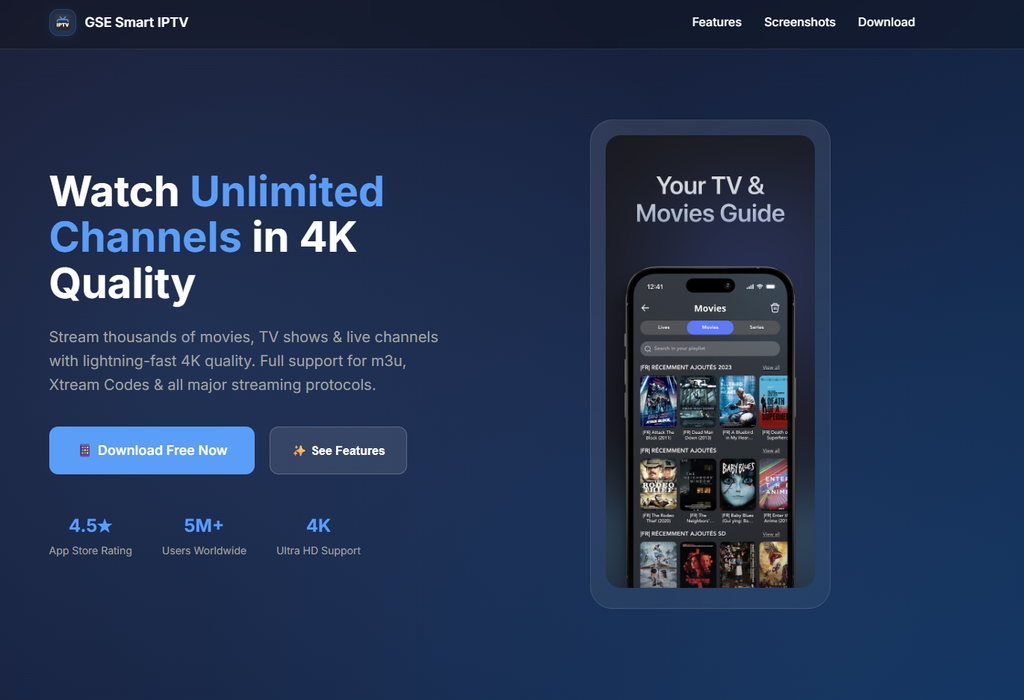
GSE Smart IPTV currently lists Chromecast support, Xtream-Codes API, XMLTV EPG support, M3U support and automatic live-stream reconnection. :contentReference[oaicite:6]{index=6}

It can therefore be interesting for households that use both native Google TV playback and casting.

Organisation

OTT Navigator IPTV

OTT Navigator is aimed at users who want detailed playlist management, filtering, EPG, favourites, search and category organisation.

Always check the current Google TV listing for your device before making it your primary player.

Flexible Setup

Kodi + IPTV Simple Client

Kodi is a configurable media centre rather than an IPTV subscription service. Its IPTV Simple Client add-on can be used for compatible M3U playlists and EPG.

It provides more configuration options but normally takes more setup than a dedicated IPTV player.

Which IPTV Apps Should You Compare on Google TV?

Player Google TV M3U Xtream EPG Best suited to
TiviMate Yes Yes Yes Yes TV interface and advanced control
Smarters Pro Depends on current version Depends on version Depends on version Depends on version Simple general-purpose setup
GSE Smart IPTV Yes Yes Yes Yes Formats + casting
OTT Navigator Check current availability Yes Yes Yes Filtering and playlist organisation
Kodi + IPTV Simple Client Yes Yes Not through the core IPTV Simple setup Yes Advanced media-centre setup

Can You Install TiviMate on Chromecast with Google TV?

Short answer: Yes. TiviMate currently has a Google Play listing for Android TV and lists support for M3U, Xtream Codes and Stalker Portal. :contentReference[oaicite:7]{index=7}

Open Google Play. Go to Apps and search for TiviMate IPTV Player.
Check the correct application. Confirm the developer and application details before installing.
Select Install. Allow Google TV to download the application.
Open TiviMate. Start the setup process from the application's welcome screen.
Choose your connection method. Use the M3U, Xtream Codes or Stalker Portal method supplied by your IPTV service.
Current TiviMate support: Its Google Play listing currently includes M3U, Xtream Codes, Stalker Portal, EPG, multiple playlists, recording and multi-view. :contentReference[oaicite:8]{index=8}

There is no need to tell readers that one fixed playback decoder or buffer value is universally “best”. Playback settings should be changed only when the real stream requires troubleshooting.

Can You Sideload IPTV Apps on Chromecast with Google TV?

Short answer: Yes. Google TV uses Android TV OS, so applications can be installed outside Google Play when the device and installer are permitted to do so. Android uses a source-specific permission model for installations from outside Google Play.

Sideloading can be useful when an application is not shown in the TV Play Store but has a legitimate Android TV package from its developer.

Security matters: don't treat “sideloading” as permission to download random APKs from unknown websites. Use a legitimate developer source where available and keep Google Play Protect enabled.

How do you enable developer options?

The usual Android TV route is:

Settings → System → About

Find the Android TV OS build information and press the confirmation button repeatedly until developer mode is enabled. Menu wording can vary slightly across Google TV software versions.

How do you allow an installer to install unknown apps?

Modern Android uses per-source installation permissions. The installer application itself may need to be granted permission to install apps from that source.

Should you keep Play Protect enabled?

Yes. There is little reason to disable security checks simply to install an IPTV player. Use trusted software and revoke installer permissions when they are no longer required.

How Do You Install an IPTV App on Chromecast with Google TV?

Short answer: Use Google Play whenever the application is available there. Search for the player, install it and add your IPTV account using the connection format supplied with your service.

Open Google Play. Search for your chosen IPTV player.
Install the player. Wait for the application to finish downloading.
Open the application. Follow the first-run setup.
Select your login method. This may be M3U, Xtream Codes or another supported method.
Enter the account details. Copy the username, password and server information carefully.
Let the playlist load. Large channel and VOD libraries can take time to initialise.
Test several channels. Check both live TV and VOD before changing advanced settings.

How Do You Add an IPTV Playlist on Google TV?

Short answer: Most IPTV players allow either an M3U playlist URL or structured account credentials such as Xtream Codes. The exact screen depends on the application.

How do you add an M3U playlist?

An M3U playlist is generally provided as a URL.

https://YOUR-SERVER-ADDRESS/get.php?username=YOUR_USERNAME&password=YOUR_PASSWORD&type=m3u_plus&output=ts

That is only a placeholder example. It is not a real server address or account. Use the actual playlist associated with your United Kingdom IPTV account.

How do you use Xtream Codes?

Server URL: https://YOUR-SERVER-ADDRESS Username: YOUR_USERNAME Password: YOUR_PASSWORD

The player uses those details to retrieve the available live TV, VOD, series and EPG information when supported.

What Is the Difference Between M3U and Xtream Codes?

Short answer: M3U is a playlist format commonly supplied as a URL, while Xtream Codes is a structured login method using a server, username and password. A player can support one, the other or both.

Method How you enter it Typical advantage
M3U Usually one playlist URL Simple when the app is designed around playlist imports
Xtream Codes Server + username + password Convenient structured login for supported players

It is too broad to say that one format is always faster or more stable. Both depend on the IPTV service, application and stream.

Which Login Method Should You Use on Google TV?

Short answer: Use the method your player and IPTV account support reliably. Xtream Codes can be convenient with players that have a dedicated login screen, while M3U is perfectly valid for applications designed around playlist imports.

For our United Kingdom IPTV account, use the connection information supplied for your subscription and supported by your chosen player.

There is no reason to change from M3U to Xtream Codes simply because an article claims that one format is universally better.

What Is EPG and Why Does It Matter on Google TV?

Short answer: EPG means Electronic Programme Guide. It adds programme names and schedules to your IPTV channel list.

Without EPG, the channels can still work normally. The difference is that you may see little more than channel names.

With an EPG, a compatible player can show programme schedules in a television-style guide.

TiviMate currently lists EPG support, while GSE Smart IPTV explicitly supports XMLTV EPG data. :contentReference[oaicite:9]{index=9}

How Do You Add an EPG to Google TV?

Short answer: If your IPTV service supplies an XMLTV EPG URL, add it through the EPG section of the selected player and refresh the guide.

https://YOUR-SERVER-ADDRESS/xmltv.php?username=YOUR_USERNAME&password=YOUR_PASSWORD

Again, this is only a fictional example. Do not invent an EPG address if your service has not supplied one.

Why can the EPG be wrong?

  • The EPG URL may be incorrect.
  • The guide may not have refreshed yet.
  • Channel names may not match the EPG entries.
  • The provider's guide data may be incomplete.
  • The player's time-zone configuration may be incorrect.

How Do You Cast IPTV to an Old Chromecast?

Short answer: An older Chromecast can receive IPTV playback from a compatible Google Cast-enabled application, but the IPTV player runs on your phone, tablet or computer rather than on the Chromecast itself.

Connect the devices to the same Wi-Fi. Your source device and Chromecast need to communicate over the same network.
Open a Cast-compatible IPTV app. Not every IPTV application includes Google Cast.
Tap the Cast icon. Choose your Chromecast from the available devices.
Start playback. The Chromecast receives the supported media stream.

GSE Smart IPTV currently lists Chromecast support alongside Xtream-Codes API, M3U and EPG features. :contentReference[oaicite:10]{index=10}

Can You Mirror Your Android Screen to Chromecast?

Short answer: Yes, on compatible devices and network configurations. This is different from app-based casting because the Android display itself is reproduced on the television.

For regular IPTV viewing: native playback on Chromecast with Google TV is usually cleaner because the IPTV player runs directly on the TV device instead of depending on the phone for the full viewing session.

What Are the Best IPTV Settings for Google TV?

Short answer: Start with default settings, a stable network and the player's normal hardware-acceleration options. Avoid treating fixed buffer values, DNS addresses or decoder settings as universal “best settings”.

Should you use Ethernet?

The Google TV Streamer 4K has built-in Gigabit Ethernet, which gives you a wired alternative to Wi-Fi. Google's current specifications list a 10/100/1,000Mbps Ethernet port. :contentReference[oaicite:11]{index=11}

Should you use 5 GHz Wi-Fi?

5 GHz can work very well when the signal is strong, but a weak 5 GHz connection through several walls can perform worse than a strong 2.4 GHz connection.

Should you change the decoder?

Only when playback actually requires it. If changing decoder settings makes the stream worse, return to the previous option and test again.

Should you change DNS?

A DNS change can affect domain resolution, but it is not a universal fix for IPTV buffering caused by weak Wi-Fi, an overloaded stream or another underlying problem.

Why Is IPTV Buffering on Chromecast or Google TV?

Short answer: Buffering can come from the network, Wi-Fi, the Google TV device, the IPTV application, the individual stream or the service infrastructure.

What if only one channel buffers?

Test several channels from different categories. If the rest play normally, the issue may be isolated to the individual stream.

What if everything buffers?

Investigate your home network first. Restart the router, Google TV device and IPTV app, then test another connection where practical.

What if playback works on the phone but not Google TV?

Test the television device directly. A working phone connection does not automatically prove that the Wi-Fi path, player or TV hardware will behave identically.

What if the EPG is missing but video works?

That normally points toward EPG configuration or guide-data matching rather than the live stream itself.

Symptom Where to investigate first
One channel buffers Individual stream
One category buffers Category or stream source
Everything buffers Network, device or service
Phone works, TV does not TV player, Google TV device or local network path
EPG missing but video works EPG configuration
Player crashes during playlist loading Application compatibility or playlist size

For a complete troubleshooting workflow, see Why Does IPTV Buffer?

Do You Need 10 Mbps for HD and 25 Mbps for 4K?

Short answer: Treat these figures as rough planning numbers rather than universal IPTV requirements.

Actual performance depends on bitrate, codec, stream format, network overhead and what other devices are using your connection.

A fast broadband package cannot compensate for unstable Wi-Fi or a poorly performing individual stream.

How Do You Update Your IPTV Channel List on Google TV?

Short answer: Use the refresh or update option inside the IPTV player. The exact menu varies by application.

  • New channels were added.
  • Channel names changed.
  • Streams were replaced.
  • EPG data changed.
  • A playlist needs to reconnect.

If your player supports multiple playlists, refresh the existing playlist before creating several duplicate entries.

Is Google TV Streamer Better Than Chromecast with Google TV for IPTV?

Short answer: Chromecast with Google TV remains capable, but the Google TV Streamer 4K has substantially more memory and storage and adds built-in Gigabit Ethernet.

Feature Chromecast with Google TV 4K Google TV Streamer 4K
Maximum resolution Up to 4K HDR Up to 4K HDR at 60fps
Memory 2GB 4GB
Storage 8GB 32GB
Ethernet Optional adapter Built-in 10/100/1,000Mbps
Wi-Fi 2.4 / 5GHz 802.11ac 2.4 / 5GHz
Bluetooth 5.1 5.1
Operating system Android TV OS Android TV OS

Google currently lists the Google TV Streamer 4K at £149 in the UK, with 4GB memory, 32GB storage and built-in Ethernet. :contentReference[oaicite:12]{index=12}

That does not mean every existing Chromecast with Google TV owner should upgrade. If your current device runs your IPTV player smoothly, there may be little reason to replace it.

How Does Google TV Compare With Firestick and Android TV for IPTV?

Feature Google TV Firestick Android TV
Native IPTV applications Broad Broad Broad
TiviMate Yes Yes Yes
Sideloading Yes Yes Usually
Google Play Store Yes No Usually
Ethernet Built-in on Streamer 4K Model/adapter dependent Often built in
Interface Google TV Fire TV Manufacturer dependent
Best suited to Google ecosystem + IPTV Amazon ecosystem + IPTV Users wanting Android flexibility

Our separate IPTV for Firestick UK and IPTV for Android UK guides cover those platforms in more detail.

What Should You Check Before Choosing an IPTV Service for Google TV?

Short answer: Check the connection formats supported by your chosen player, test the account on your actual Google TV hardware, verify playlist and EPG behaviour and make sure the service's connection limit fits your setup.

Does the player support M3U or Xtream Codes?

TiviMate and GSE Smart IPTV currently support these connection methods. :contentReference[oaicite:13]{index=13}

Have you tested the complete setup?

Do not stop after seeing the playlist load. Test live TV, categories, EPG and VOD on the Google TV device you actually intend to use.

What is the active device limit?

Our current United Kingdom IPTV setup includes one active device connection.

Is support available when setup goes wrong?

Support is important for account credentials, M3U or Xtream setup, EPG issues and playback troubleshooting.

Should you test before choosing a longer plan?

Yes. A trial is especially useful with Google TV because you are testing the exact combination of device, player, network and television.

Visit our IPTV Free Trial UK page to test your setup before choosing a longer subscription.

How Does United Kingdom IPTV Work on Google TV?

Short answer: Install a compatible IPTV player on Google TV, enter the connection information for your United Kingdom IPTV account and then use the television remote to browse the loaded channels and content.

United Kingdom IPTV account ↓ IPTV player ↓ Google TV device ↓ Television

That is fundamentally different from an older Chromecast:

United Kingdom IPTV account ↓ IPTV app on phone/tablet ↓ Google Cast ↓ Old Chromecast ↓ Television

With Chromecast with Google TV or the Google TV Streamer, you do not need your phone simply to launch the IPTV player on the TV.

Can You Watch UK and International Channels on Google TV?

Yes, provided those channels are part of the IPTV service and your account includes them.

For users looking for specific international categories, our site also includes:

The useful test is not simply the size of a catalogue. Test the categories and channels that you actually intend to watch on your own Google TV device.

Which Other Devices Can You Use With United Kingdom IPTV?

Short answer: Google TV is only one option. Depending on the application and connection method, your United Kingdom IPTV account can also be used with compatible Smart TVs, Firestick, Android devices and Roku setups.

Smart TV

IPTV for Smart TV UK

Compare IPTV setup options across Smart TV platforms and learn how app compatibility varies between manufacturers.

Read the Smart TV guide →
Firestick

IPTV for Firestick UK

Learn how to use IPTV through a more Android-oriented streaming platform.

Read the Firestick guide →
Android

IPTV for Android UK

Explore Android TV, Google TV and Android-device options for IPTV playback.

Read the Android guide →
Roku

IPTV for Roku UK

Compare Roku applications, screen mirroring and AirPlay with Android-based IPTV setups.

Read the Roku guide →

What Are the Most Common IPTV Questions About Chromecast and Google TV?

Can you use IPTV on Chromecast?

Yes, but the method depends on the Chromecast model. Older Chromecast devices primarily use casting from another device, while Chromecast with Google TV and Google TV Streamer can run compatible IPTV applications directly.

Can I install TiviMate on Chromecast with Google TV?

Yes. TiviMate currently has a Google Play listing for Android TV and supports M3U, Xtream Codes and Stalker Portal. :contentReference[oaicite:14]{index=14}

Can I install TiviMate on an old Chromecast?

No. Older Chromecast devices do not provide the Google TV Android application environment required to install TiviMate natively. You would need another device to run the player and then use a compatible casting method.

Can I install IPTV apps outside Google Play?

On Google TV and Android TV, sideloading is possible when the device and installer are configured to allow installation from an external source.

Is sideloading safe?

Not automatically. Use trusted developer sources where available and keep Google Play Protect enabled.

Can I use M3U on Google TV?

Yes, when the IPTV player supports M3U. TiviMate and GSE Smart IPTV currently advertise M3U support. :contentReference[oaicite:15]{index=15}

Can I use Xtream Codes on Google TV?

Yes, with applications that support it. TiviMate and GSE Smart IPTV currently list Xtream Codes support. :contentReference[oaicite:16]{index=16}

Can I use an old Chromecast for IPTV without buying anything else?

Potentially, if your IPTV application supports Google Cast or another compatible casting method. The player itself runs on the source device.

Does the phone have to stay on while casting?

It depends on the casting method. With supported Google Cast playback, the Cast device can continue playback independently. With screen mirroring, the source device remains part of the viewing session.

Is the Google TV Streamer worth it for IPTV?

It can be useful if you want 4GB of memory, 32GB of storage and built-in Gigabit Ethernet. Existing Chromecast with Google TV owners who are already satisfied may not need to upgrade. :contentReference[oaicite:17]{index=17}

Ready to Set Up IPTV on Chromecast or Google TV?

First identify your device. An old Chromecast is mainly a casting receiver. Chromecast with Google TV is an Android TV device that can run compatible IPTV applications directly, while the Google TV Streamer adds more memory, storage and built-in Ethernet.

Test your actual Google TV device, IPTV player and home network before choosing a longer plan.

Test IPTV With a Free Trial

What Should You Read Next?

About the author

This guide was prepared by Noah Sanchez, author of United Kingdom IPTV. It focuses on practical IPTV setup, Google TV and Chromecast compatibility, application choices and troubleshooting for users in the UK.

Learn more about how our content is researched and updated through our methodology and about us pages.

Noah Sanchez
Written by

Noah Sanchez writes practical guides about IPTV, streaming technology, compatible devices, IPTV players, and watching television content online. His work focuses on explaining IPTV technology in a clear and practical way so readers can understand how different services, apps, and devices work together.