
GSE Smart IPTV not working? Check whether the failure affects saved playlists, account loading, playback or casting before changing settings. On Apple TV, check the installed version first because the developer has documented fixes for playlist resets and web-server problems.
Save your playlist details and purchase records before reinstalling. The correct repair depends on the application, device and failure stage—not simply the GSE name.
Quick Answer: Match the Fix to Your Problem
Start with the symptom you can reproduce and change one thing at a time. A controlled comparison helps separate a player failure from an account, source or device problem.
| Problem | First action | Important limitation |
|---|---|---|
| Apple TV playlists disappear under low storage | Install a version containing the developer’s 4.4 fix | This addresses a specific documented defect |
| GSE web tools fail on tvOS 17 | Install a version containing the 4.4 web-server fix | Other local-network problems may remain |
| Playlist or login will not load | Verify the input method and test the same source elsewhere | A failed import does not automatically mean expiry |
| Playback stops when the phone locks | Check the exact app’s background-playback support | No universal repair was verified |
| App requests another purchase | Check the original app and purchasing Apple Account | Different app listings may have separate purchases |
| Chromecast receiver disappears | Check casting support, network discovery and permissions | Discovery is separate from stream compatibility |
| Changing episodes freezes the app | Close and reopen the affected application | A reported workaround, not a permanent repair |
Use our main IPTV not working guide if the problem affects several applications or you need a wider connection checklist.
Does your playlist also fail in XCIPTV? Use our XCIPTV playback and login troubleshooting guide to compare player behaviour and investigate Source Type Error, black screens and missing channels.
Check Which GSE App You Installed
Confirm the developer and store listing before following instructions or paying again. Similarly named GSE applications can have different features, purchases and defects.
The droidvision Apple TV app uses store ID 1055456071. GSE Smart IPTV Player Live TV by Animesh Sharma uses 6444845680; its audio, download and casting complaints should not automatically be attributed to droidvision’s software.
Record these 4 details:
- Exact application name.
- Developer.
- Installed version.
- Device and operating-system version.
Keep the application identity unchanged during troubleshooting. Installing a similarly named product can introduce another purchase requirement without fixing the original fault.
Fix GSE Playlists Disappearing on Apple TV
Update the droidvision Apple TV app to a version containing the 4.4 playlist fix. The developer explicitly identifies playlist resets under low Apple TV storage as a problem addressed in that release.
The same release adds automatic playlist backup and restore. That does not guarantee recovery of a playlist that was never backed up.
Save the Original Details Before Updating
Preserve the playlist URL or account credentials before making changes. Keep credential-bearing links private.
Record important favourites and channel organisation too. Restoring the source may not recreate every local preference.
Verify That the Playlist Remains Saved
Reopen GSE after updating, then restart the Apple TV normally and check the list again. Repeat the check after another viewing session.
Contact the developer if the same version still loses its configuration. Include available storage, the app version and whether the disappearance follows a restart or another action.
Fix GSE Web Tools Not Working on tvOS 17
Update the Apple TV application before changing router settings. The developer’s version 4.4 release notes explicitly include a tvOS 17 web-server fix.
The built-in HTTP server handles local playlist and EPG management. It is separate from the content provider’s streaming server.
Use the Current Address Displayed by GSE
Open the app’s web-server interface and use its current displayed address. Avoid relying on an old bookmark.
Keep the Apple TV application open and check that the sending device can communicate with it on the local network. Record whether the management page fails to open, the upload fails or the uploaded list cannot play.
Test Uploading and Playback Separately
Open a channel after confirming that the upload succeeded. A working management page does not prove that the provider’s streams are available.
Report the exact failing stage rather than describing both problems as “server down.” This helps support investigate the correct component.
Fix a GSE Playlist That Will Not Load
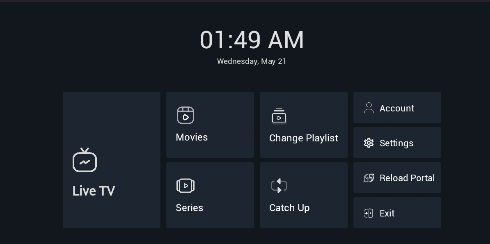
Match the supplied details to the correct input method before editing the address. A complete M3U link is different from an Xtream-style server address.
| Supplied information | Appropriate method, where supported |
|---|---|
| Complete M3U playlist URL | Remote playlist |
| Server address, username and password | Xtream-style account entry |
| Local M3U file | Local playlist import |
| XMLTV guide URL or file | EPG import |
Preserve the supplied scheme, port and path. Check accidental spaces or missing characters, but do not replace the host with an unverified address found online.
Compare the Same Source in Another Player
Test the unchanged source in another compatible application. Changing the player and source together makes the result harder to interpret.
| Comparison result | Investigate next |
|---|---|
| Source works elsewhere | GSE import handling or local configuration |
| Source fails elsewhere too | Account, source availability or shared connection |
| Catalogue loads but streams fail | Playback and individual stream access |
| Only one channel fails | That specific source |
Ask the provider to verify a source that fails broadly. Preserve a working alternative as a temporary workaround if the problem appears limited to GSE.
Fix “Invalid URL,” “Playlist Failed to Load” or “No Channels Found”
Check the source format and failure stage before resetting the device. These phrases appear in third-party GSE coverage, but exact wording varies between applications.
Capture the message and note whether it appears while adding the source or opening content. A rejected import and an unavailable channel are different failures.
Request a provider-confirmed replacement if the original source is no longer valid. Do not construct a new URL from unrelated examples.
Fix Channels Loading but Not Playing
Compare another channel and another compatible player before declaring an outage. A visible catalogue does not prove that its video addresses are playable.
Test live TV and on-demand content separately. Record whether playback stays black, displays an error or returns to the list.
Keep the Comparison Specific
Repeat one affected title while leaving other settings unchanged. A reproducible example is more useful than several simultaneous adjustments.
Use another functioning player temporarily if necessary. Do not copy decoder or streaming-format instructions from another app unless your GSE build supports them and testing confirms an improvement.
Fix Buffering or Crashing During Playlist Import
Compare the same source elsewhere before assuming playlist size is responsible. The research did not establish a developer-verified maximum channel count.
Use a smaller authorised playlist as a test only if your provider supplies one. Preserve the original list so the comparison remains reversible.
Restart Before Reinstalling
Close and reopen GSE, then restart the device if necessary. Save configuration before removing the application.
Treat restarting as a recovery step, not a proven repair for every crash. If the same source repeatedly triggers the failure, report that example to the developer.
Fix GSE Stopping When the iPhone Locks
Check whether the exact application supports background playback. Reviews report streams stopping when the phone locks or the user leaves the app, but no universal repair was verified.
Use an in-app background-audio control only if your installed version provides it. Do not assume Background App Refresh is the same as continuous media playback.
Test the Required Behaviour Directly
Start playback, lock the phone and check whether audio continues. Repeat the test when switching applications.
Use a player with explicitly supported background playback if the feature remains unavailable. Describe that as a workaround, not a repair to GSE.
Fix GSE Asking You to Pay Again
Check the original receipt, application and purchasing Apple Account before paying again. Similar app names do not establish shared purchase rights.
Open the original application and look for Restore Purchases where available. Use the Apple Account associated with the transaction.
Follow these 5 steps:
- Match the receipt to the installed app.
- Confirm the purchasing Apple Account.
- Restore an eligible purchase.
- Restart the device if restoration does not respond.
- Contact the developer or Apple if access remains missing.
Identify whether the transaction was a paid download, an in-app upgrade or a subscription. That distinction matters when investigating restoration.
Fix a Missing Chromecast Receiver
Check discovery before investigating the stream. A missing receiver and a connected receiver that cannot play content are different problems.
Confirm that the exact app supports Google Cast. AirPlay, screen mirroring and Chromecast are not interchangeable features.
Check Network and Permissions
Connect the sending device and receiver to the same local network. On iPhone or iPad, review the app’s Local Network permission.
Test another known Cast-enabled application. If it discovers the receiver but GSE does not, focus on GSE’s support and permissions before changing your subscription.
Use our IPTV Chromecast and Google TV guide for a wider discovery and playback checklist.
Investigate Guest-Network Isolation
Check guest-network or client-isolation settings if both devices have internet access but cannot discover each other. Internet connectivity does not guarantee local-device communication.
Follow the router’s documentation rather than disabling unrelated security settings. Retest discovery after each relevant change.
Fix Chromecast Connecting but Live TV Not Playing
Test the stream locally first, then compare another title on Chromecast. Phone playback does not automatically establish receiver compatibility.
A review of the separately developed GSE Smart IPTV Player Live TV reports casting working for some content but not live TV. No universal conversion setting was verified for that case.
Record the receiver model, application version and whether on-demand content casts successfully. Stop changing discovery permissions once the receiver connects.
Fix Sound Lost After a Call or App Switch
Close and reopen the affected player to test whether audio returns. This symptom was reported for GSE Smart IPTV Player Live TV by Animesh Sharma, not verified across every GSE product.
Replay the same title and note whether the device was using its speaker, Bluetooth or another audio route. Treat reopening as a recovery test rather than a confirmed permanent repair.
Fix Freezing When Changing Episodes
Close and reopen the app if episode switching freezes playback. A reviewer of GSE Smart IPTV Player Live TV reports using this workaround.
Record whether the next episode plays after reopening. The report does not establish a permanent setting or update that repairs every affected installation.
Fix Downloads Freezing or Missing Resume Progress
Preserve configuration and any required downloads before removing the app. Reviews describe frozen downloads and missing playback continuity, but no universal repair was verified.
Record the affected file, available device storage and repeatable stopping point. Do not promise that resetting the application will recover progress it never saved.
Fix GSE EPG Not Loading
Investigate the guide separately from video playback. The Apple TV app documents XMLTV support, but the guide must still be available, current and correctly associated with channels.
| EPG symptom | Targeted check |
|---|---|
| Entire guide empty | Source access and update result |
| Some channels blank | Channel identifiers and mapping |
| Old listings | Current programme data upstream |
| Programmes at the wrong time | Timezone and guide offset |
| Import fails | Supported file type and exact error |
Match the change to the failure. A timezone adjustment cannot repair a failed download, and mapping cannot create missing programme data.
Fix Mac Favourites That Will Not Stay in Order
Preserve the existing configuration and report the behaviour before rebuilding favourites repeatedly. A Mac Lite review describes dragged channels returning to their original positions.
Use the retained order or another compatible player as a workaround. No verified permanent repair was established for that report.
Fix the “GET PRO VERSION” Overlay
Check whether you installed the Lite edition before treating the overlay as a playback error. Reviews identify this wording as an upgrade prompt.
Verify the intended upgrade terms or restore an eligible purchase. Do not buy a similarly named application without confirming that it is the correct product.
Check Related Player and Service Problems
Use the guide that matches the application or account you are actually testing. Similar symptoms do not make the underlying software identical.
- Read our IPTV Smarters not working guide if you are comparing GSE with Smarters.
- Use our Hot IPTV not working guide for HotPlayer playlist, activation and TV-specific problems.
- Follow our TREX IPTV not working guide if the account involved is supplied as TREX.
Keep GSE-specific checks on this page and wider diagnosis in the main IPTV troubleshooting guide.
What to Send Support
Send a reproducible report rather than “GSE is broken.” Include the exact app and the last stage that works.
Provide these 8 details:
- App name and developer.
- Store listing or application identifier.
- Installed version.
- Device and operating system.
- Exact error wording.
- Failure stage.
- Result in another compatible player.
- Receipt if payment is involved.
Keep passwords and complete credential-bearing playlist links out of public posts. Use the appropriate private support channel for sensitive details.
Thinking About Changing IPTV Providers?
Replace the content service only after the comparison points toward it. Another subscription will not repair unsupported background playback, a local web server or an unrelated purchase entitlement.
Review our Free Trial IPTV UK offer if you decide to compare another service. Confirm current conditions and test on your normal device and connection.
Test the Features You Actually Need
Check live TV, on-demand content, guide loading and casting where relevant. A catalogue loading successfully does not demonstrate that every required function works.
Compare our IPTV subscription UK plans after testing compatibility. Review current prices, connection limits, support terms and content authorisation before paying.
Fix the Failing Component First
Apply developer-confirmed updates, then use controlled comparisons for unresolved symptoms. Save the original configuration and verify each change against the same failed action.
United Kingdom IPTV is a separate service and cannot restore another developer’s purchase or repair another provider’s account. A trial checks an alternative setup; it does not repair the original installation.