
Hot IPTV not working? First check whether HotPlayer opens, recognises your device and loads your playlist. Then test the same playlist in another compatible player before replacing your subscription or deleting your settings.
The correct solution depends on the failure. An offline-TV warning, a stream that will not play and an activation request are different problems. Follow the matching section below rather than applying every fix.
Quick Answer: Match the Fix to Your HotPlayer Problem
Start with the symptom you can reproduce and make one change at a time. This helps you identify what actually restores access.
| Problem | First action | What to avoid |
|---|---|---|
| TV shows offline during upload | Open the app on the TV and verify the device identifier shown there | Uploading repeatedly to an unverified device |
| Playlist will not load | Test the exact same playlist in another compatible player | Assuming every loading error means your subscription expired |
| Channels fail but EPG works | Compare playback on another device or player | Treating guide access as proof that video streams work |
| Picture plays without sound | On Apple devices, check for the update addressing format-dependent sound problems | Assuming the Apple fix applies to every television version |
| App requests activation again | Compare the installed app and device identifier with the purchase record | Paying again before checking the existing activation |
| Playlist disappears or changes | Check the correct device and use Lock MAC where available | Sharing device identifiers publicly |
| One channel buffers | Test another channel or supplied feed | Resetting the entire setup for one failing source |
Use our main IPTV not working guide if the same problem affects several players or you need a broader connection checklist.
Trying XCIPTV as an alternative player? Check our XCIPTV not working guide for source-format errors, guide downloads and recording checks before replacing your subscription or deleting your settings.
Why Is Hot IPTV Not Working?
HotPlayer may fail because of a device-registration mismatch, a non-working playlist, a playback problem or an activation issue. The failure stage tells you which part to investigate first.
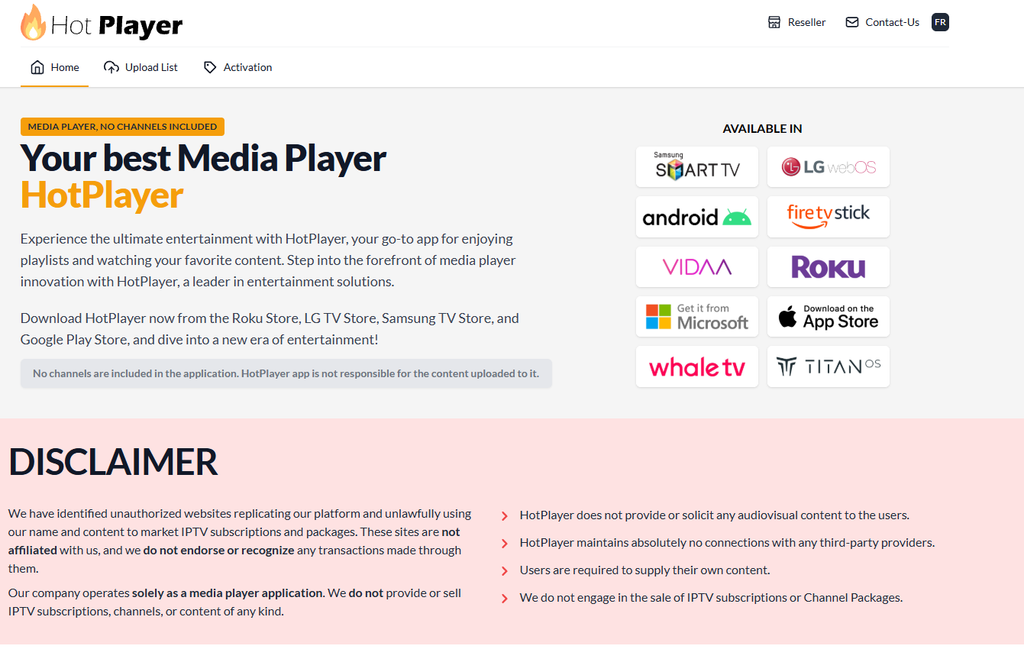
HotPlayer is a media player, not a channel subscription. Its developer says users must supply their own content, so an app activation payment does not purchase or renew your provider’s channels.
Check These Four Stages First
Identify the last stage that works before changing anything. A player that cannot open needs different checks from one that loads a catalogue but cannot play video.
- Does HotPlayer open normally?
- Does the management screen recognise the intended device?
- Does the uploaded playlist appear?
- Does the selected channel or title play?
Save your account details and photograph relevant settings before removing the app. Preserving the original configuration makes comparisons easier and reduces the risk of losing a working setup.
Hot IPTV Says the TV Is Offline
Verify the device shown inside the TV app before uploading again. An “offline” status in a playlist-management screen does not, by itself, prove that the television has no internet access.
A Hisense VIDAA user reported that Hot IPTV continued to show the TV as offline even though the same playlist streamed in SS IPTV. That report establishes the symptom, but it does not provide a confirmed repair inside HotPlayer.
Verify the Device Before Repeating the Upload
Compare the identifier displayed by the current HotPlayer installation with the device selected in its management interface. A successful upload to the wrong device cannot populate the player you are watching.
Follow this order:
- Open HotPlayer on the television.
- Record the device identifier displayed by that installation.
- Open the playlist-management route provided by the app.
- Select or enter the matching identifier.
- Keep the TV app open while checking its status.
- Upload only after confirming that you are managing the intended device.
Treat these as verification steps, not a guaranteed repair for the reported VIDAA fault. If the identifiers match and the offline status remains, record that result for app support.
Test the Playlist Outside HotPlayer
Use another compatible player to establish whether the playlist is accessible. Keep the playlist unchanged so the result remains meaningful.
If it works elsewhere, continue investigating HotPlayer or the television installation. If it fails elsewhere too, ask the content provider to verify the playlist and account rather than assuming the offline warning identifies the whole problem.
Using another IPTV player or service? Follow our IPTV Smarters not working guide for login and playback issues, or our TREX IPTV not working guide for TREX-specific troubleshooting. For problems across several apps, start with the IPTV not working guide.
Using GSE as an alternative player? Follow our GSE Smart IPTV not working guide for missing playlists, loading failures, casting problems and purchase checks before deleting the original setup.
Use a Working Alternative When No In-App Repair Is Confirmed
Keep the working player as a temporary workaround if HotPlayer alone fails. The Hisense report specifically described SS IPTV streaming the same playlist, although that user also reported limitations with its startup and catch-up functions.
An external streaming device is another possible route, but it is a replacement setup—not a verified repair to the TV app. Check compatibility before buying hardware solely to solve this problem.
Hot IPTV Playlist Not Loading
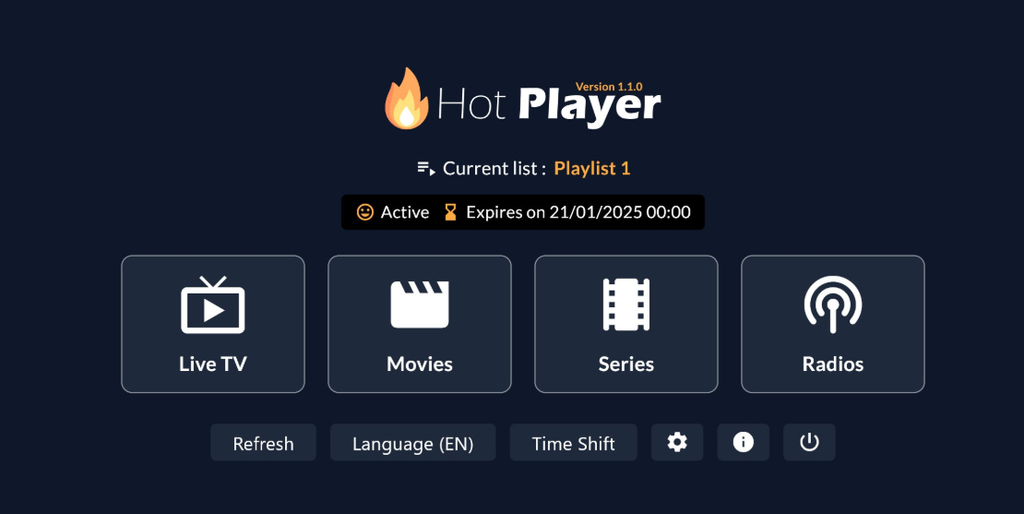
Test the exact supplied playlist before editing it. HotPlayer’s developer confirms that a non-working M3U list triggers a warning, but does not publish one universal warning text for every platform.
Check that you copied the complete link without accidental spaces or missing characters. Preserve the original address privately so you can restore it after testing.
Compare the Same Playlist in Another Player
Use an unchanged link in the comparison player. Changing the playlist and the app simultaneously makes it difficult to identify the original fault.
| Result | What to investigate next |
|---|---|
| Playlist works elsewhere | HotPlayer installation, device registration or playlist handling |
| Playlist fails in both players | Provider account, supplied URL or source availability |
| Catalogue loads but streams fail | Playback and individual stream access |
| Only one title fails | That specific source or title |
Ask the provider for a verified replacement link if the supplied one is no longer valid. Do not construct a new address from unrelated examples online.
Avoid Repeatedly Deleting the Working Configuration
Preserve other functioning lists while investigating one failure. The developer advertises support for up to three playlists, although availability and behaviour should be checked in your installed version.
Use a separate slot for comparison only if your build provides that option. This can preserve the original list while you test a provider-confirmed replacement.
“Cannot Communicate With Your Playlist” Error
Check playlist accessibility and the intended device before treating this message as an outage. Third-party coverage attributes wording such as “Cannot communicate with your playlist — be sure that your link is alive” to Hot IPTV, but the exact text may vary.
Use a controlled comparison:
- Confirm the complete playlist link.
- Verify that it belongs to the account you intend to use.
- Test it in another compatible player.
- Ask the provider to verify it if it fails there too.
- Report a HotPlayer-specific failure if the same link works elsewhere.
Do not assume the message proves an ISP block. The wording alone does not identify whether the problem is the link, provider, connection or player.
Hot IPTV Channels Not Playing but EPG Works
Diagnose video playback separately from guide loading. A Samsung user reported that Hot IPTV’s EPG still worked even though streams would not play.
Guide data and video playback can produce different results. A populated programme guide therefore does not establish that the selected stream is currently playable.
Compare the Same Channel on Another Device
Test the same channel and account on another compatible device where possible. Keep the home connection unchanged for the first comparison.
The Samsung report described streams working on an iPhone and iPad using the same Wi-Fi while failing on the television. That comparison points toward a TV-specific investigation without establishing the exact technical cause.
Stop Repeating Resets That Already Failed
Record unsuccessful steps and move the investigation forward. The Samsung user reported that rebooting, reinstalling, changing DNS and factory-resetting had not resolved their case.
Do not present those actions as the confirmed solution to that report. If the account works elsewhere, send the television model, app version and comparison result to app support.
Use our IPTV for Smart TV UK guide to check the distinction between TV compatibility, player activation and the content subscription.
HotPlayer Has Picture but No Sound
On Apple devices, check for the Hot Player update addressing sound issues with some video formats. The Apple listing explicitly documents that fix, making an app update the strongest supported first action for that particular defect.
Open the App Store listing for your installed app, confirm the developer is STE DIGI VIBES and install an available update. Close and reopen the app, then replay the same affected title.
Retest the Same Content After Updating
Use the title that originally failed to verify the result. Testing a different video with a different audio format may hide the original problem rather than demonstrate that it is fixed.
Compare another title if the failure remains. Report whether sound is missing from everything or only certain files.
Do Not Apply the Apple Fix to Every Platform
Check platform-specific release notes before claiming the television version contains the same defect or repair. The verified release note concerns the Apple listing.
Use another player as a comparison if sound still fails. Avoid changing every television audio setting at once without knowing whether the issue affects one source or all content.
HotPlayer Is Asking for Activation Again
Check the existing purchase against the current app installation and device before paying again. A user review reports another annual activation request, but the available evidence does not establish whether the original entitlement expired or failed to be recognised.
Collect the purchase receipt, activation period, device identifier and exact app name. These details allow support to investigate the existing transaction.
Separate Player Activation From Channel Access
Identify which payment is being requested. HotPlayer activation and your content provider’s subscription are different purchases.
| What stopped working | Who should investigate |
|---|---|
| App displays an activation or licence request | Player purchase or activation support |
| App opens but provider content fails | Content provider, followed by player support if comparison tests point to the app |
| Payment completed but activation is absent | The seller or platform that processed that activation |
| Subscription credentials were never delivered | The content seller associated with the original order |
Do not renew the channel subscription merely because the player requests activation. Confirm which entitlement is affected first.
Ask Support to Verify the Original Transaction
Send the receipt and current device details privately to the appropriate purchase-support channel. Request verification before making a duplicate payment.
Avoid sending payment to a website simply because it uses the HotPlayer name. The developer warns that unaffiliated sites copy its branding and sell IPTV packages.
HotPlayer Playlist Disappeared or Changed
Verify that you are opening the correct installed app and device before re-uploading. Then check whether the playlist needs to be restored through the app’s recognised management route.
The developer provides a Lock MAC feature to help prevent someone else resetting the playlist. Its FAQ specifically mentions this protection when a device’s MAC address has been shared.
Use Lock MAC After Restoring Access
Enable Lock MAC in the application settings if your version offers it. The developer identifies this feature as protection against playlist resets by other people.
Keep device identifiers and playlist links private. Do not post them in public troubleshooting threads.
Do Not Assume Every Disappearance Was Unauthorised
Investigate the device, installation and management history before blaming another person. The existence of Lock MAC establishes a protective feature, not proof that a particular disappearance was caused by interference.
Tell support whether the issue began after reinstalling, changing devices or allowing someone else to manage the list. Those details are more useful than repeatedly uploading without recording what changed.
HotPlayer Is Not Updating on iPhone or iPad
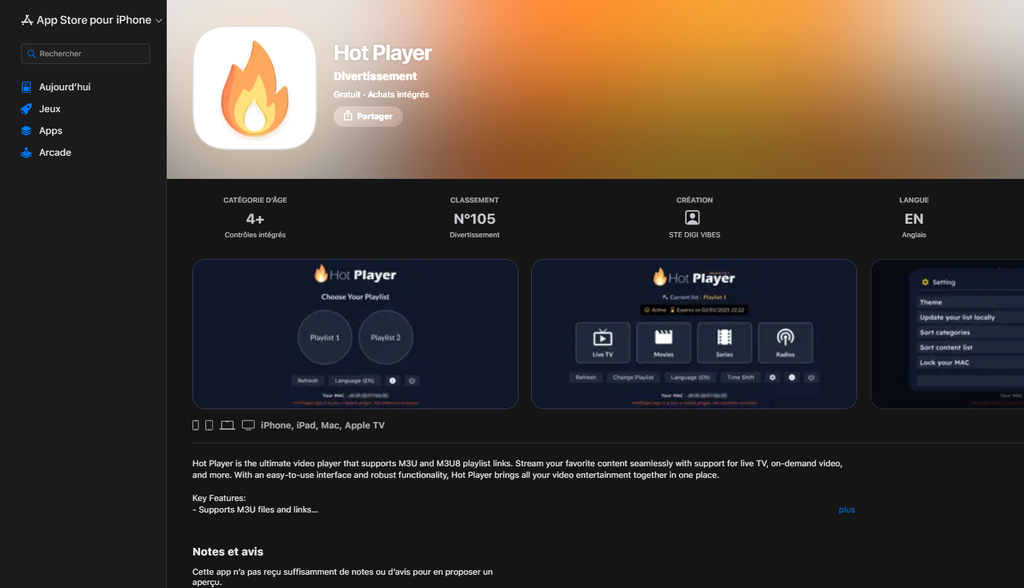
Check device compatibility and the exact store listing before reinstalling. A review reports an update-related failure, but does not establish one confirmed repair for every affected device.
The Apple listing reviewed for this guide specifies iOS 13.0 or later for iPhone and iPadOS 13.0 or later for iPad. Requirements can change, so confirm the current listing on your device.
Save the playlist details before removing the app. If no update is available despite an update-required message, capture that message and send the installed app version and operating-system version to developer support.
Hot IPTV Buffering or Freezing
Compare another channel before changing the entire setup. One failing source needs a different investigation from buffering across several unrelated streams.
Keep the player, connection and content consistent while testing. Change only one variable so an improvement can be traced to a specific action.
If Only One Channel Buffers
Test another supplied feed of the same programme if your account includes one. Report the failing channel’s exact name and the time of the interruption.
Do not factory-reset the television for one unreliable feed. First establish whether other channels play normally.
If Several Channels Buffer
Compare the same stream in another compatible player, then compare available connection options if necessary. These are diagnostic tests, not verified universal HotPlayer fixes.
| Comparison | What it helps investigate |
|---|---|
| Same stream, different player | Whether the original player is involved |
| Different stream, same player | Whether the failure is source-specific |
| Same setup over Ethernet and Wi-Fi, where supported | Whether the connection method changes the result |
| Same account on another device | Whether the problem is limited to the original device |
Avoid promising that a VPN, DNS change or particular buffer size will solve every HotPlayer interruption. The collected evidence does not support that claim.
Hot IPTV Shows a Black Screen
Check whether the playlist loads and whether another title plays before choosing a repair. A black screen is a symptom, not a verified diagnosis.
Record whether you hear sound, see player controls or can return to the catalogue. Then compare the affected title in another supported player.
Use the working player temporarily if the comparison succeeds. Do not label a decoder change as the exact solution unless your installed version exposes that option and the test resolves the same failure.
HotPlayer EPG Is Missing
Investigate guide data separately if channels play but programme listings are absent. A video stream and its programme guide do not have to fail together.
Check whether your provider supplies current EPG data and whether your HotPlayer version supports the relevant guide configuration. Avoid following an invented menu path that does not exist in your build.
Ask support whether the problem affects the entire guide or only certain channels. Missing source data and incorrect channel matching require different corrections.
HotPlayer Will Not Open or Keeps Closing
Treat startup failure as a local-app investigation before changing the provider account. Check for an available app update and record the installed version.
Restart the device and retest the same startup action. If reinstalling becomes necessary, preserve playlist details and activation records first.
Use your platform’s application controls rather than instructions written for a different device. A Samsung, Hisense, Apple and Android installation will not necessarily expose the same menus.
What to Send HotPlayer Support
Send a precise report showing the failure and the comparison you completed. This gives support a reproducible problem instead of a general “not working” complaint.
Copy this checklist:
- Device make, model and operating system.
- Exact app name, developer and version.
- Error wording or a screenshot.
- Whether the app opens.
- Whether the device shows online.
- Whether the playlist loads.
- Whether the guide loads.
- Exact affected channel or title.
- Whether the same playlist works elsewhere.
- Recent updates, reinstalls or device changes.
- Activation receipt if the issue concerns payment.
Keep passwords, payment details and credential-bearing playlist links out of public posts. Send sensitive information only through the appropriate private support route.
Should You Change IPTV Providers?
Replace the subscription only after identifying whether the content service is actually responsible. A new provider will not necessarily repair a local player, device-registration or activation problem.
Use our Free Trial IPTV UK offer if you decide to compare another service on your normal setup. Confirm current trial conditions and check device compatibility before requesting access.
Test live TV, on-demand content and guide loading during your usual viewing hours. Compare our IPTV subscription UK plans only after reviewing playback, connection limits, support terms and content authorisation.
Hot IPTV Not Working: FAQs
Why Is My Hot IPTV Stream Failing?
Compare another channel and another compatible player to separate a source problem from a HotPlayer-specific failure. Record whether the catalogue loads before playback stops.
Ask the content provider to verify the source if the same stream fails elsewhere. Contact player support when the unchanged playlist works in another compatible app but fails in HotPlayer.
How to Activate Hot IPTV?
Use the activation route provided by the installed app and verify the intended device before paying. Keep the receipt and check the selected activation period.
Activation unlocks the player; it does not supply channels. Obtain any authorised content separately from the provider responsible for that service.
Is Hot IPTV Free?
Do not assume a free download means permanent player access or included channels. The developer advertises a trial and paid activation options, while stating that no channels are included.
Check current terms inside the recognised app or its developer-provided purchase route. Prices and purchase options may differ by platform.
How Do I Activate Hot Player?
Check the device identifier shown by your installed app, then follow its recognised activation process. Verify the selected device and purchase period before confirming payment.
Contact the original purchase channel if payment completed but access remains unavailable. Do not make repeated payments without checking the first transaction.
How to Work Hot Player?
Install the intended app, add your own supported playlist and complete activation if required. Confirm that the catalogue appears before testing individual streams.
Start with one live channel and one on-demand title. This helps distinguish playlist-loading success from actual playback.
Do I Have to Pay for Hot Player?
A paid activation may be required after the applicable trial. Confirm your platform’s current terms rather than relying on another device’s price.
Keep the player fee separate from your content subscription. Paying one does not automatically purchase the other.
What Is the Hot Player App and What Can I Do With It?
HotPlayer is a media player for user-supplied content. The developer lists features including search, favourites, channel sorting, parental controls and playlist management.
Use it with content you are authorised to access. The app itself does not supply a channel package.
Does Hot Player Cost Money?
The developer offers paid activation options, but exact pricing should be checked at purchase. Different platform listings may show different currencies or products.
Confirm the duration and device before paying. Retain the receipt in case activation needs investigation later.
Can I Download the Hot Player App on My Samsung TV?
The developer lists availability through Samsung’s TV store. Search the television’s own store and confirm that the app matches the intended developer.
Do not assume availability on every Samsung model or in every region. If it is missing, verify compatibility before following third-party region-change instructions.
Is Hot IPTV Down Right Now?
A failure on one television does not establish a wider outage. Test the same playlist in another player and ask the content provider whether the assigned service has an incident.
Keep player availability separate from playlist availability. HotPlayer does not operate the third-party content service supplied with your account.
Fix the Failing Component Before Replacing Everything
Start with device recognition, playlist access, playback and activation as separate checks. Preserve your details and verify each change against the original symptom.
United Kingdom IPTV is a separate service and cannot repair another seller’s activation or content account. Check compatibility and current terms before considering an alternative subscription.