
Key takeaways
- OTT Navigator is a player, not a service. It plays streams from your own IPTV provider. It does not supply channels itself.
- The free version is usable. You get live TV, VOD, EPG, search, and favourites without paying.
- Premium unlocks ad removal, unlimited playlists, and up to 5 devices on a single account, purchased via the separate OttNav Companion app.
- Current stable version is 1.7.4.1 (released 2 January 2026), published by AERONOXA LLC on Google Play.
- Works on Android 6.0+, Android TV, Google TV, and Amazon Fire TV. Samsung Tizen and LG webOS are not supported.
- For Fire TV installs, use Downloader code 774792 to sideload the standalone build.
- TiviMate is the cleaner, simpler alternative. OTT Navigator is better suited to users who want deeper control and multi-provider management.
- Pricing varies by region and store, but community reports cite around $19.99 for a lifetime licence or a low monthly subscription via OttNav Companion.
What is OTT Navigator?
OTT Navigator is an Android IPTV player developed by AERONOXA LLC (published under the SIA Scillarium Studio entity). The app itself does not carry television content. It is a player shell – you bring your own M3U playlist or Xtream Codes credentials from a legitimate IPTV provider, and OTT Navigator handles playback, EPG, and the interface.
This distinction is important for first-time users. Searching for “OTT Navigator channels” or “OTT Navigator free TV” can be misleading because the app has no content of its own. What it does have is a deep feature set for Android IPTV users, along with a learning curve to match.
The app is listed on Google Play with a 3.3-star rating from 33 reviews and 10,000+ downloads. Those numbers reflect a niche power-user audience rather than a mass-market app. The companion management app (OttNav Companion, used to purchase and manage Premium) has a separate listing with 100,000+ downloads and a 4.0-star rating.
Who builds it? AERONOXA LLC, with documentation and community support hosted at ottnav.github.io. The official Telegram group (t.me/ottnav_global) is another route to developer-adjacent help.
Is OTT Navigator giving you errors? Follow our OTT Navigator not working guide to match 403, SSL, EPG and recording errors to the fix that clears them, before you reset the app or buy more Premium slots.
Free vs Premium: What actually changes?
The free version of OTT Navigator is not limited to basic playback. You can add a provider, load channels, browse EPG, set favourites, and watch live TV without paying. Premium mainly removes restrictions and unlocks additional features.
Feature comparison table
| Feature | Free | Premium |
|---|---|---|
| Live TV playback | ✅ | ✅ |
| VOD and series | ✅ | ✅ |
| EPG (Electronic Programme Guide) | ✅ | ✅ |
| Search across channels and VOD | ✅ | ✅ |
| Favourites and custom categories | ✅ | ✅ |
| Backup and restore | ✅ | ✅ |
| Parental controls / child mode | ✅ | ✅ |
| Ads in the interface (not in playback) | ❌ shown | ✅ removed |
| Unlimited playlists / providers | Limited | ✅ |
| Multi-device account (up to 5 devices) | ❌ | ✅ |
| Picture-in-Picture (PiP) | Provider-dependent | ✅ unlocked |
| Studio mode (multi-screen, up to 20) | Provider-dependent | ✅ unlocked |
| Recording / DVR (where provider supports) | ❌ | ✅ |
| Priority support access | ❌ | ✅ |
A note on PiP and Studio mode: These features depend on your IPTV provider allowing multiple simultaneous connections. Premium unlocks the feature in the app, but if your provider only permits one connection, you will still see a “connections limit reached” message. Check your provider’s connection allowance before assuming Premium is not working.
How much does Premium cost?
Pricing varies across regions and stores, which causes confusion in community discussions. Based on current community reports and the OttNav Companion app listing:
- Monthly subscription: approximately $0.99–$3/month depending on region
- Lifetime licence: approximately $19.99 (some regions report €11.99)
- Device slots: Premium is sold in device slots via OttNav Companion; the standard package covers 5 devices
The free tier is more generous than TiviMate’s free tier, which limits multiple playlists behind Premium. If you only have one IPTV provider and can tolerate interface ads, the free version of OTT Navigator may be enough.
Current version: What’s new in v1.7.4.1
Version 1.7.4.1 was released on 2 January 2026. The main additions include:
- TMDB integration – you can now connect your own TMDB API key to pull movie and series metadata (posters, descriptions, ratings) for your VOD library, supplementing whatever your provider sends via EPG.
- DVR/timeshift for live streams – basic support for live channels with DVR capabilities on DASH/HLS providers that don’t use traditional archive systems.
- Mass channel tagging – select multiple channels and tag them into custom categories in one action, which helps when managing large playlists.
- Audio shift for hardware codecs – lip-sync adjustment now works when using hardware decoding, not just software.
- Improved DRM support – better handling of CENC, DASH, HLS, and Smooth Streaming protected content.
- Separate User-Agent per provider – you can now set a different User-Agent for API calls versus stream requests on the same provider, which can resolve compatibility issues with certain UK IPTV providers.
- Adult content restrict code – a separate PIN for adult content, independent of the general settings PIN.
- Ad break support improvements – better handling of streams that contain ad break markers.
- Country flags toggle – option to disable country flags in category headers for a cleaner interface.
The previous major update (v1.7.3.3, September 2025) added Google Assistant global search support, OpenSubtitles integration, VPN connection enforcement on startup, and updated the bundled VLC codec to v3.6.4.
Supported devices: Compatibility at a glance
OTT Navigator runs on Android, but compatibility varies by device and operating system.
Device compatibility table
| Device type | Supported | Notes |
|---|---|---|
| Android phones (6.0+) | ✅ | Full feature set |
| Android tablets (6.0+) | ✅ | Tablet-optimised layout available |
| Android TV boxes (Mi Box, NVIDIA Shield, etc.) | ✅ | Recommended for TV use |
| Google TV (Chromecast with Google TV 2021+) | ✅ | Install via Play Store |
| Amazon Fire TV Stick / Fire TV Cube | ✅ | Requires sideloading; see below |
| Windows 11 (via WSA) | ✅ | Works via Windows Subsystem for Android |
| Windows / Mac (via emulator) | ✅ | NoxPlayer or BlueStacks; hardware acceleration may be limited |
| Samsung Smart TV (Tizen) | ❌ | Not supported; use an Android TV stick instead |
| LG Smart TV (webOS) | ❌ | Not supported; use an Android TV stick instead |
| Apple TV / iOS | ⚠️ | Separate iOS app exists (“OTT Navigator IPTV Pro”) with different pricing and feature set |
The Samsung/LG situation explained: The official FAQ states that WebOS and Tizen are not supported. The developer recommends attaching an Android TV stick or box via HDMI if you have an LG or Samsung TV. A Chromecast with Google TV is one option for getting OTT Navigator running on a TV.
If you are setting up IPTV on a Smart TV, our guide to IPTV for Smart TVs covers your device options in detail.
How to get OTT Navigator: Official sources only
There are two legitimate ways to install OTT Navigator. Neither involves downloading from random APK mirror sites.
Option 1: Google Play Store
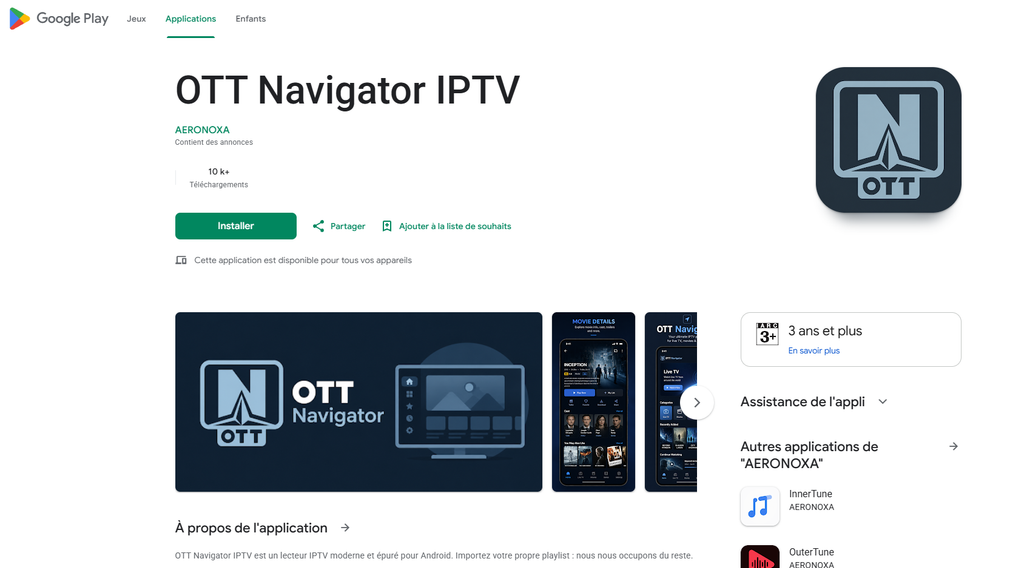
Search for “OTT Navigator IPTV” on Google Play. The publisher is AERONOXA LLC, package ID com.ottnavigator.iptvnavigator. This is the most straightforward route for Android phones, tablets, and Google TV devices.
Important: Multiple listings exist on Google Play with similar names. Verify the publisher name before installing.
Option 2: Standalone (sideload) build
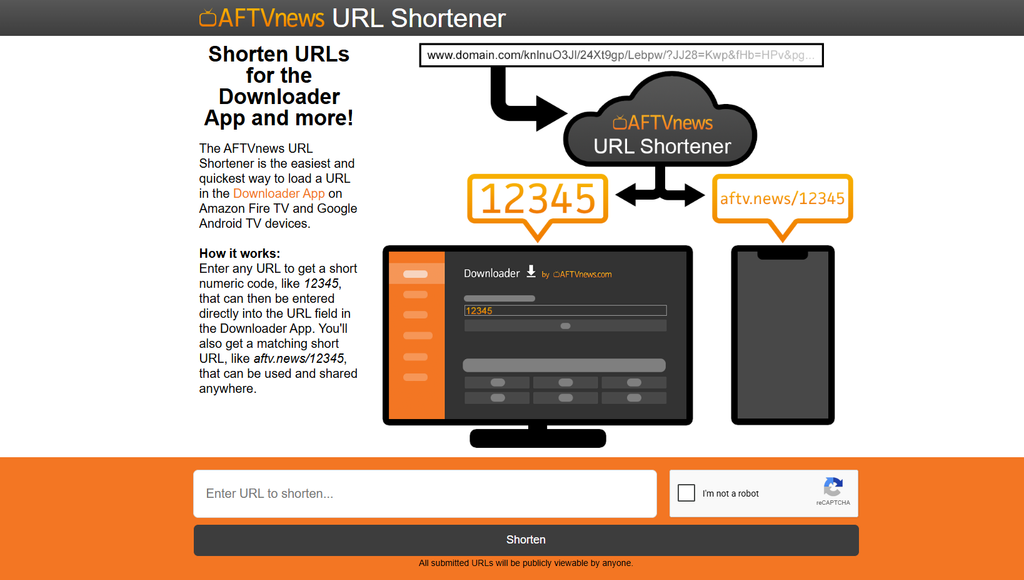
The standalone build is the version you need for:
- Amazon Fire TV / Fire TV Stick
- Devices where the Play Store version is unavailable in your region
- Beta and alpha channel access
For Fire TV specifically: Use the Downloader app (available on the Amazon Appstore) and enter code 774792 to fetch the standalone OTT Navigator build from the official source. Enable “Apps from Unknown Sources” in Fire TV Settings → My Fire TV → Developer Options first.
The standalone build is also the version you need to access beta releases. Go to Settings → About → Update channel within the app and switch to beta or alpha.
Why not APKMirror or other third-party APK sites? Modified APKs circulate that claim to unlock Premium for free. These builds can contain malware, may not receive security updates, and will not provide legitimate Premium activation. The official FAQ and the r/OttNavigator community both identify unofficial builds as a common source of installation problems and crashes.
For a broader look at IPTV app sources for Android, see our IPTV for Android UK guide.
APK safety: What you need to know
Many installation problems start with an unofficial or corrupted APK. Here is what to watch for:
Parse error on install can result from several issues:
- The APK file is corrupted or incomplete (download it again from the official source)
- You downloaded a 64-bit build for a 32-bit device (or vice versa) – use the standalone build from the official source
- The APK is a modified version that has been tampered with
“Cracked” or “Premium unlocked” APKs are not worth the risk. Beyond the security concerns, modified builds may interfere with Premium activation, multi-device sync, backups, and future Premium features.
The OttNav Companion app is the legitimate route to Premium on non-Play-Store devices. Install it on your phone, create an account, purchase device slots, then log in from the OTT Navigator app on your TV device. The Companion app is published by Scillarium Studio SIA on Google Play.
How to add your IPTV playlist
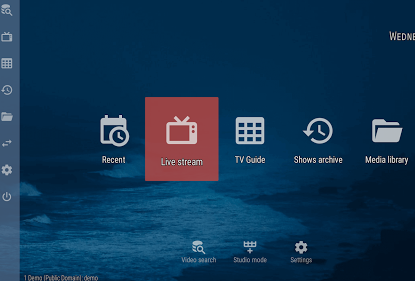
OTT Navigator supports three main provider types. Choosing the correct one depends on the details provided by your IPTV service.
M3U playlist setup
Use this if your IPTV provider gave you a URL ending in .m3u or .m3u8, or a link containing type=m3u_plus.
- Open OTT Navigator → Settings → Provider → Add Provider
- Select Playlist as the template
- Paste your M3U URL in the URL field
- Save and wait for channels to load
If your provider gave you a file rather than a URL: Upload the file to a cloud storage service (Dropbox, Google Drive) and use the direct download link. The official FAQ recommends against using local files, especially on Android TV devices, because Android’s file access restrictions can make this unreliable.
User-Agent issues: Some IPTV providers block requests that don’t match a specific User-Agent string. If your channels load but streams fail with 401 or 403 errors, go to Settings → Provider → (your provider) → Parameters and set the User-Agent to match what your provider expects. As of v1.7.4.1, you can set separate User-Agents for API calls and stream requests.
Xtream Codes setup
Use this if your provider gave you a server URL, username, and password (the URL often contains get.php?username=...&password=...).
- Open OTT Navigator → Settings → Provider → Add Provider
- Select Xtream Codes as the template
- Enter your server URL, username, and password
- Save – the app will pull your channel list, VOD library, and EPG automatically
Xtream Codes can be useful for large channel lists because the app can pull structured data rather than parsing a flat M3U file. If your provider supports both formats, Xtream Codes may be the better choice.
Stalker / MAC portal
If your provider uses a Stalker portal (the URL contains /stalker_portal/c/), select the MAC or Stalker template and enter your portal URL and MAC address. This is less common with UK providers but is supported by the app.
For a full walkthrough of IPTV setup on Fire TV specifically, see our IPTV for Firestick UK guide.
EPG setup: Getting your programme guide working
EPG (Electronic Programme Guide) is the TV schedule data that tells you what is on each channel, now and later. Without it, you are left with a list of channel names and no programme information.
The easy path: Most Xtream Codes providers include EPG data automatically. After adding your provider, go to Settings → EPG → Reload and check the status. If sources are processed and channels are matched, the guide should be ready.
If EPG is missing or incomplete:
- Go to Settings → Provider → (your provider) → Parameters → EPG and enter the EPG URL your provider gave you. This enables matching by both channel name and tvg-id, which is more accurate than name-only matching.
- If you have a separate XMLTV EPG source, add it under Settings → EPG → User-provided. Note that user-provided sources only match by channel name, not tvg-id.
EPG time is wrong: Check your device timezone first. Go to your device’s system settings and confirm the timezone is set correctly for the UK (Europe/London, with BST/GMT switching automatically). If the device timezone is correct but EPG times are still off, use Settings → Extended → System → Time shift (visual) to apply a manual offset.
EPG loads but channels are missing from the guide: This can be caused by a channel name mismatch between your playlist and the EPG source. The tvg-id tag in your M3U file needs to match the channel ID in the EPG XML. If the mapping is incorrect, contact your provider and ask them to verify the tvg-id mapping.
Troubleshooting: Common problems
Buffering and freezing
Buffering in OTT Navigator is often caused by the IPTV provider, internet connection, or device rather than the app itself. Check these causes first:
- Your IPTV provider’s server is overloaded. This can be especially noticeable during peak hours and major sporting events.
- Your internet connection. HD streams typically need 10–15 Mbps sustained; 4K can need 25 Mbps or more. Run a speed test during buffering to rule this out.
- Device-specific codec issues. Try switching codecs in this order: Hardware (compatibility mode) → Hardware (best match) → Software VLC → External player. The app remembers your codec choice per channel.
- Buffer size settings. A smaller buffer can reduce startup delay, while a larger buffer may help on unstable connections. Try different values via Settings → Player → Network → Buffer.
- AmLogic fix. If you are on an AmLogic-based TV box, try disabling the AmLogic fix under Settings → Player → Codec → AmLogic.
EPG not loading
- Check Settings → EPG → Reload and review the status messages
- Verify your device’s time and timezone are correct
- If using a user-provided EPG URL, confirm the URL is accessible from your device’s browser
- Reload EPG after any timezone or time shift changes
Install errors on Fire TV
- Parse error: Download the standalone build fresh from Downloader code 774792. Do not reuse an old APK file.
- “Apps from Unknown Sources” not enabled: Settings → My Fire TV → Developer Options → Apps from Unknown Sources → turn on
- App keeps trying to update: Uninstall and reinstall using the Downloader method if the sideloaded version conflicts with a cached update check.
SSL / certificate errors
If you see “Hostname not verified” or “Chain validation failed” when connecting to your provider:
- Check your device’s date and time – an incorrect clock can cause SSL validation failures
- Ask your provider whether it supports a valid HTTPS connection
- As a last resort: Settings → Difficulty → Expert, then Settings → Extended → System → Ignore invalid SSL, then restart the app. Note that this reduces connection security.
For more general IPTV troubleshooting steps, our IPTV troubleshooting guide covers network diagnostics and common provider errors.
OTT Navigator vs TiviMate vs competitors
OTT Navigator and TiviMate overlap in features, but they suit different priorities.
Full comparison table
| OTT Navigator Premium | TiviMate Premium | IPTV Smarters Pro | Televizo | Sparkle TV Plus | |
|---|---|---|---|---|---|
| Platform | Android only (+ WSA) | Android TV / Google TV | Android, iOS, Windows, Mac | Android | Android TV, Fire TV |
| Free tier | Generous (full playback) | Limited (1 playlist) | Free (basic) | Fully free | Limited |
| Premium price | ~$19.99 lifetime | $9.99/yr or $33.99 lifetime | $17.99/yr or $29.99 lifetime | Free | $7.49/yr or $19.99 lifetime |
| M3U support | ✅ | ✅ | ✅ | ✅ | ✅ |
| Xtream Codes | ✅ | ✅ | ✅ | ✅ | ✅ |
| Stalker / MAC portal | ✅ | ✅ | ✅ | ❌ | ✅ |
| EPG / XMLTV | ✅ Advanced | ✅ | ✅ | ✅ | ✅ |
| Recording / PVR | ✅ (Premium) | ✅ (Premium) | ❌ | ❌ | ✅ (Plus) |
| Multi-screen / PiP | ✅ (up to 20 screens) | ✅ | ❌ | ❌ | ✅ |
| Catch-up / archive | ✅ | ✅ | ✅ | ✅ | ✅ |
| Multiple playlists | ✅ (Premium) | ✅ (Premium only) | ✅ | ✅ | ✅ |
| UI style | Dense, highly configurable | Clean, cable-box style | Simple, modern | Simple | Clean |
| Learning curve | High | Low–Medium | Low | Low | Low–Medium |
| iOS support | Separate app | ❌ | ✅ | ❌ | ❌ |
| TMDB integration | ✅ (v1.7.4.1+) | ❌ | ❌ | ❌ | ❌ |
| Google Assistant search | ✅ (v1.7.3.3+) | ❌ | ❌ | ❌ | ❌ |
OTT Navigator vs TiviMate: The honest breakdown
TiviMate wins on: Interface polish, ease of setup, remote-friendly navigation, and the cable-box-like experience that many living-room viewers expect. If someone in your household is not technically confident, TiviMate is the safer choice. The UI is clean, the EPG grid is strong, and setup is generally straightforward.
OTT Navigator wins on: Multi-provider management, playlist format support (M3U, Xtream, Stalker, XSPF, SAT.txt, and more), Studio mode with up to 20 simultaneous screens, TMDB metadata integration, per-channel codec settings, and the depth of customisation available to power users. If you are managing multiple IPTV subscriptions or need granular control over how streams are decoded, OTT Navigator is the more capable tool.
The community view (from r/TiviMate and r/OttNavigator) generally describes TiviMate as better for watching TV and OTT Navigator as better for managing IPTV. The choice depends on whether you prioritise simplicity or control.
IPTV Smarters Pro is the cross-platform option – it runs on iOS, Windows, and Mac in addition to Android. If you need one app across multiple device types, Smarters is worth considering, though it lacks recording and multi-screen features.
Televizo is entirely free and handles the basics well. It is a reasonable starting point if you do not want to commit to a paid player.
Sparkle TV Player is a strong competitor for Android TV and Fire TV users who want a polished interface with Plex and Jellyfin support alongside IPTV. Its Plus tier is competitively priced.
For a broader comparison of IPTV apps available in the UK, see our IPTV apps guide.
Who should use OTT Navigator Premium?
OTT Navigator Premium makes sense if you match one or more of these:
- You manage multiple IPTV providers and need to combine their channel lists, manage duplicates, and switch between them quickly
- You want Studio mode – watching multiple streams simultaneously, such as sports and news
- You need recording and your provider supports timeshift or DVR
- You are technically comfortable with settings menus and willing to spend time on initial configuration
- You want TMDB metadata for a richer media library experience with your VOD content
- You are setting up for multiple household members and need per-user profiles with PIN protection
- You run a reseller or white-label setup – OTT Navigator has a subaccount API for managing client device slots
The free version is sufficient if you have a single provider, do not need recording, and can tolerate interface ads.
Who should choose something else?
If simplicity matters more than advanced control, another player may be a better fit.
- Choose TiviMate if you want a clean, cable-box-style interface that non-technical family members can use without a tutorial
- Choose IPTV Smarters Pro if you need the same app on iOS, Windows, or Mac alongside Android
- Choose Televizo if you want a completely free player with no ads and no premium tier to think about
- Choose Sparkle TV Player if you are on Android TV or Fire TV and want native Plex/Jellyfin integration alongside IPTV
OTT Navigator may not be the right choice if navigating a large settings menu feels overwhelming. The app rewards users who want deeper configuration rather than a plug-and-play experience.
If you are evaluating IPTV services to pair with these players, our best IPTV UK guide covers UK-focused providers with trial options.
A note on legality
OTT Navigator itself is a media player. It plays streams that you provide. The legality of the content depends on the source of your IPTV playlist.
Streams from legitimate providers that hold the appropriate licences for the content they distribute are legal to watch. Streams from unlicensed sources that redistribute Sky Sports, BT Sport, or other premium channels without authorisation are not legal, regardless of which player you use.
The app does not determine whether the streams you add are licensed. That responsibility sits with the user. Our guide to IPTV legality in the UK explains the relevant law and how to identify legitimate providers.
Final verdict
OTT Navigator Premium is one of the most feature-rich IPTV players available on Android in 2026. The free tier is more generous than many competitors, while Premium adds features such as ad removal, multi-device support, recording, and Studio mode.
The main caveat is the learning curve. The interface is dense, the settings menu is extensive, and the initial configuration can take time. Users who want a simple setup will likely prefer TiviMate or Televizo.
If you want an IPTV player that can handle multiple providers, large channel lists, complex EPG setups, multi-screen viewing, and a VOD library with metadata, OTT Navigator Premium is a strong option. Its continued development, including the January 2026 v1.7.4.1 release, also indicates ongoing maintenance.
Bottom line: Start with the free version. Connect your provider and configure your EPG. If you need more features, such as additional screens, no ads, or recording, Premium may be worth the upgrade.
Frequently Asked Questions
Does OTT Navigator provide TV channels?
No. OTT Navigator is a player only. It has no content of its own. You need an IPTV subscription from a separate provider, which gives you an M3U URL or Xtream Codes login. You enter those credentials into OTT Navigator, and the app plays the streams.
What is the difference between OTT Navigator free and Premium?
The free version gives you live TV playback, VOD, EPG, search, and favourites with interface ads. Premium removes ads, unlocks unlimited playlists, enables multi-device use (up to 5 devices per standard package), and unlocks recording and Studio mode, subject to provider limitations.
How do I activate Premium on a Fire TV Stick?
Install the OttNav Companion app on your Android phone. Create an account, purchase device slots, then open OTT Navigator on your Fire TV, go to Settings → Premium, and log in with the same account. Use the Add Device button if your Fire TV is not automatically listed.
What is the current version of OTT Navigator?
Version 1.7.4.1, released 2 January 2026. Key additions include TMDB integration, mass channel tagging, DVR/timeshift for live streams, and improved DRM support.
Why is my EPG showing the wrong times?
Check your device timezone first. Go to your device’s system settings and set the correct timezone (Europe/London for UK viewers). After correcting the timezone, go to Settings → EPG → Reload in OTT Navigator to refresh the guide data.
Is OTT Navigator safe to install?
Install it from official sources such as Google Play or the official standalone build. Avoid modified APKs that claim to unlock Premium for free, as they can introduce security risks and interfere with legitimate Premium activation. Keep Android security protections enabled when sideloading.
Does OTT Navigator work on Samsung or LG Smart TVs?
No. Samsung uses Tizen and LG uses webOS, so these TVs do not run Android apps directly. The recommended solution is to attach a compatible Android TV or Fire TV device via HDMI.
OTT Navigator vs TiviMate: which should I choose?
TiviMate is better if you want a clean, simple interface that is easy for the whole household to use. OTT Navigator is better if you manage multiple IPTV providers, want Studio mode for multi-screen viewing, or need deeper customisation. Both support common IPTV formats and features, but the exact capabilities depend on the app version and provider.
Can I use OTT Navigator on multiple devices?
Yes, with Premium. The standard package covers 5 devices linked to a single OttNav account. Manage your devices via the OttNav Companion app. You can purchase additional device slots if needed.
What should I do if streams keep buffering?
Start by checking your IPTV provider and internet connection, as these are common causes. Then try switching codecs via Settings → Player → Codec. Adjusting the buffer size via Settings → Player → Network → Buffer can also help depending on your connection.